Creating Product Images
Product image agents generate AI images for your Amazon listings. They create consistent, high-quality product photos in various styles.
Using Product Image Agents
To create product images with AI agents, proceed as follows:
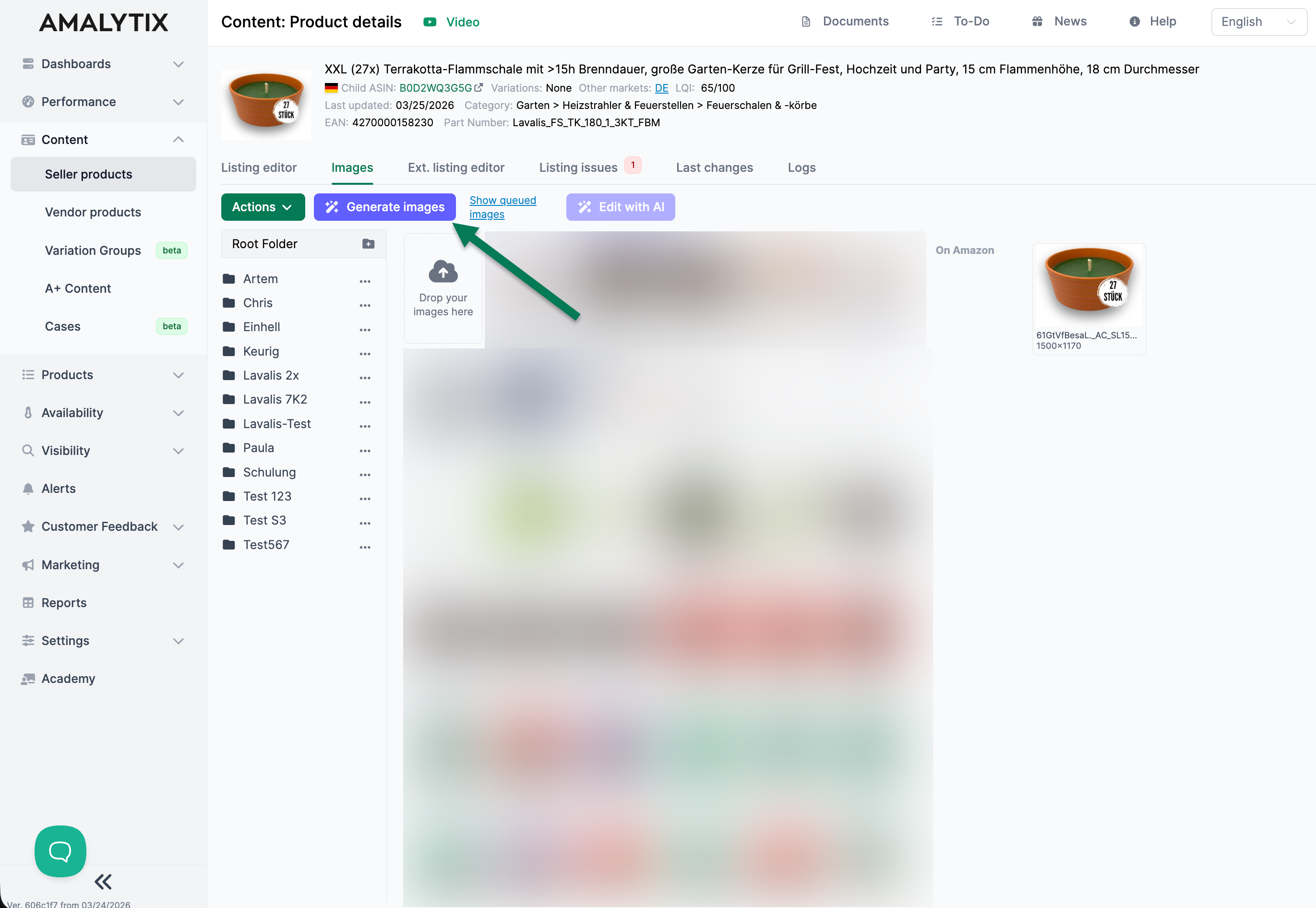
- Open Content and click on a product
- Switch to the Images tab
- Click Generate Images
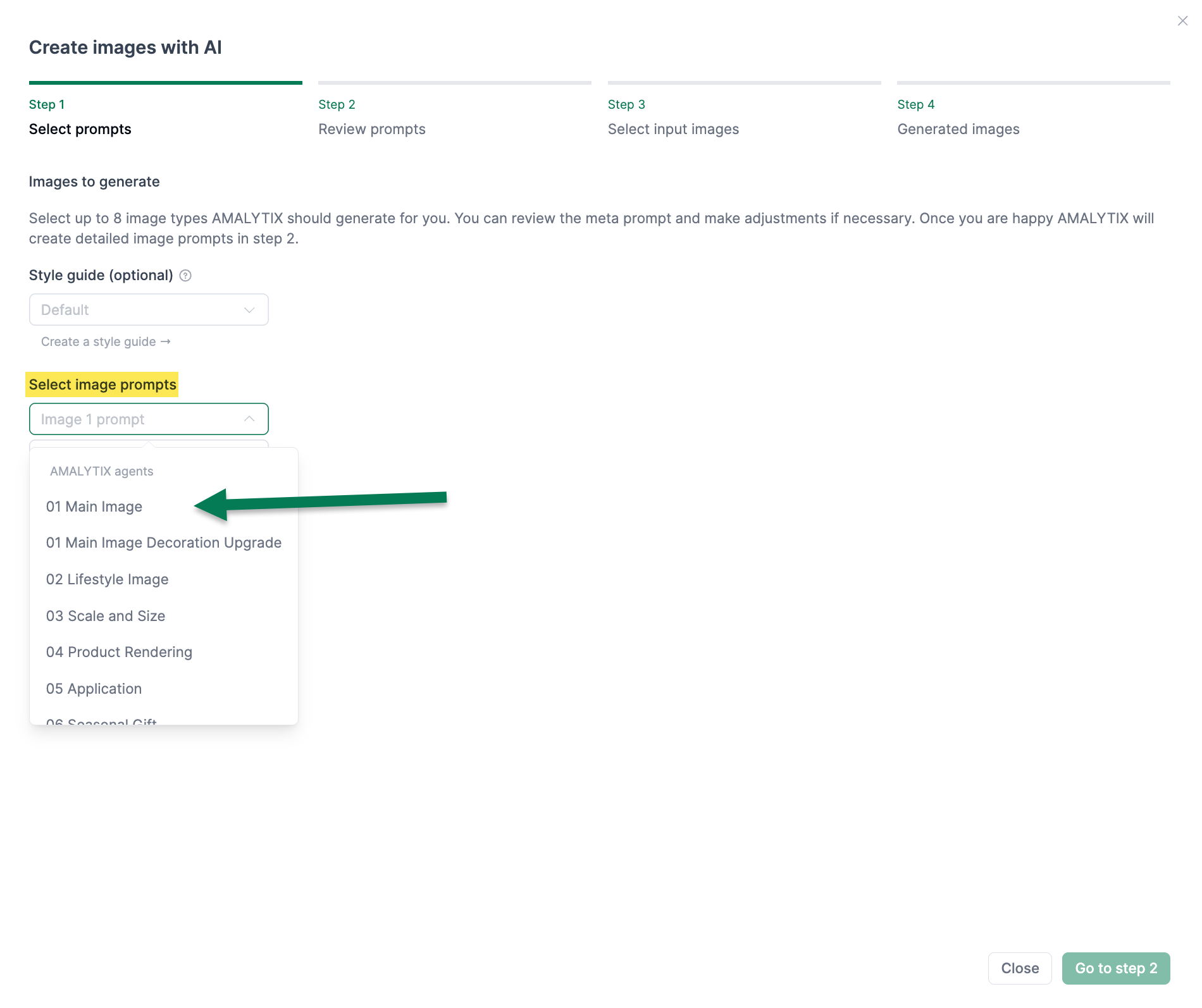
 4. Select a prompt and follow the 4-step process
The image generation process: Follow these steps for image generation:
- Step 1: Select prompt and add details if needed
- Step 2: Review generated prompt and adjust
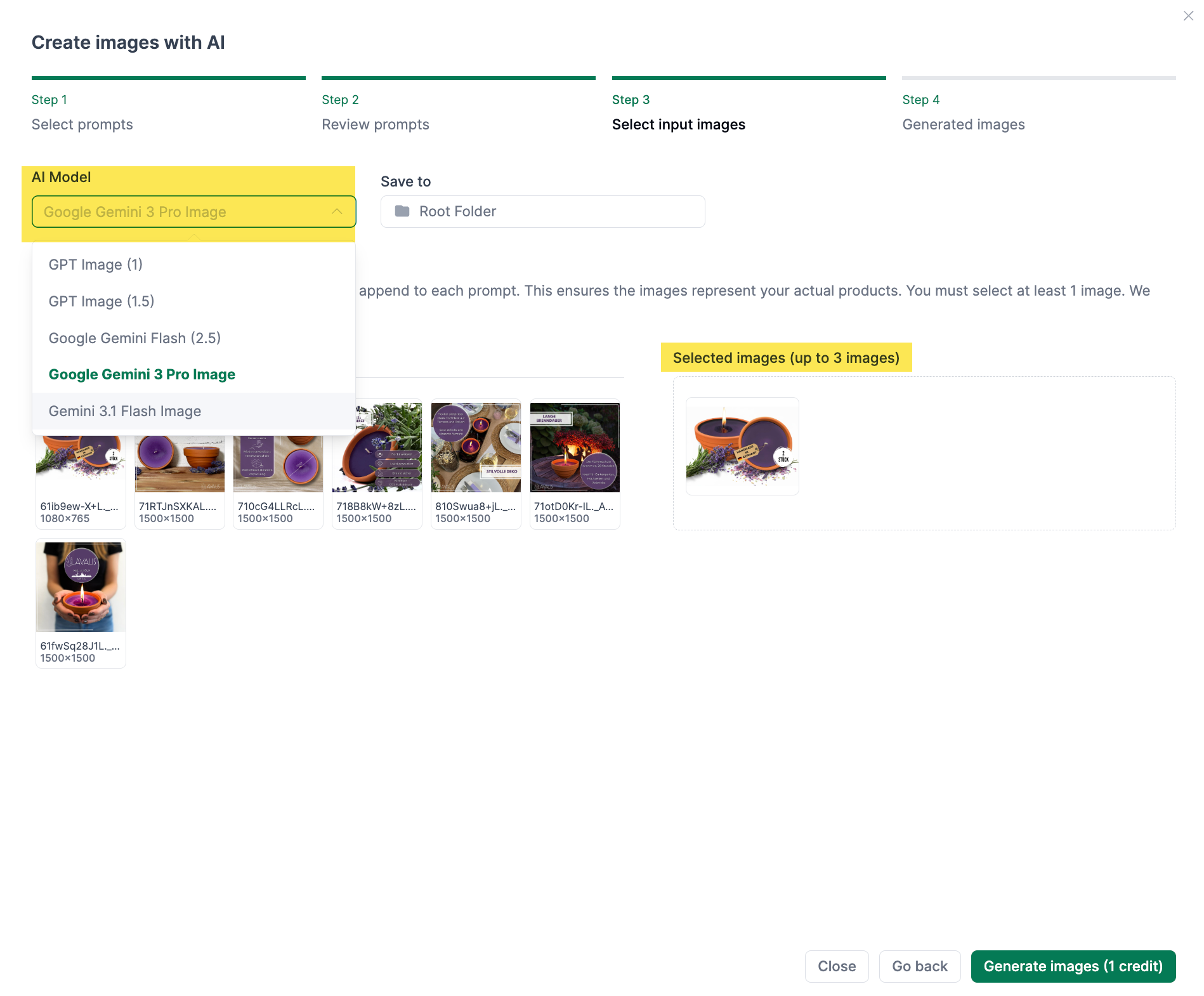
- Step 3: Upload reference images (ideally the main image) and choose AI model
- Step 4: View and save finished images
Predefined Product Image Agents
Under Settings > Agents, you will find predefined prompts for image generation that you can select when creating images:
| Agent | Description |
|---|---|
| 01 Main Image | Main image according to Amazon guidelines |
| 02 Lifestyle Image | Product in a realistic environment |
| 03 Scale and Size | Size ratios and dimensions |
| 04 Product Rendering | Photorealistic product image |
| 05 Application | Product in use |
| 06 Seasonal Gift | Seasonal representations (e.g., Christmas) |
| 07 Macro Detail Shot | Detail shots and textures |
| 08 Infographic | Explanatory images with text and icons |
| 09 Empty Prompt | Empty prompt for custom design |
| 10 Image Concept | Creative image concepts based on product features |
Customizing the Prompt
Product image agents use placeholders that are automatically replaced with actual product data when the agent runs. You can customize this prompt using the placeholders in the agent editor.
Available Placeholders
| Placeholder | Description |
|---|---|
{current_title} | Current product title |
{current_description} | Current product description |
{current_bullet_points} | Current bullet points |
{current_generic_keywords} | Current generic keywords |
{snapshot_title} | Title in the snapshot |
{snapshot_bullet_points} | Bullet points in the snapshot |
{snapshot_description} | Description in the snapshot |
{snapshot_generic_keywords} | Generic keywords in the snapshot |
{snapshot_researched_keywords} | Researched keywords in the snapshot |
Image Style Guides
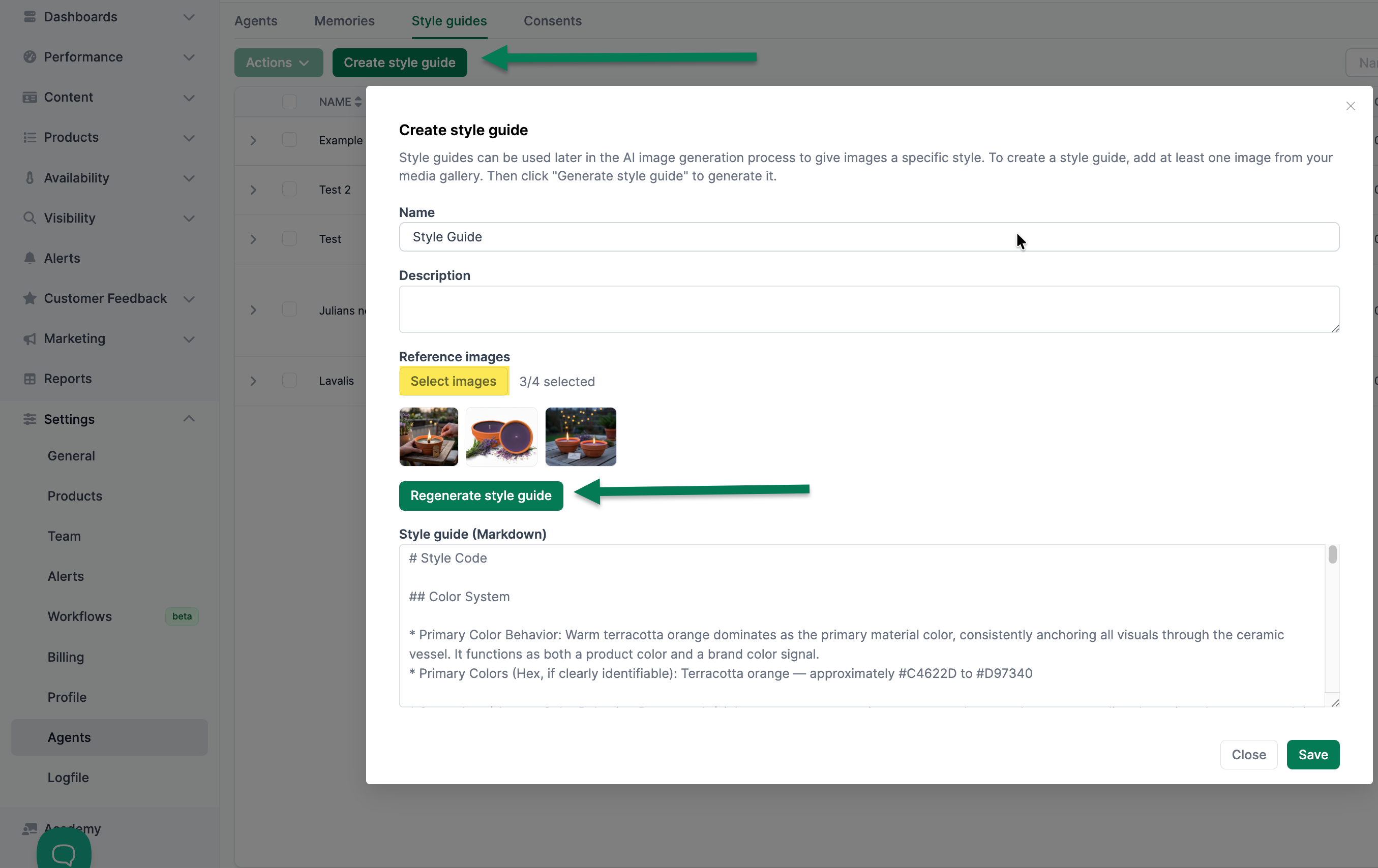
Image style guides ensure that your AI-generated product images maintain a consistent visual style. When creating a style guide, an agent analyzes your existing reference images and derives rules for colors, backgrounds, lighting, composition, and more.
In this video, we show you how to create and apply style guides:
What Is an Image Style Guide?
An image style guide is an AI-generated ruleset that describes the visual style of your product images. It is created from 1-4 reference images and covers the following areas:
- Color system — Primary, secondary, and accent colors
- Background — Type, color, and texture of the background
- Typography — Font styles and sizes (if present)
- Iconography and graphics — Icons, shapes, and graphic elements
- Layout and composition — Arrangement and proportions
- Imagery style — Photography style, perspective, and focus
- Lighting and mood — Light sources, shadows, and atmosphere
- Surfaces and textures — Materials and tactile qualities
- Brand personality — What values and emotions the images convey
Creating a Style Guide
- Go to Settings > Agents > Image Style Guides
- Click Create New Style Guide
- Upload 1-4 reference images that represent your desired style
- The AI analyzes the images and generates a detailed style description
- Review and edit the generated description as needed
- Save the style guide with a descriptive name
Using Style Guides
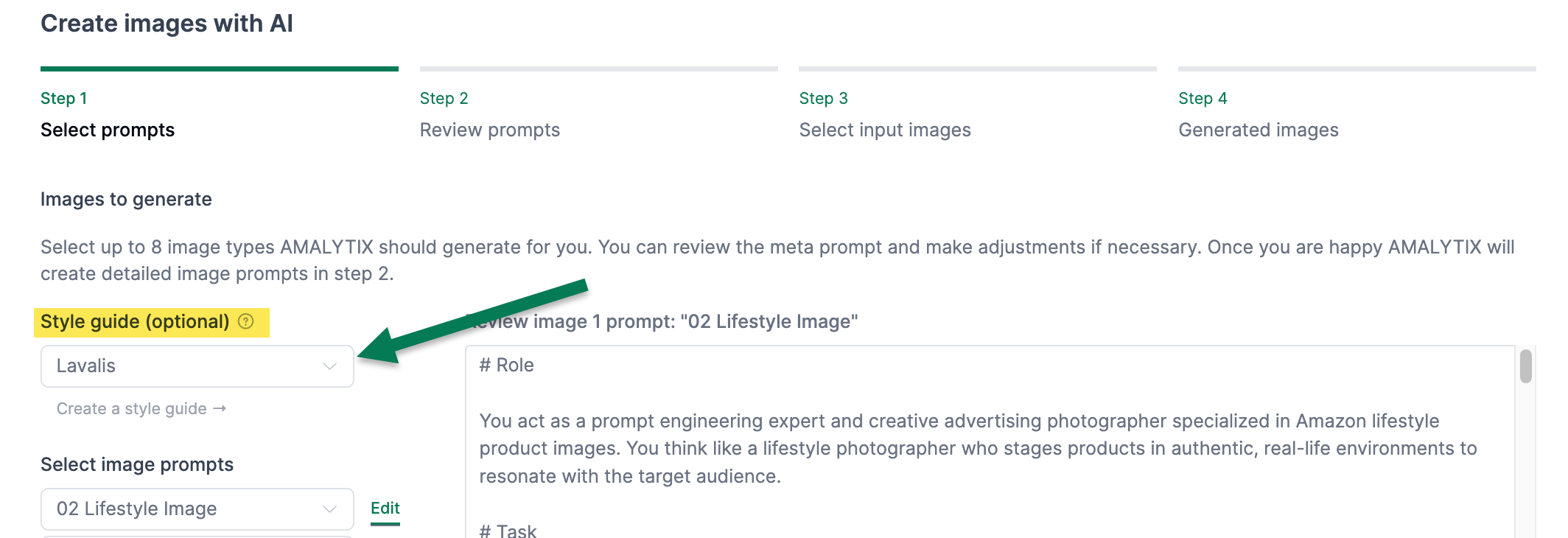
When generating product images, you can select a style guide. The image generation agent will then follow the style guide rules to produce visually consistent results.
Editing Images with AI
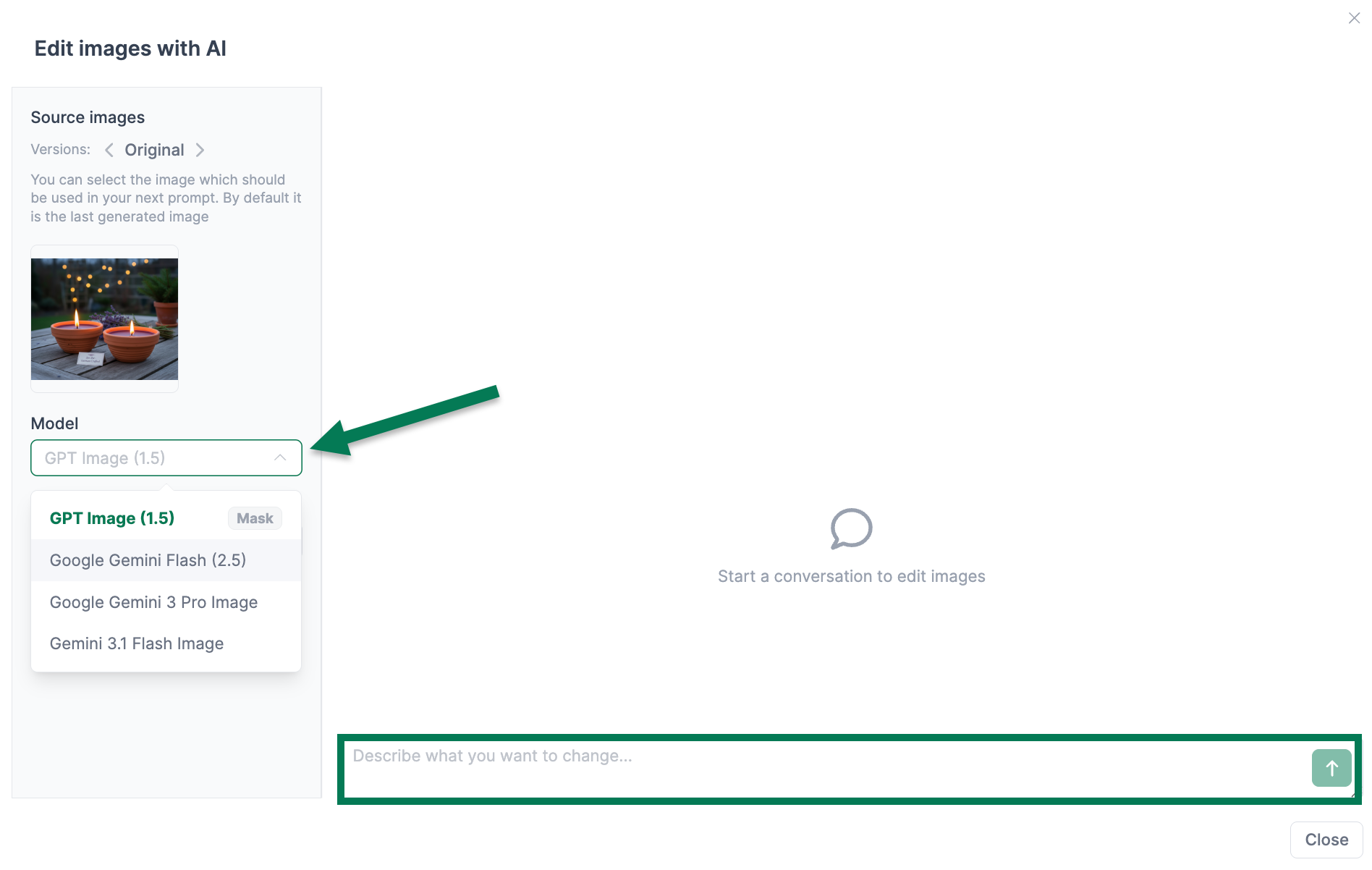
You can also find the agent for editing images in the Images tab.
In this video, we show you how to edit images with AI:
Select an image and click Edit with AI to customize AI-generated images with the agent.
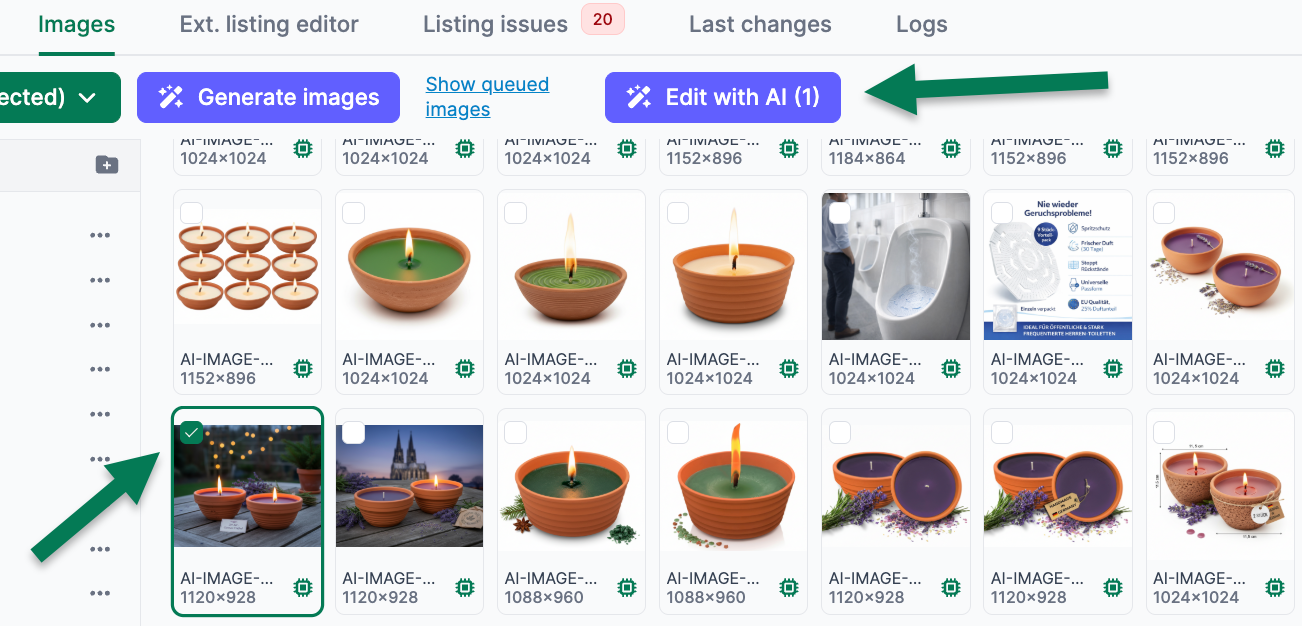
Select the AI model and define the desired adjustments.