General
Under Settings > General, you can configure your AMALYTIX account. The settings are divided into five tabs:
- Account details - Personal details, display name, billing address, and preferences
- Amazon APIs - Connection to your Amazon accounts
- VAT - Value-added tax configuration
- Other - Buybox monitoring and additional options
- Apps - Integration with external tools
Account Details
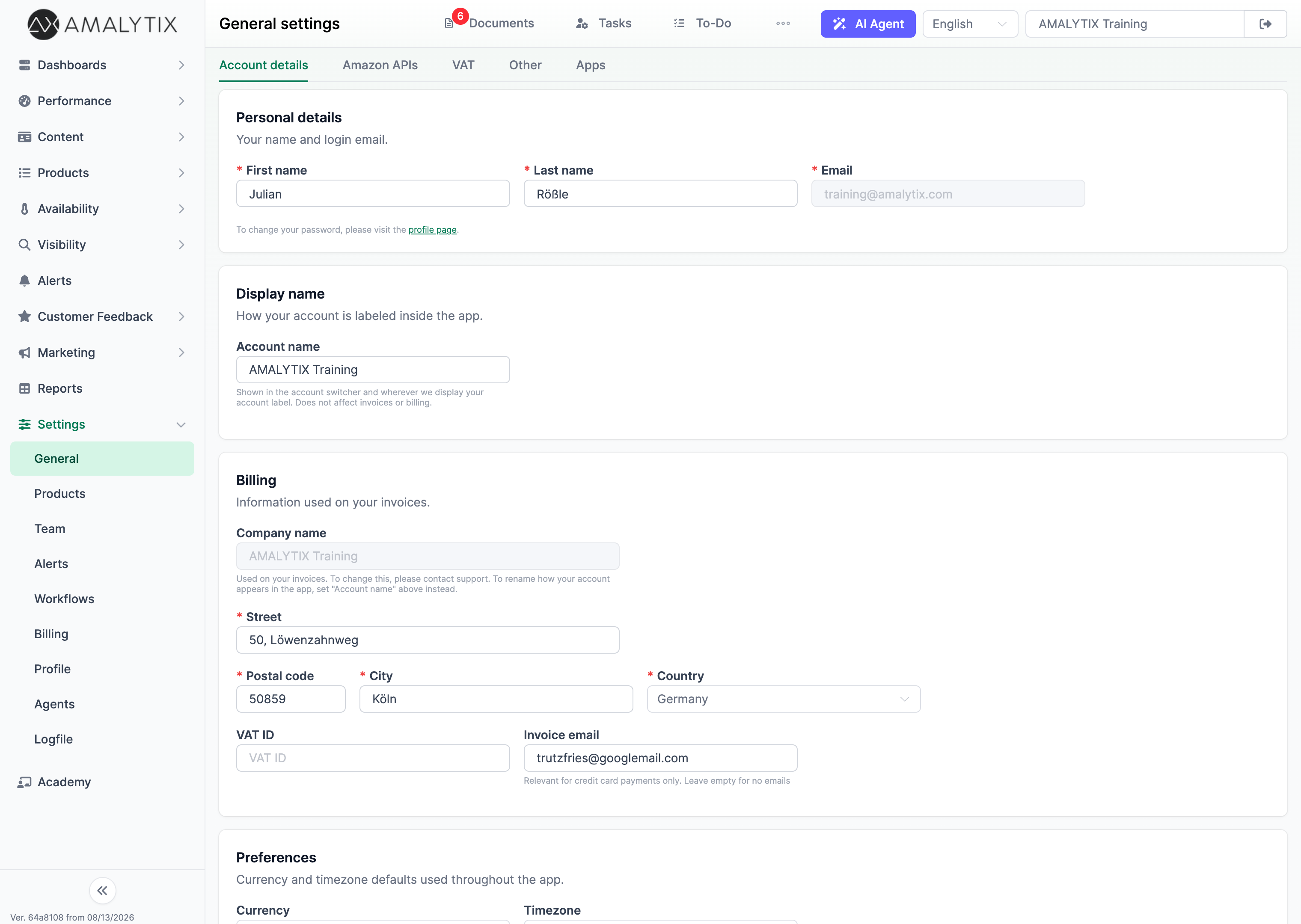
In the Account details tab, you manage personal details, how your account is labeled in the app, billing information for invoices, and preferences such as currency and timezone.
The following information can be managed here:
- First and last name, and login email
- Account name (display name in the app)
- Company name, street, postal code, and city
- Country
- VAT ID (optional)
- Invoice email (for credit card payments)
- Currency and timezone
Amazon APIs
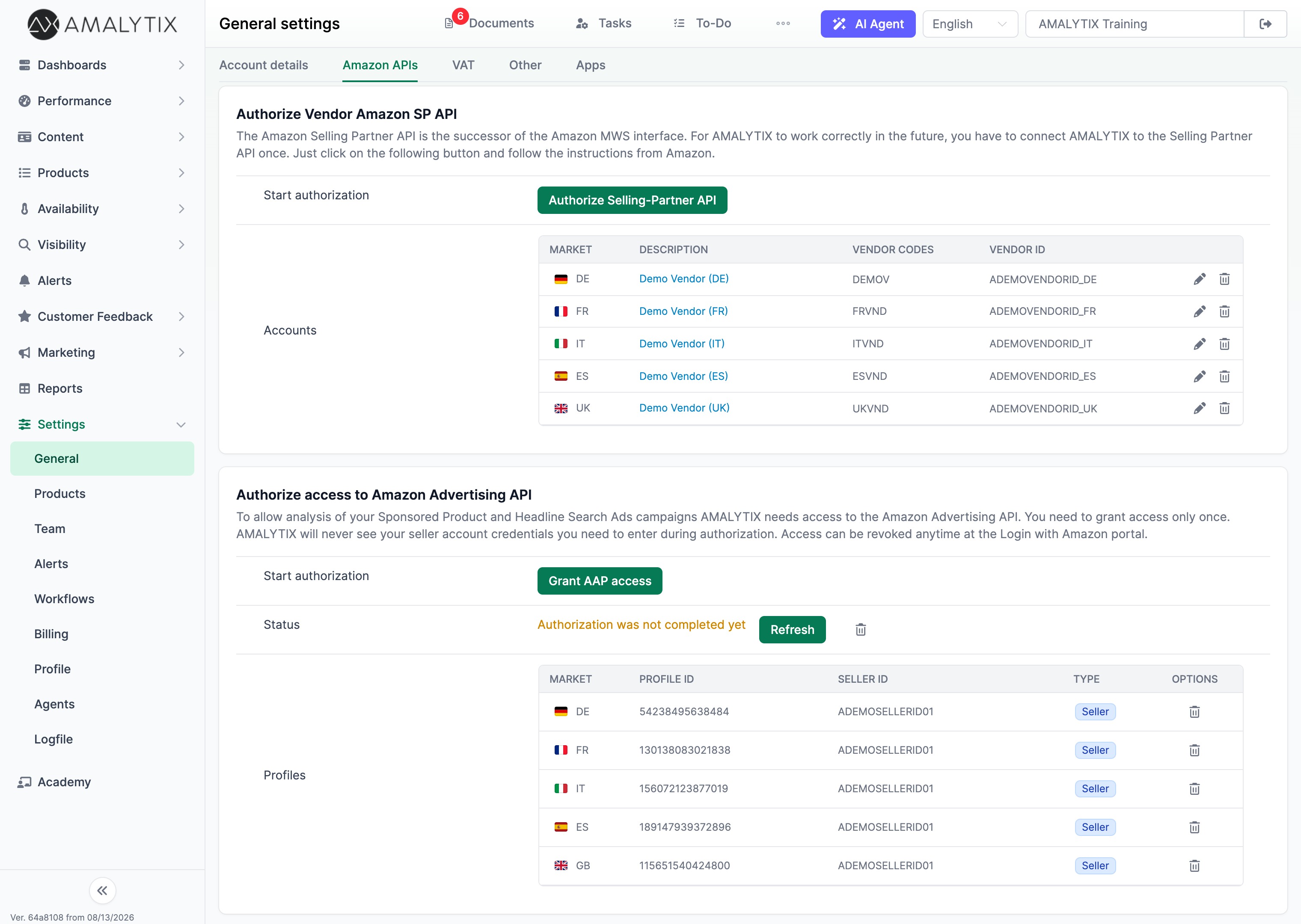
Connecting Seller and Vendor Accounts with the Selling Partner API
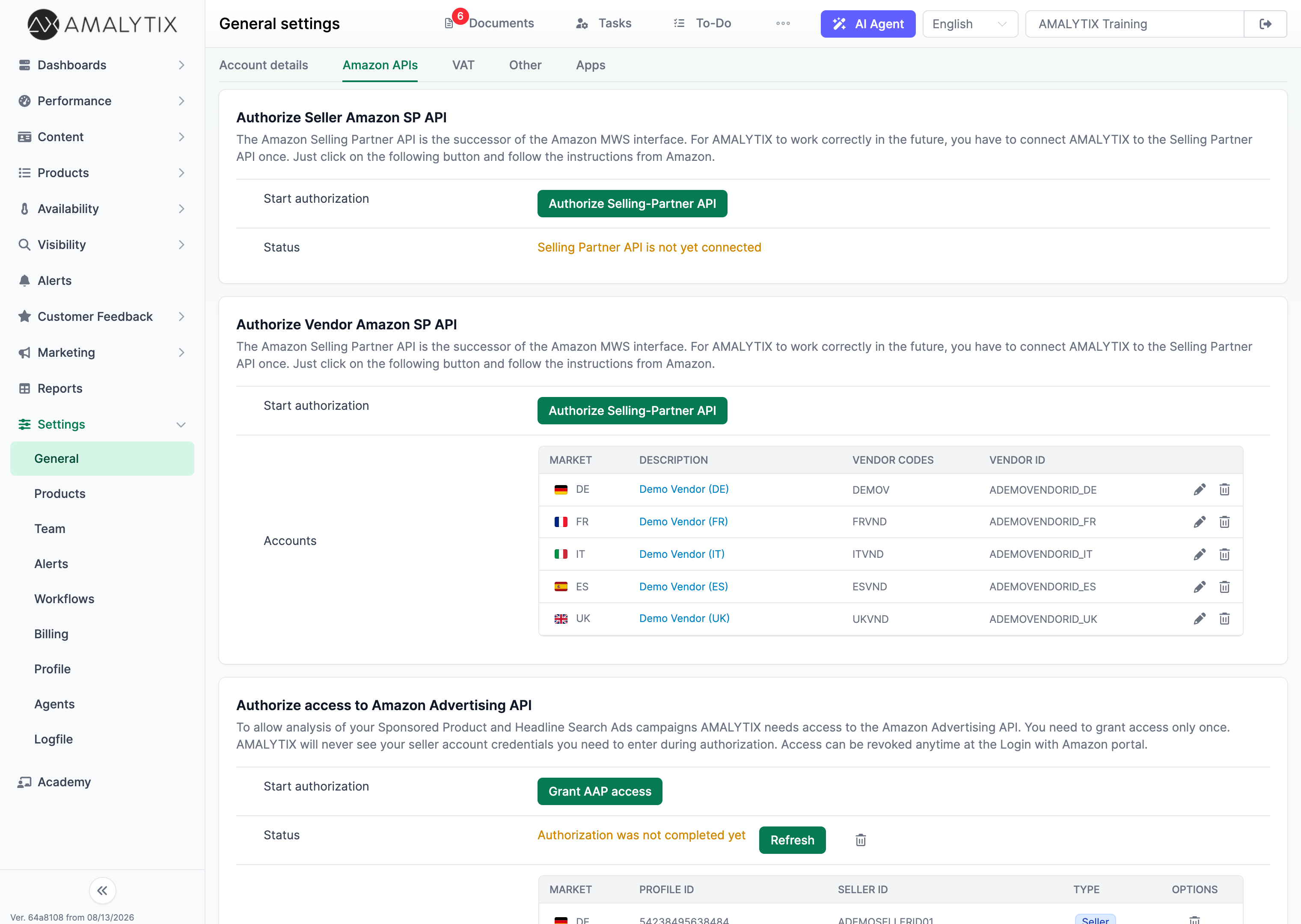
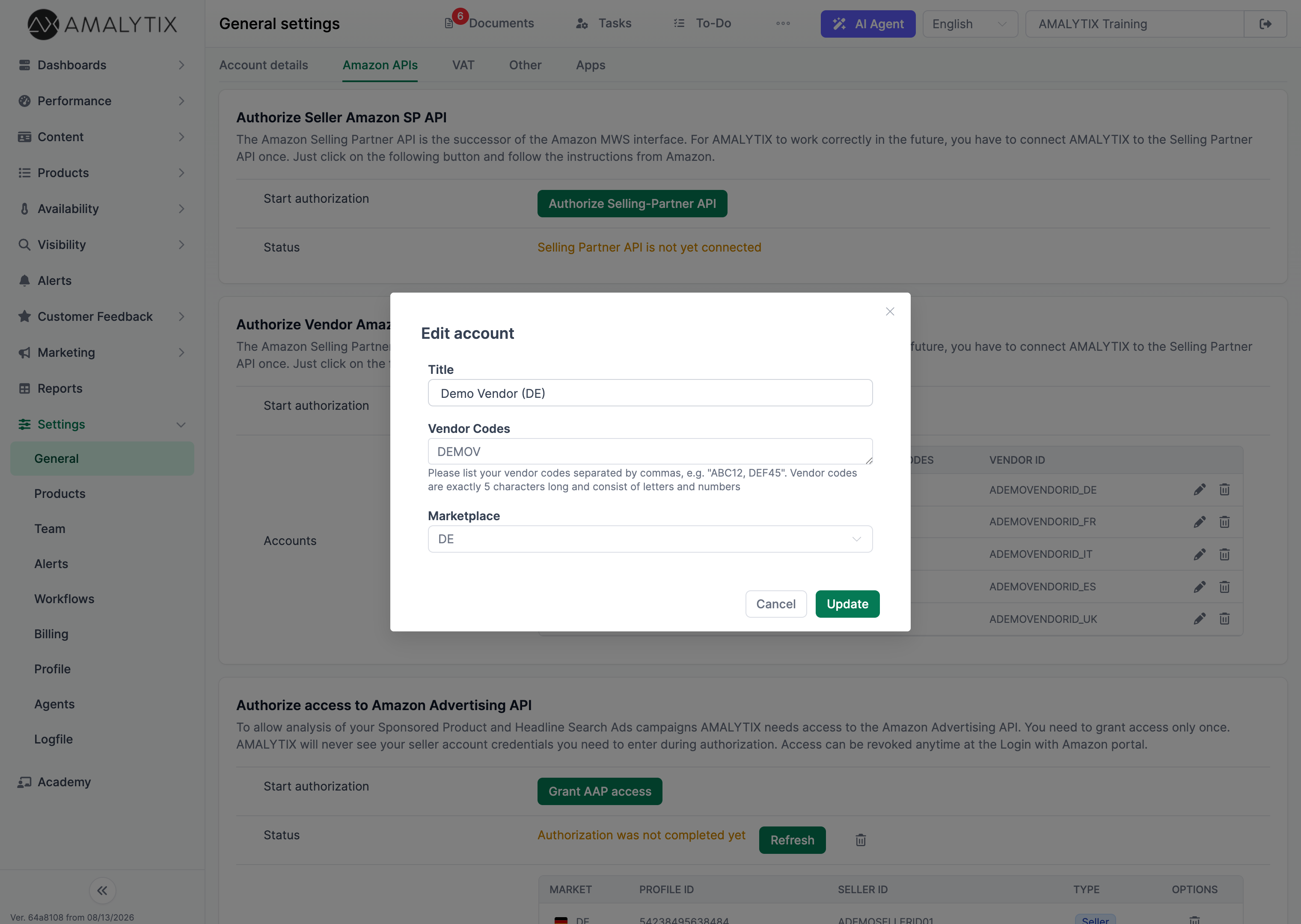
To retrieve your product, order, and financial data from Amazon, AMALYTIX must be connected to your Seller or Vendor account.
How to establish the connection:
- Click the button to connect with the Selling Partner API
- Log in to your Amazon Seller/Vendor Central
- Confirm the authorization for AMALYTIX
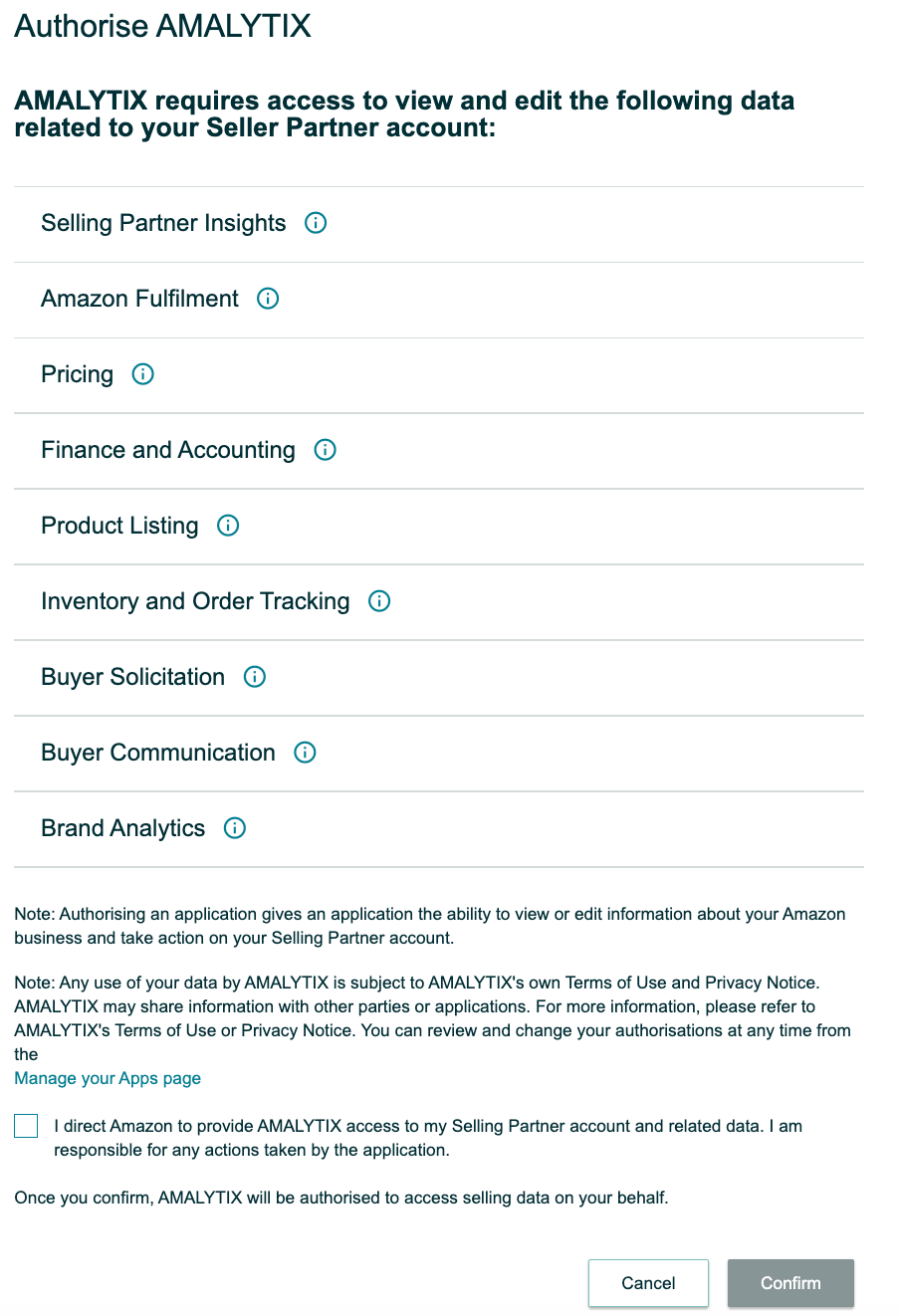
After logging in, you will be redirected to a confirmation page:
Amazon Advertising API
To analyze your advertising campaigns (Sponsored Products, Sponsored Brands, Sponsored Display), AMALYTIX needs access to the Amazon Advertising API.
Benefits of the connection:
- Analysis of advertising spend and revenue
- Calculation of ACoS and ROAS
- Linking of advertising and sales data
Important notes:
- AMALYTIX never receives your Amazon credentials
- You can revoke access at any time via the “Login with Amazon” portal
VAT Rates
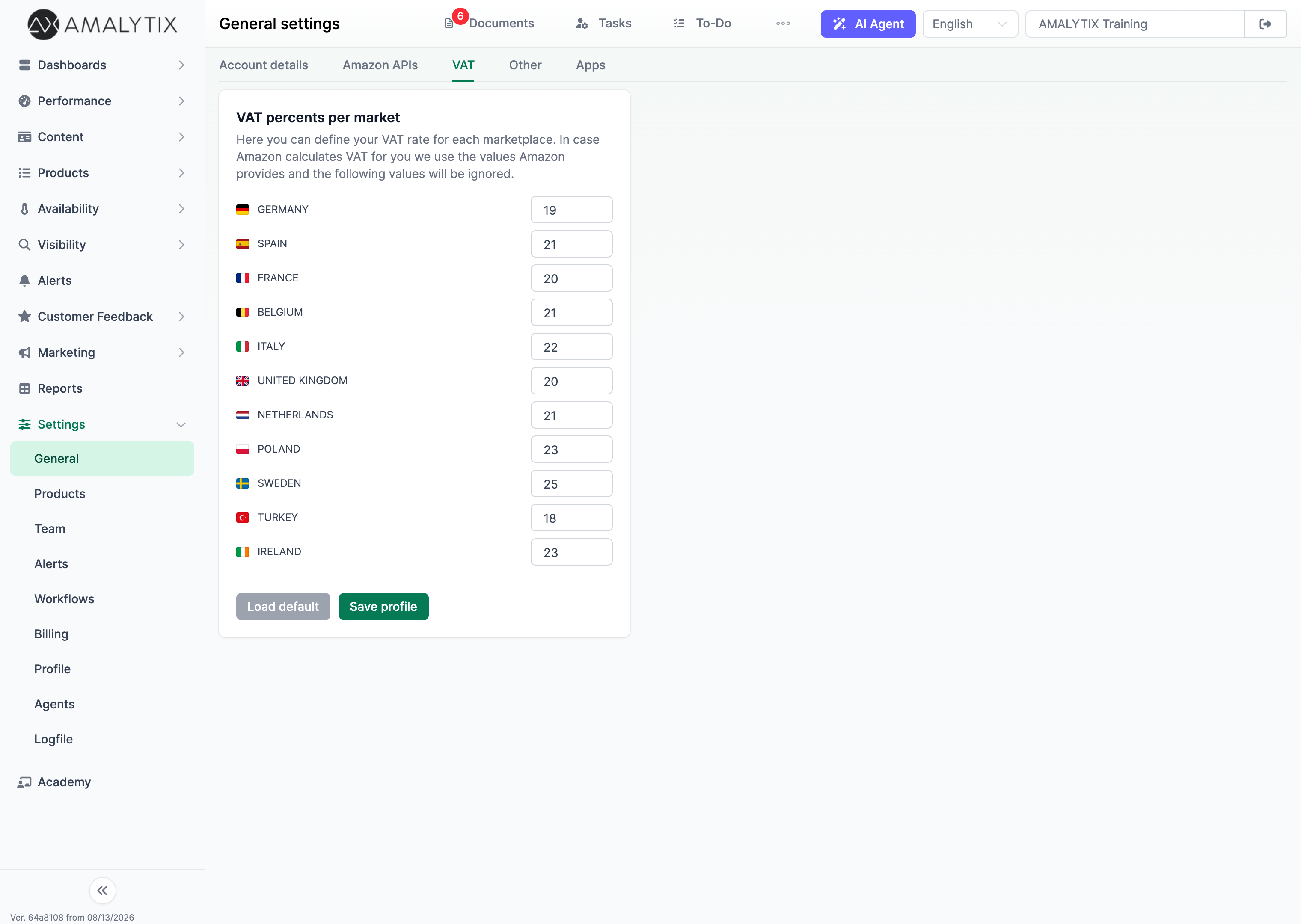
Here you define which VAT rates should apply to which marketplace. This setting is relevant for the correct calculation of your net revenues.
Other
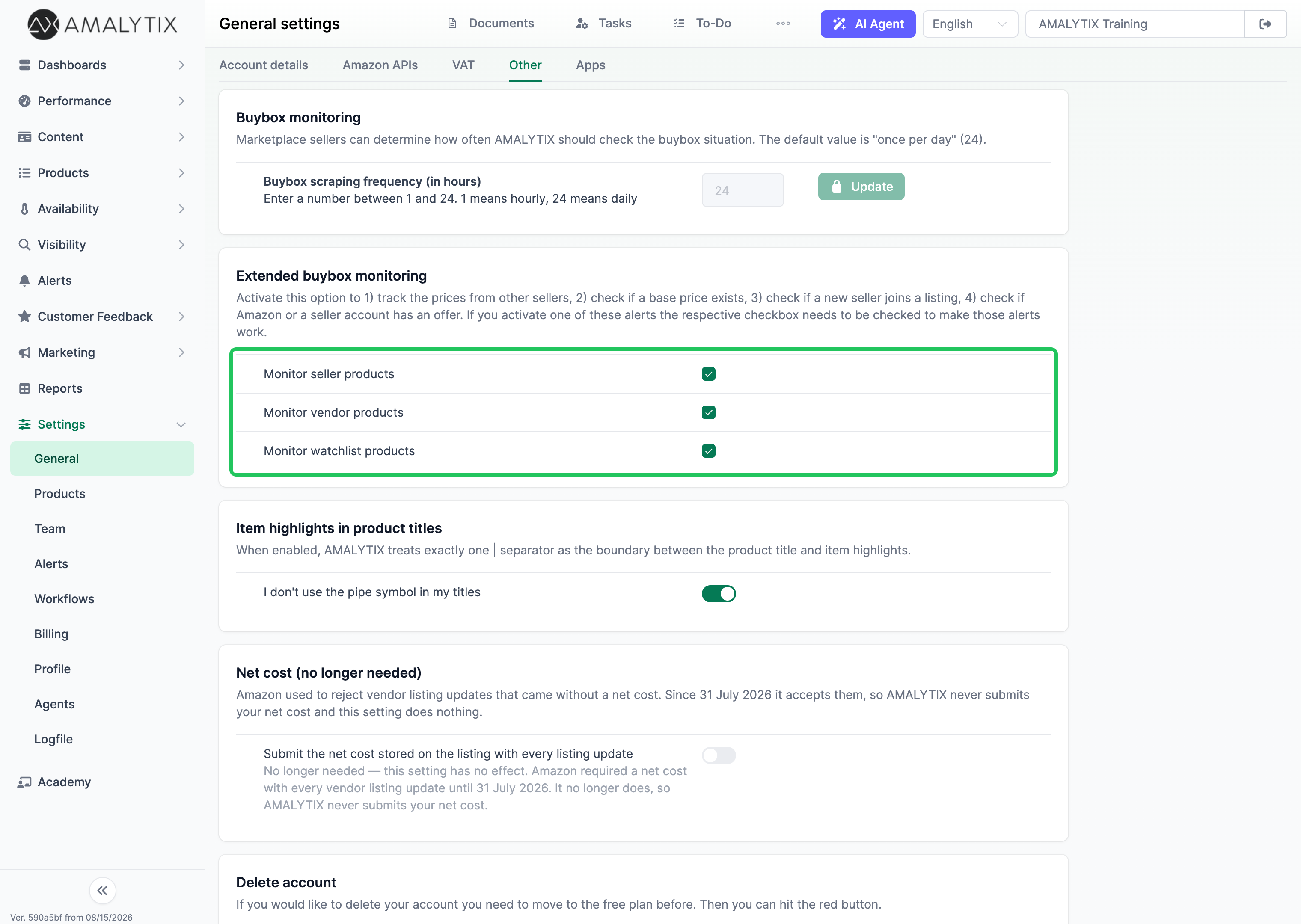
Buybox Monitoring
Control how frequently AMALYTIX checks the Buybox of your products.
- Default value: Every 24 hours (once daily)
- Minimum value: 1 (hourly check)
- Maximum value: 24 (once daily)
More frequent checks help you detect Buybox losses faster.
Extended Buybox Monitoring
With this feature, you monitor not only your own Buybox but also the activities of other sellers on your products.
This feature enables:
- Monitoring prices of other sellers
- Checking for existing base prices
- Detecting new sellers on your listings
You can enable monitoring for seller products, vendor products, and watchlist products.
GDPR
To conclude a data processing agreement in accordance with GDPR, download the provided document, sign it, and send it to info@amalytix.com. You will receive a countersigned copy in return.
Connect Apps
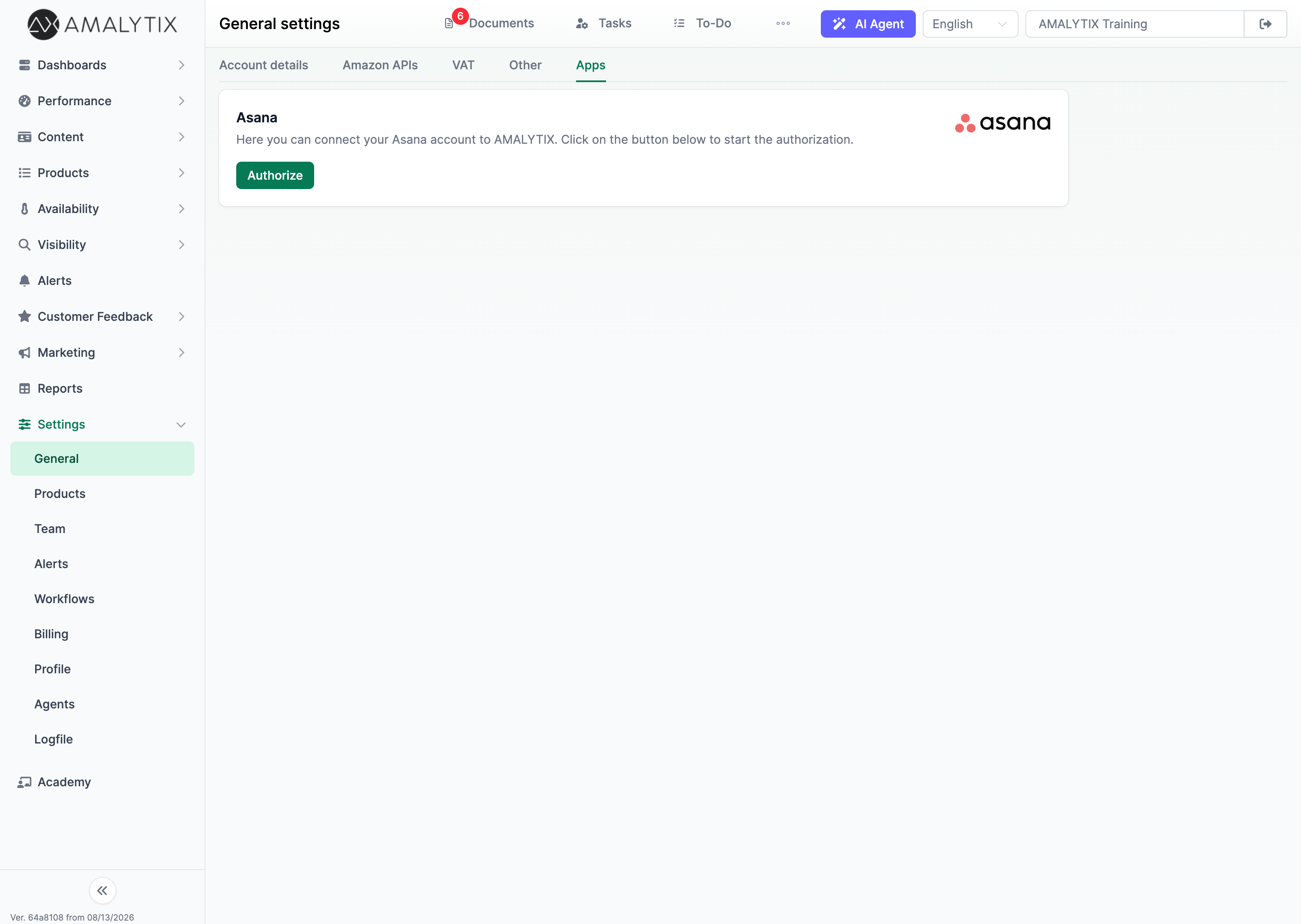
AMALYTIX can be connected to external project management tools. Currently, Asana is supported.
Benefits of the Asana integration:
- Create tasks directly from AMALYTIX alerts
- Automatically transfer relevant product information
- Track the processing of alerts in your familiar workflow
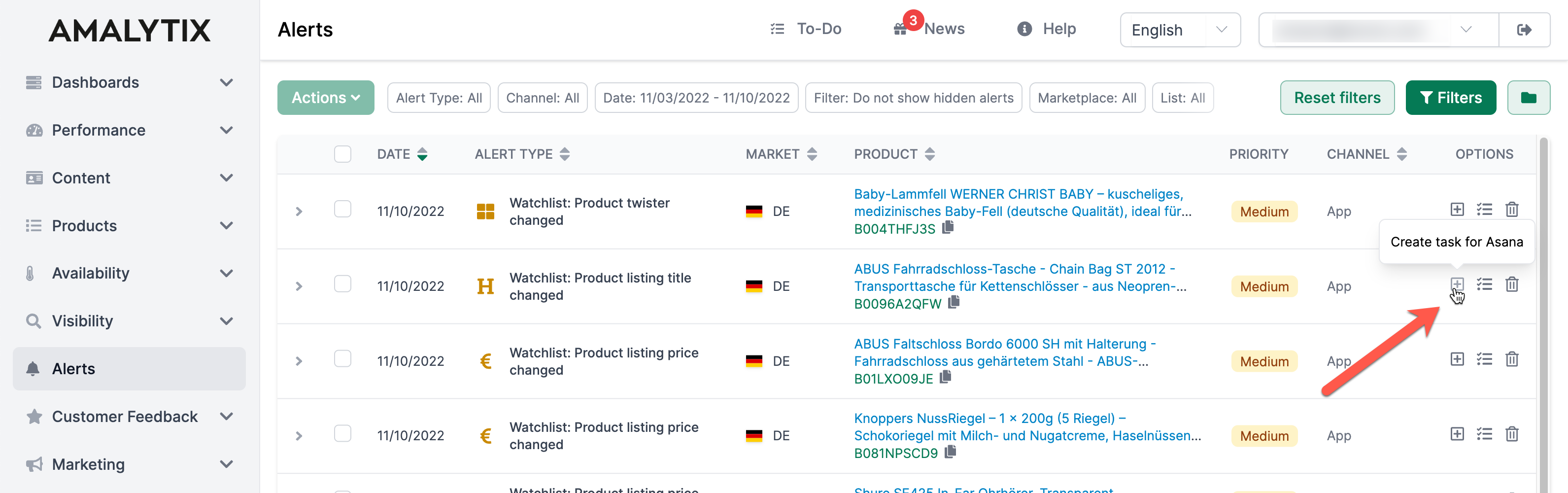
Transfer Alerts to Asana
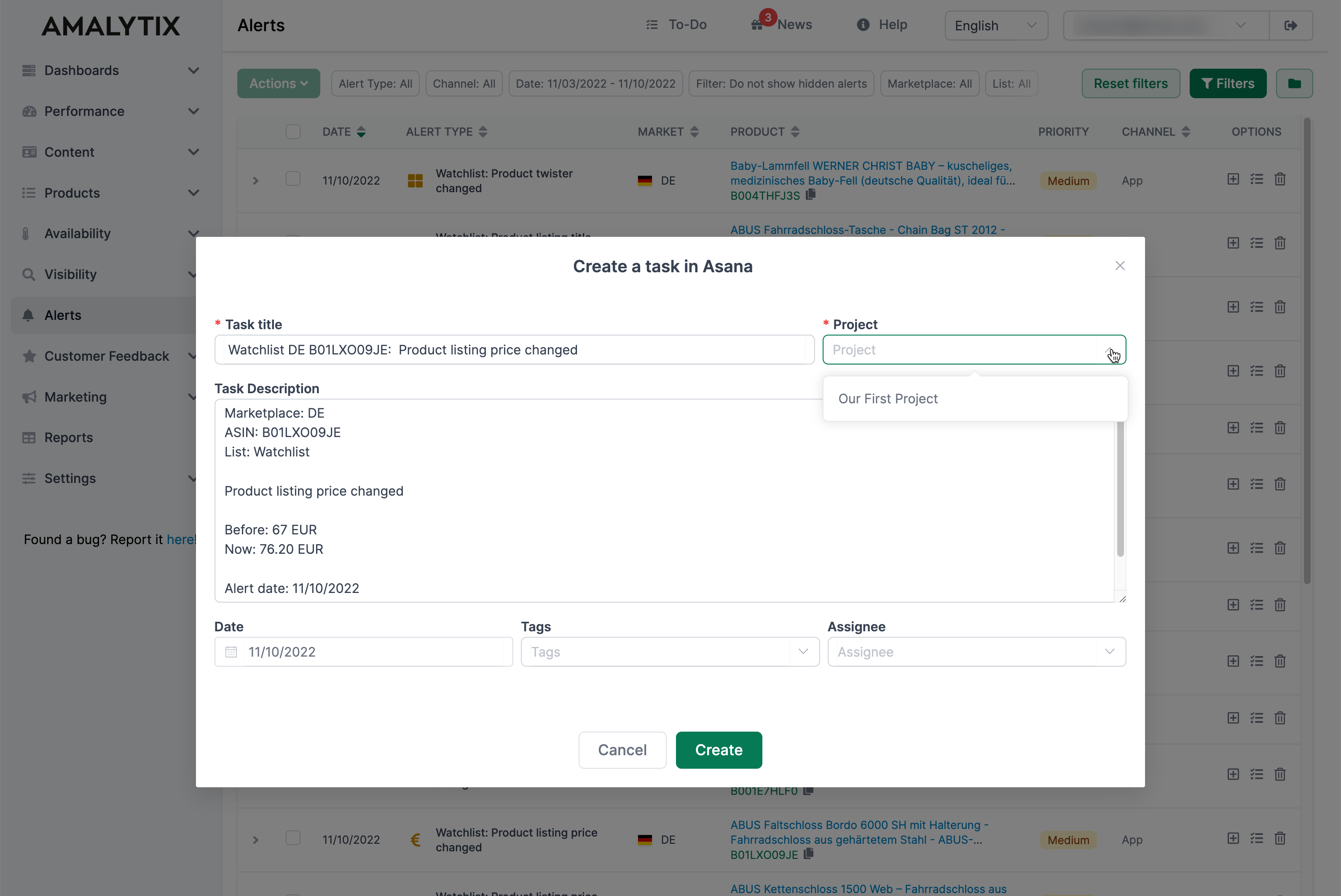
Once the connection is set up, you can send alerts directly to Asana:
- Click the + icon next to an alert
- Select an Asana project
- Fill in the other fields
- The task is automatically created in Asana
Additional Settings
In addition to the general settings, AMALYTIX offers further configuration options: