Seller Inbound Shipments
Why This Page Matters
When you send products to Amazon FBA, it’s common for the quantities Amazon actually receives to differ from what you shipped. If you send multiple shipments per week, these discrepancies can easily go unnoticed - and you lose money without knowing it.
With the Seller Inbound Shipments page, you can track all your FBA shipments and spot shortages as soon as Amazon closes a shipment.
Overview of All Shipments
On the Seller Inbound Shipments page, you’ll find all your FBA shipments in one clear table:
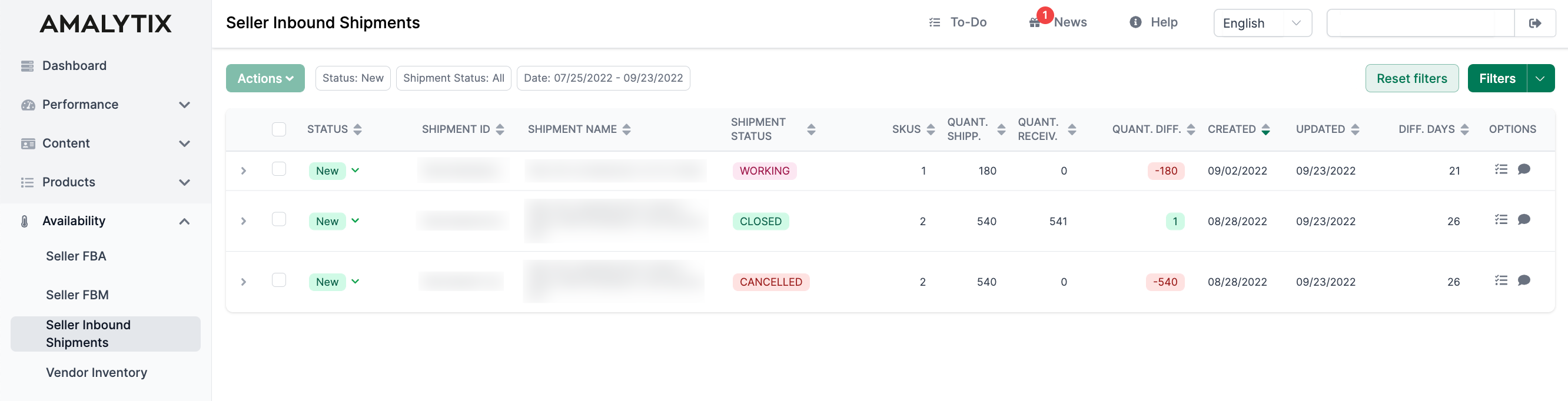
Here you can see the status of all your shipments at a glance. When Amazon closes a shipment (Shipment Status CLOSED) and there are differences between shipped and received quantities, they are highlighted in red.
Finding Shortages Quickly
To quickly identify if goods have been lost in transit to Amazon:
- Click on Filter
- Enable Show only differences
- Review shipments with status CLOSED
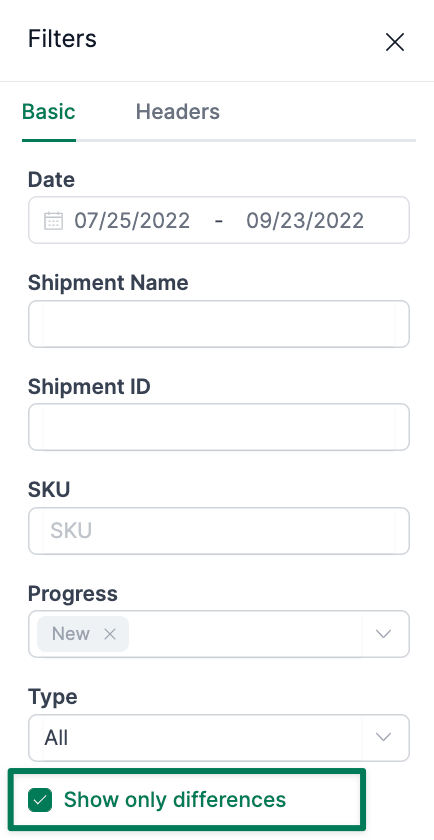
Shipments with shortages to your disadvantage are highlighted in red. For these, you should promptly request a reimbursement from Amazon.
Filter Options
You can filter your shipments by various criteria:
- Date: Narrow down the time period (e.g., last 28 days)
- Shipment Name: Search by shipment name
- Shipment ID: Search by Amazon shipment number
- SKU: Search for a specific SKU within shipments
- Progress: Filter by your processing status (New, In Progress, Done)
- Shipment Status: Filter by Amazon status (see below)
- Show only differences: Display only shipments with discrepancies
Additionally, you can use the Quick Search to search directly by Shipment Name, Shipment ID, or SKU.
Saved Filters
You can save frequently used filter settings as Saved Filters and recall them later with one click. This saves time on recurring analyses.
Table Columns Explained
| Column | Description |
|---|---|
| Status | Your processing status: New, In Progress, or Done. Helps you track which shipments you’ve already reviewed. |
| Shipment ID | The unique identifier for the shipment at Amazon. |
| Shipment Name | The name you gave the shipment when creating it. |
| Shipment Status | The current status of the shipment at Amazon (see table below). |
| SKUs | Number of different products (SKUs) in this shipment. Click on a row to see individual SKUs. |
| Quant. Shipp. (Quantity Shipped) | The quantity you sent to Amazon. |
| Quant. Receiv. (Quantity Received) | The quantity Amazon recorded as received. |
| Quant. Diff. (Quantity Difference) | The difference between shipped and received quantity. Negative values (red) indicate shortages. |
| Created | Date when you created the shipment. |
| Updated | Date of the last update from Amazon. |
| Diff. Days | Number of days between creation and last update. |
Amazon Shipment Status
| Status | Meaning |
|---|---|
| IN_TRANSIT | The shipment is on its way to Amazon. |
| CHECKED_IN | The shipment has arrived at the Amazon warehouse. |
| RECEIVING | Amazon has started processing the shipment. |
| WORKING | Amazon is processing the shipment. |
| DELIVERED | The shipment has been delivered. |
| CLOSED | Amazon has fully processed the shipment. Now you can check for discrepancies. |
| SHIPPED | The shipment has been marked as shipped. |
| CANCELLED | The shipment was cancelled. |
| DELETED | The shipment was deleted. |
Options for Individual Shipments
In the Options column, you have access to the following functions:
- Create To-Do: Create a task to process the shipment later (e.g., request reimbursement). You can find your To-Dos under To-Do.
- Add Comment: Make notes about the shipment (e.g., “Reimbursement requested on Jan 15”).
- Create Asana Task: If you use Asana and have the integration enabled, you can create a task directly in Asana.
Export Data
To further process your shipment data:
- Select the desired shipments using the checkboxes (or filter accordingly)
- Click on Download Excel List
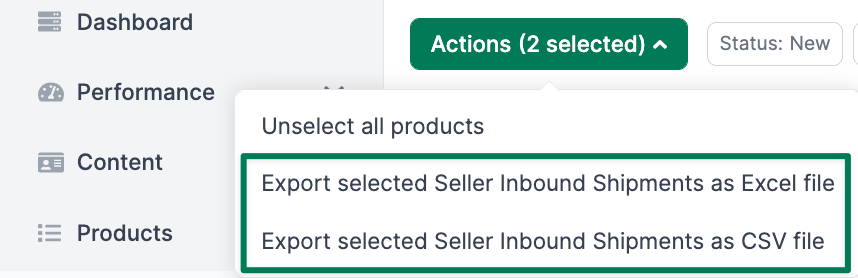
The exported file contains all visible columns and can be opened in Excel or other spreadsheet applications.
Related Pages
- Seller FBA Inventory - Monitor your current FBA stock
- To-Do - Manage your tasks
- Reports - Create reports about your Amazon data