AI Image Generation
In AMALYTIX, you can create, edit, and manage professional product images for your Amazon listings.
Generate AI Images
With the AMALYTIX AI-powered workflow, you can create and manage Amazon product images more efficiently.
To use the feature, go to Content, click on Products, and open the product detail page by clicking on the title. Navigate to the Images tab in the navigation bar.
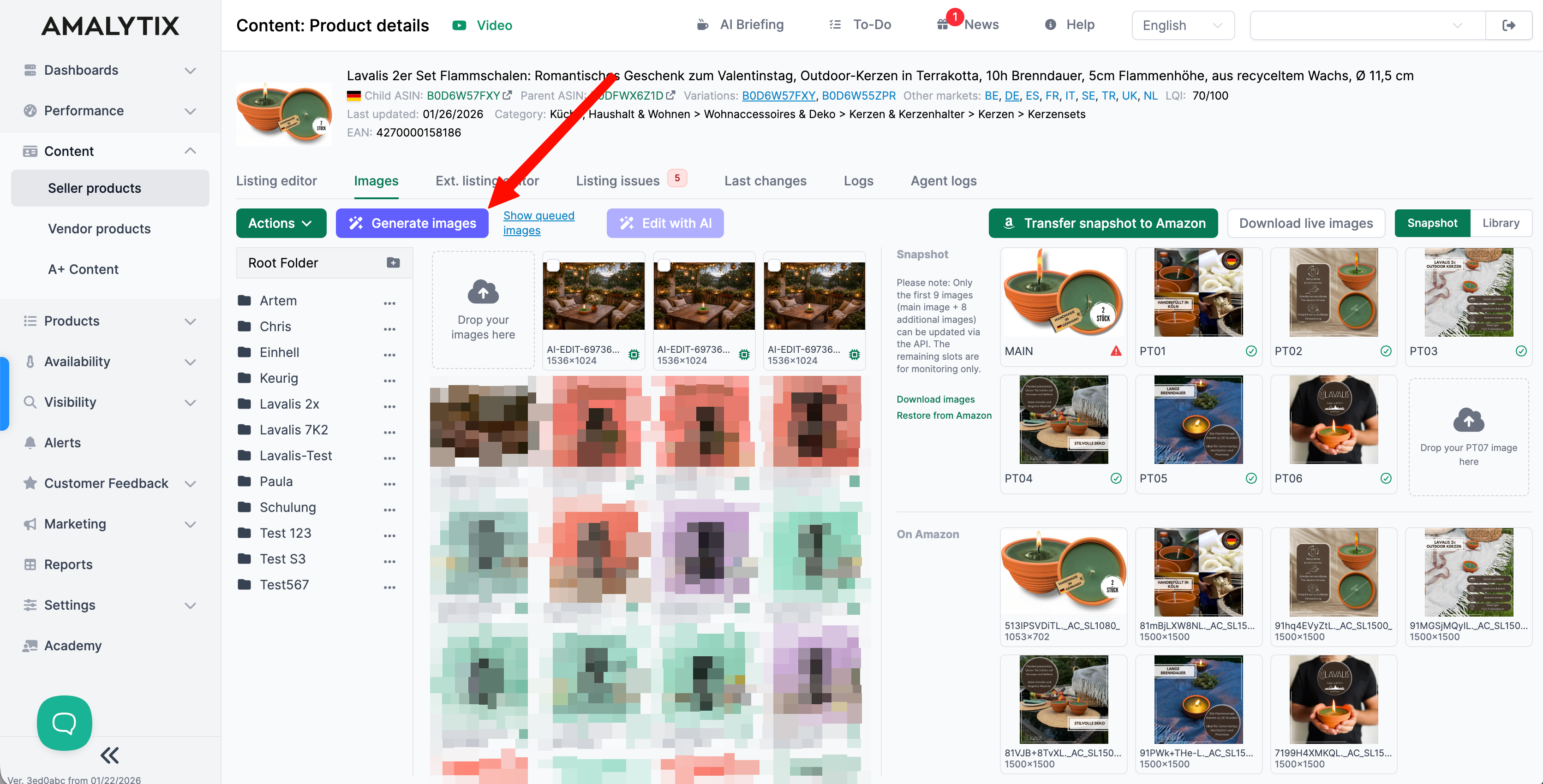
A pop-up window will open.
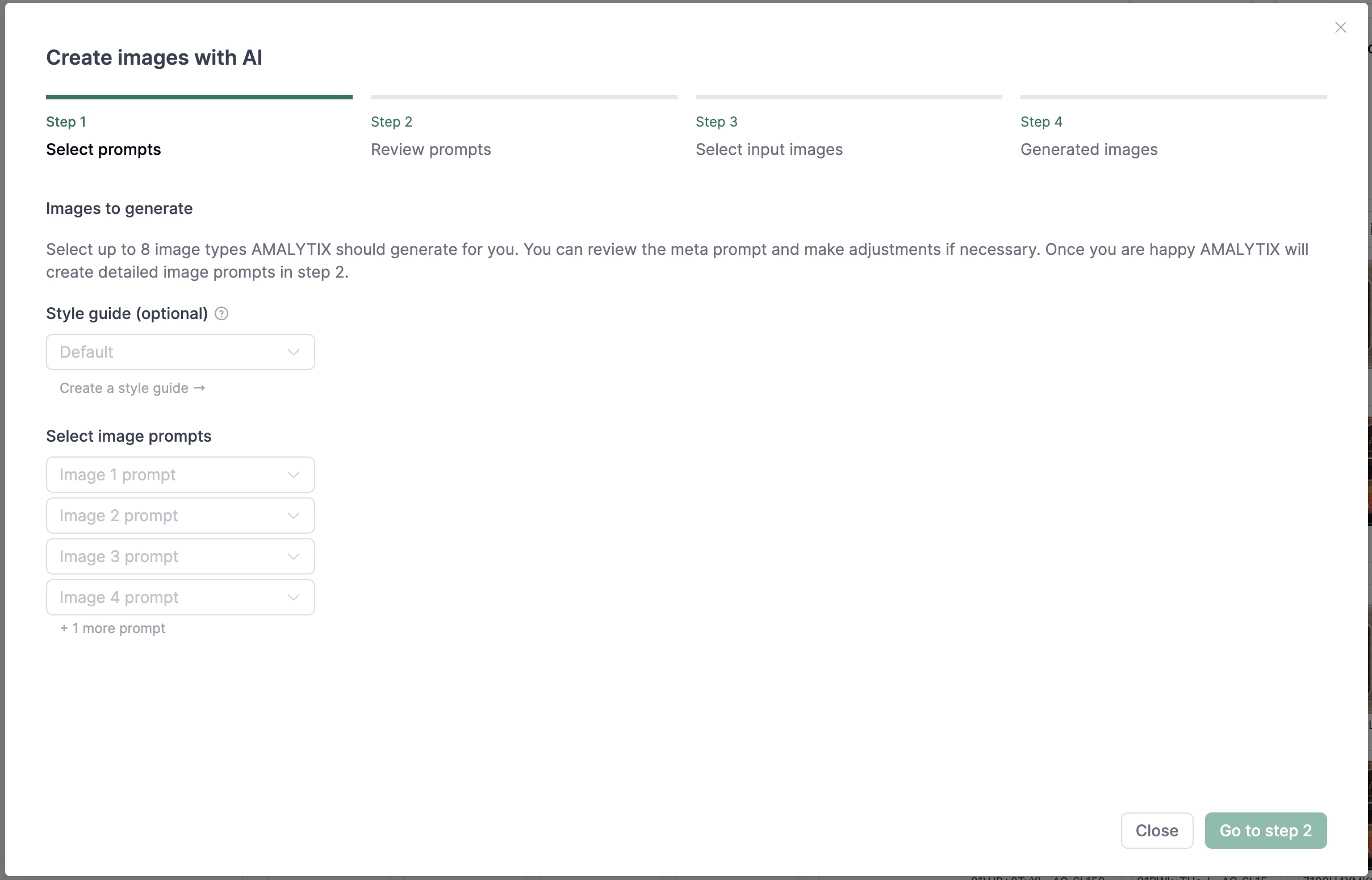
In the first step, you define which image types should be generated. Up to eight image types can be selected simultaneously. Additionally, suitable reference images are chosen to provide the AI with visual context.
You can select a predefined style using the Image Style field. Learn more about this under Set Image Style.
The following image types are available:
- Main Image
- Application Images
- Infographics
- Lifestyle Images
- Macro Shots
- Rendered Images
- Size Comparison Images
- Seasonal Gift Images
In the next step, you can review the generated prompts and make adjustments as needed. When you’re satisfied with them, continue to the next step.
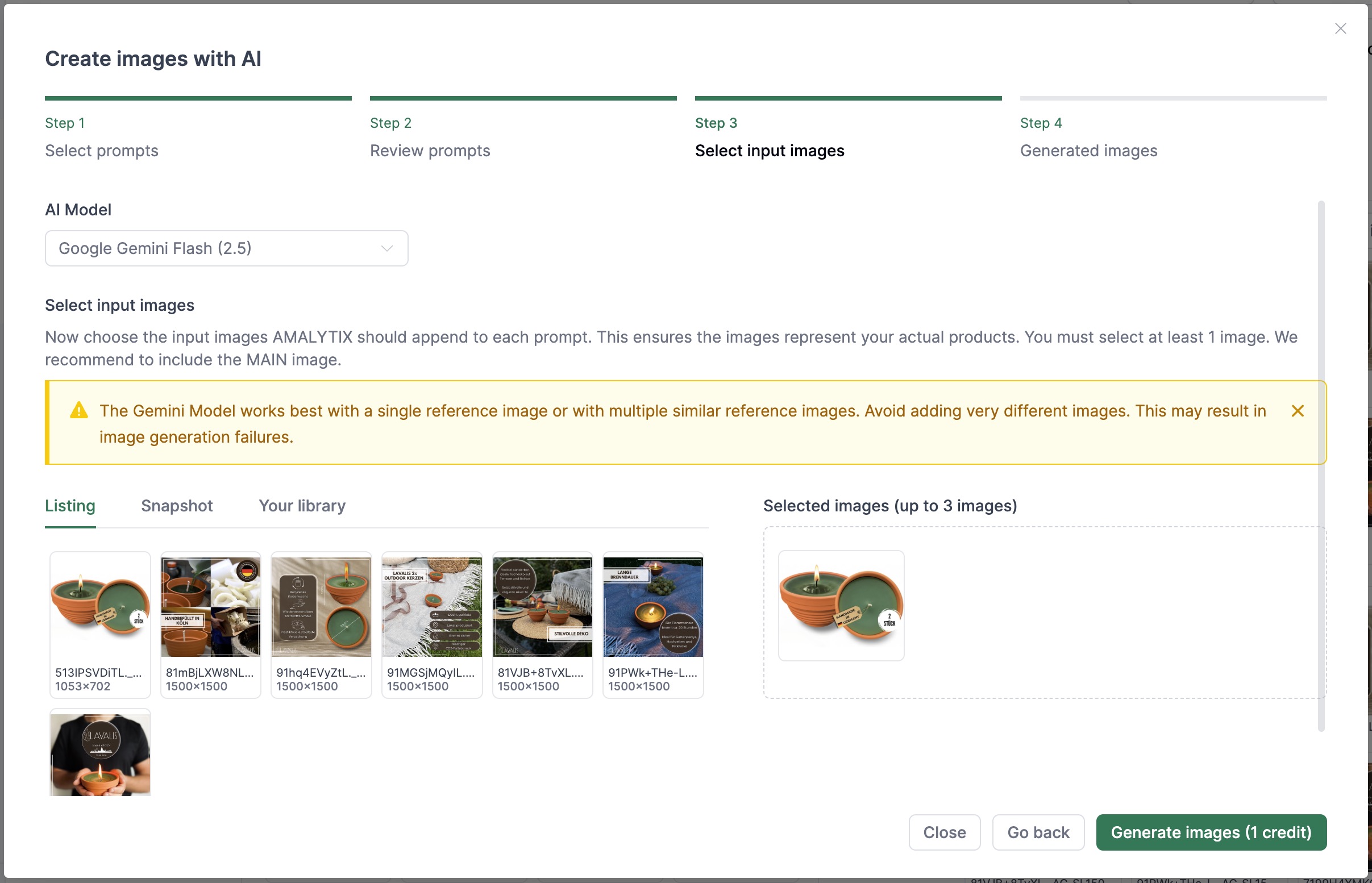
Here, you specify which existing product images to use as a reference for image generation. We recommend selecting the MAIN image.
You also have the option to change the AI model. By default, the Google Gemini Flash 2.5 model is selected. This model is reference-based and relies heavily on the uploaded images.
Input requirements:
- At least one image must be selected.
- The images must realistically represent the actual product.
- Up to three reference images can be selected per generation.
Reference images can be selected from the listing, from snapshots, or from your library. Once complete, start the generation process by clicking Generate Images.
After generation is complete, the created images are displayed. Depending on the configuration, multiple variants can be produced for each image type. The final product images can be uploaded and published directly from AMALYTIX to the corresponding Amazon listings via the Selling Partner API (SP-API).
Images that are factually correct but require minor adjustments can be optimized using the Edit with AI button.
Define Styleguides
With the Styleguides feature, you can define and save visual rules for image generation. An image style describes the look and feel of a brand or campaign by deriving characteristics such as color effect, background, lighting, and composition from reference images.
This video demonstrates how our Style Guide feature works:
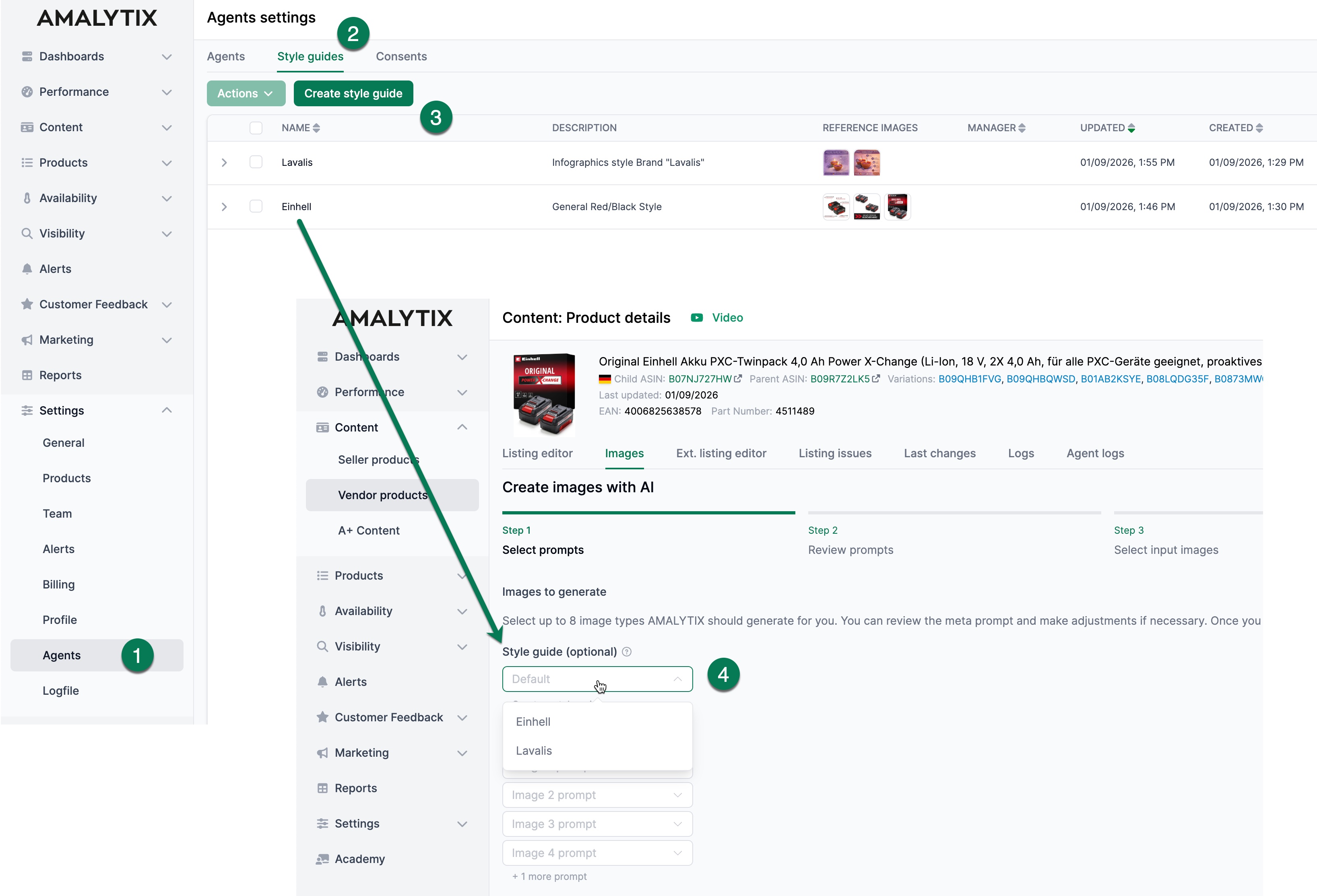
Styleguides are integrated into the AI image generation. Here’s how to set it up and use it:
- Open Settings: Navigate to
Settings > Agents. The image style is centrally located here and available across all products. - Switch to the “Styleguides” tab: Here you can manage existing image styles and create new ones.
- Create a new styleguide: Select reference images from which the AI will analyze recurring visual patterns. The resulting image style can be saved and adjusted as needed.
- Apply image style during image creation: When generating a new AI image, you can select a saved image styleguide from the dropdown menu. The generated images will then adhere to the style guidelines.
This ensures consistent AI images that match the desired brand or campaign look without requiring complex prompt adjustments.
With these tools, you can ensure a high-quality and consistent visual presence for your products on Amazon while reducing your workload.
Edit with AI
The Edit with AI feature is used for targeted adjustments of existing images. Unlike full image generation, this process always starts with at least one existing image that is modified or optimized step-by-step. Typical use cases include background adjustments, corrections to specific image areas, or stylistic fine-tuning.
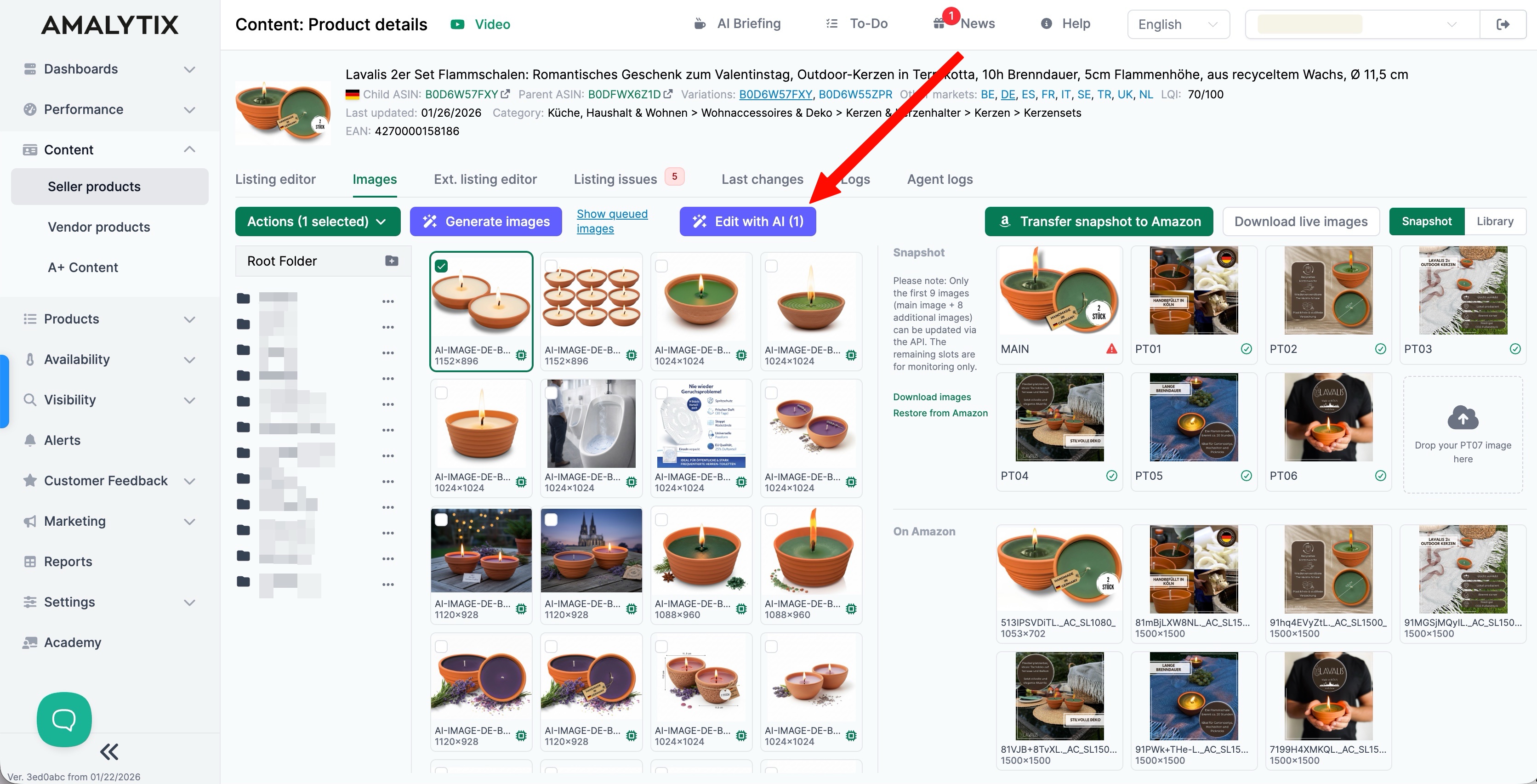
Accessing the feature:
- Open the desired product.
- Switch to the Images tab.
- Select one or more existing images.
- Click on Edit with AI.
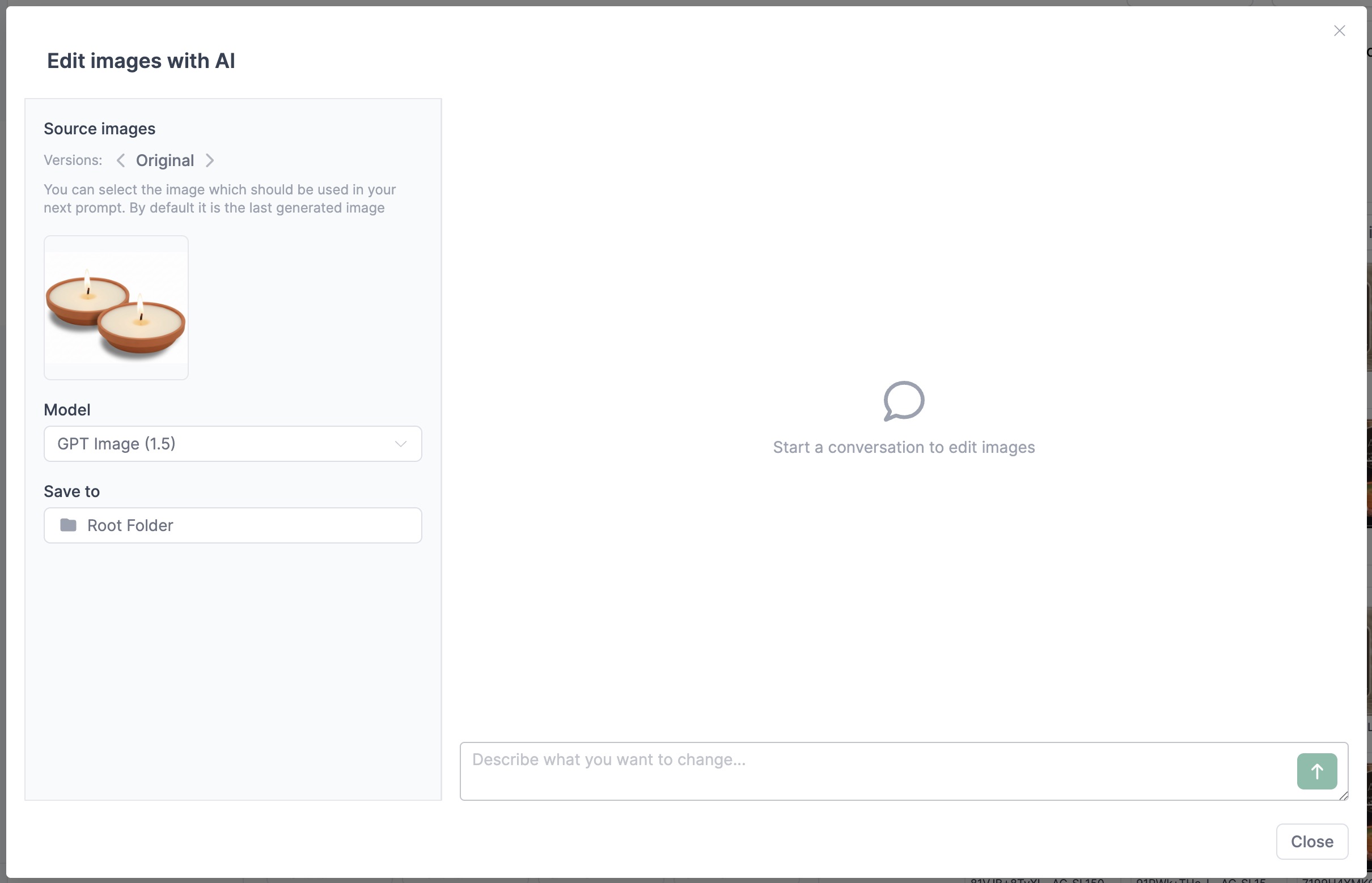
The source images are displayed on the left. You can also switch to previously generated versions and use them as a new starting point for further adjustments. This allows you to build editing steps iteratively without having to start over with the original image.
Various AI models are available for image editing: GPT Image 1.5, Google Gemini Flash 2.5, and Google Gemini 3 Pro Image. The choice of model affects both the result and the handling of fine details.
In the text input field, describe what you want to change in the image. The input is structured as an ongoing conversation, allowing for multiple adjustments.
Suitable adjustments:
- Simplify or replace the background
- Adjust the lighting mood
- Correct color tone or contrast
- Remove distracting objects
- Integrate the product into the image
Describe your desired changes clearly and precisely, making only a few adjustments per step.