Listing Editor
On the “Listing Editor” page, you can store the title, bullet points, description, keywords, and the Brand Store ID as a snapshot.
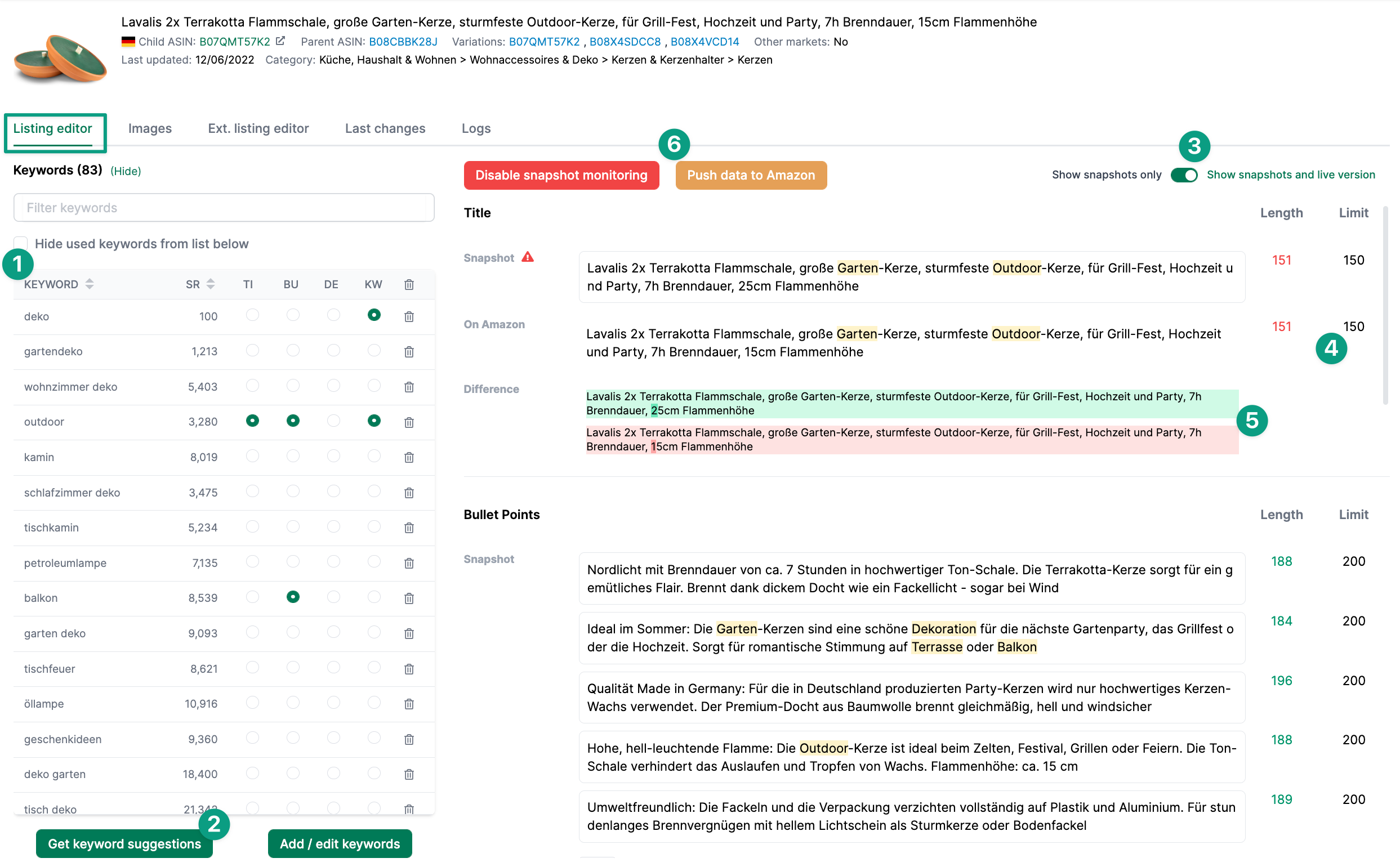
Keyword Research
On the left side, you can add relevant keywords (1). You can see the relevance of individual keywords based on the search frequency rank (SR).
Used keywords are highlighted. For example, you can see that the keyword “deko” is already used in the keywords:
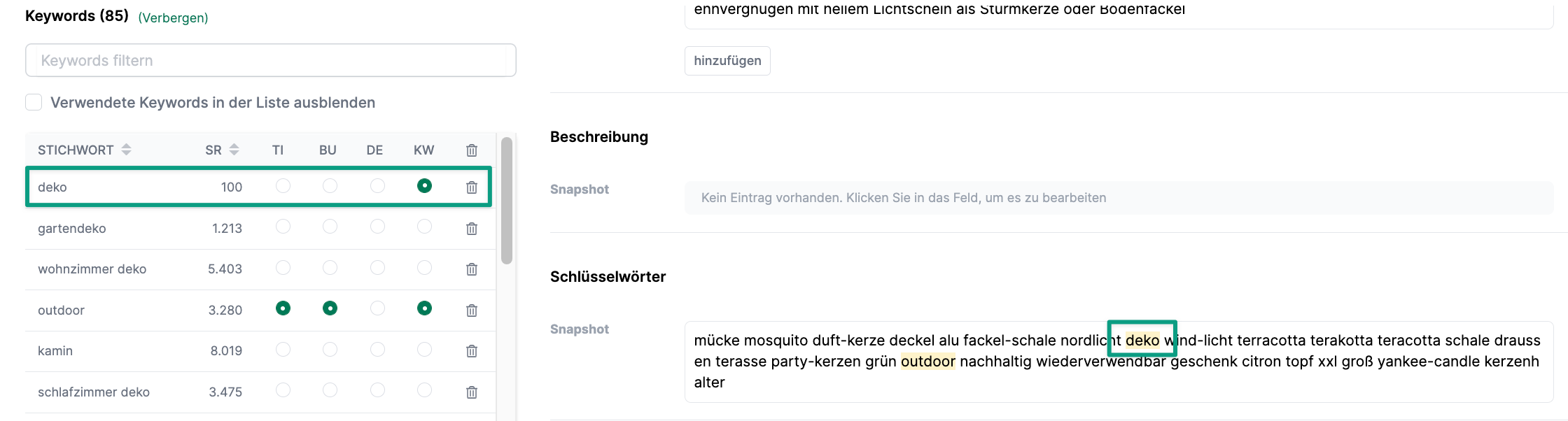
You can remove unsuitable keywords by clicking on the trash icon.
Click “Get suggestions” at the bottom left to receive additional keyword suggestions based on two to three initial keywords.
Click “Hide” to collapse the keyword area.
Snapshot View
Next to the keyword list, you will see the different content elements of the snapshots.
To compare the stored snapshots with the current version on Amazon, slide the toggle to the right: “Show snapshots and live version” (3).
Next to the snapshot, you can see your defined limits under Limit for all elements. These are taken from your LQI settings (4). Next to the limits, you will find the current length of your title, bullet points, description, and keywords. The value turns green if it is below the limit and red if it exceeds it.
Additionally, the percentage match between the content and the snapshot is color-coded to help you quickly assess the size of deviations:
- Green: 100% match (exact match)
- Yellow: >= 85% to < 100% match (mostly matching). Example: A single character deviation in the title results in a yellow display (e.g., 99%).
- Red: < 85% match (significant deviation)
You can also use the filter to set a threshold for the match percentage to only show relevant deviations (e.g., below 95%).
If you want to change individual elements of the content, you can easily do so in AMALYTIX. For example, you can set a new title or place new keywords in the bullet points. Click “Push data to Amazon” to transfer your snapshot data to Amazon (6).
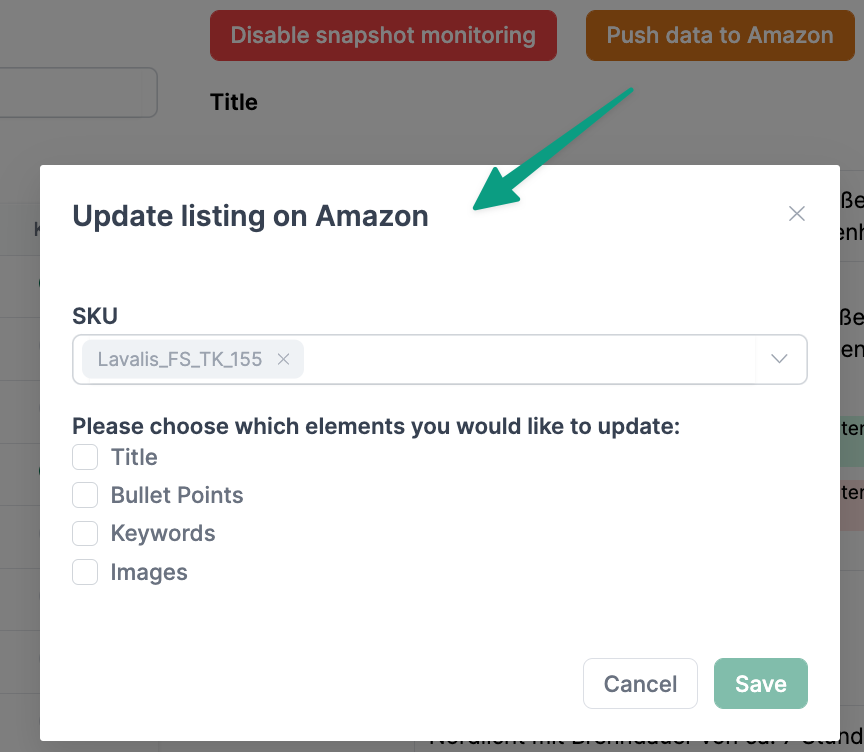
Here you can specify whether you want to transfer all changes or only individual changes to Amazon.
Can I also monitor and transfer the product description with AMALYTIX?
AMALYTIX reads the product description if it is displayed on the product detail page. However, the product description is often no longer displayed by Amazon if the product has A+ or A+ Premium Content. In this case, AMALYTIX cannot read the product description.
The product description can be stored as a snapshot in AMALYTIX. For daily comparison, AMALYTIX removes all HTML formatting.
Due to the removed HTML formatting, AMALYTIX does not currently transfer the product description to Amazon, as this would remove the HTML formatting.
Upload Snapshots via CSV File
In general, you have two options for storing your snapshots:
- You store the snapshots for each product individually on the product detail page. Follow the instructions on this page.
- You use our CSV upload to upload snapshots for many products at once.
You can find this under Settings / Products / Upload snapshots:
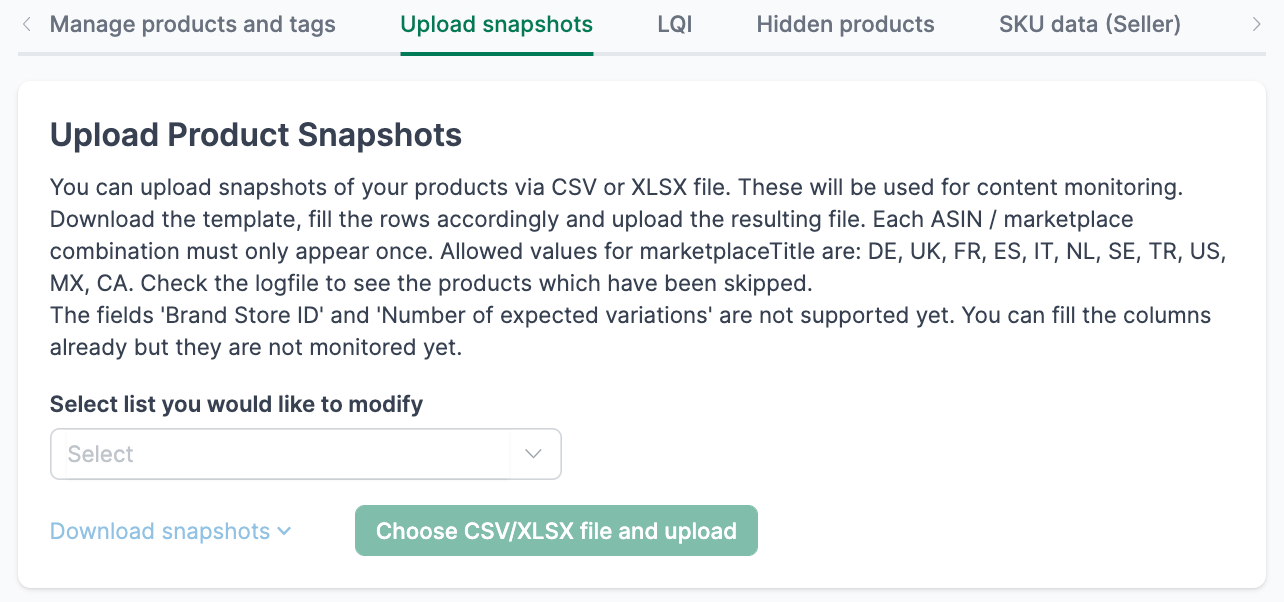
Select the product list you want to update.
Under Download CSV, you can download a template beforehand.
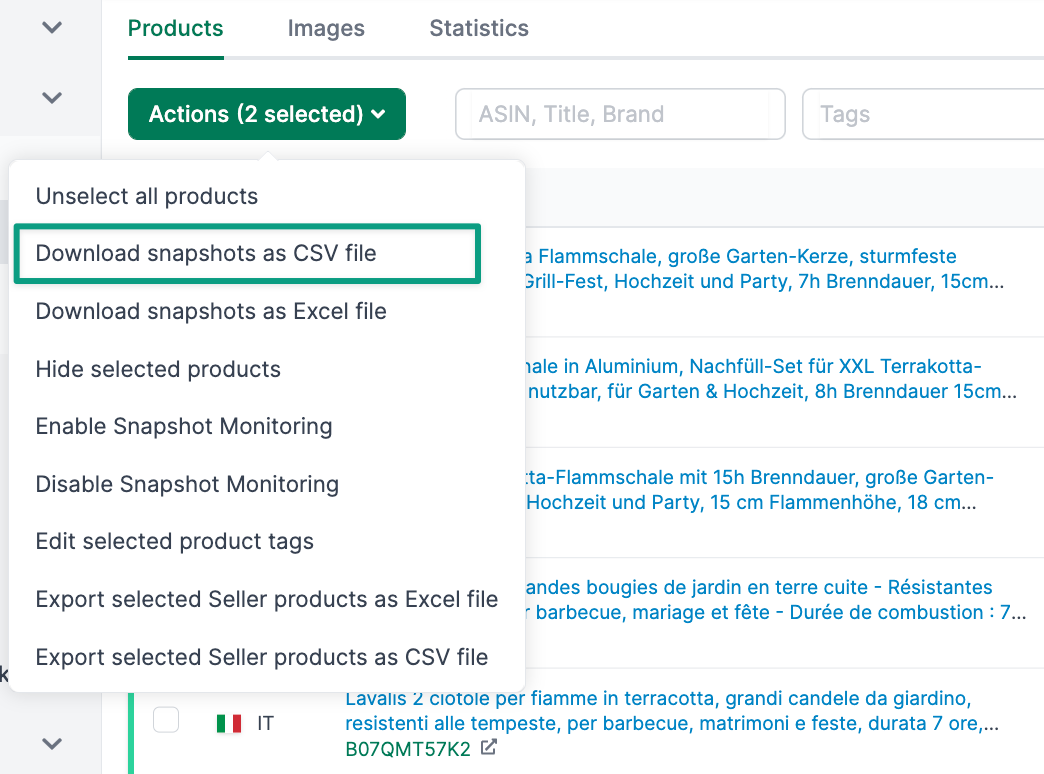
Using the multi-select on the overview page, you can also download your snapshots again, e.g., to transfer them back to Amazon:
One-Click Optimization
With our one-click optimization, you can optimize your listing in just a few seconds. You can find the one-click optimization next to the AI Suggestion button.
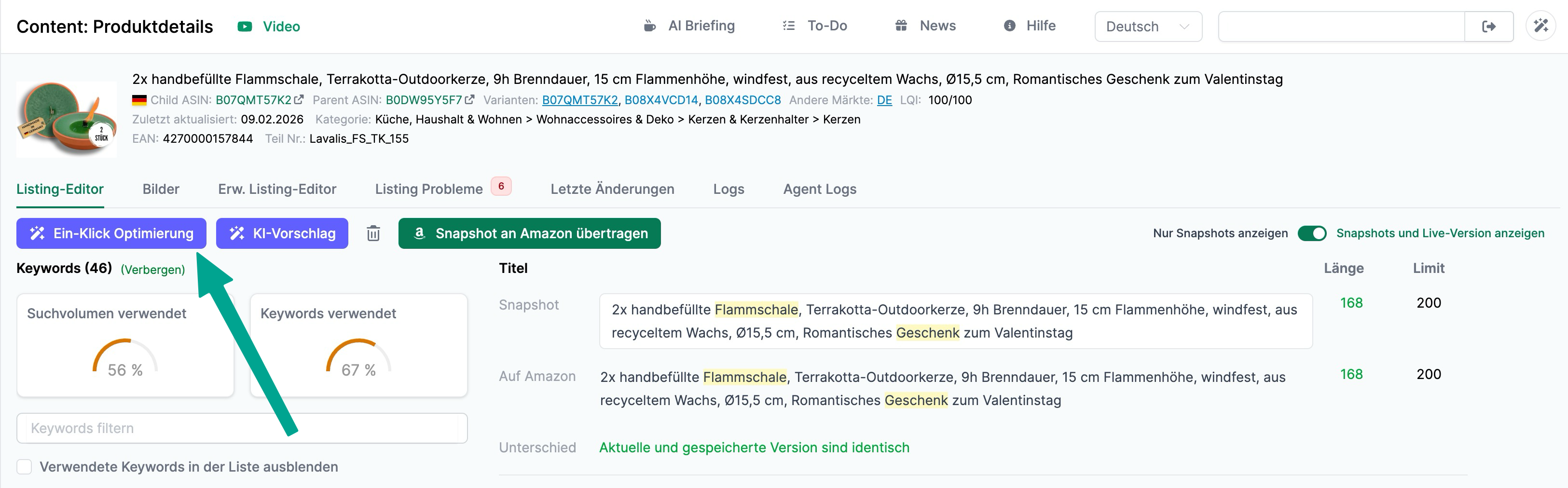
The one-click optimization is also a ChatGPT integration. We send the current title, bullet points, description, and keywords along with the keywords from the keyword list (left) to ChatGPT, where your listing is improved using a predefined prompt.
The prompt can be customized as needed. The agent can access additional data if you use the following placeholders:
- Keyword Analysis (Search Query Performance):
sqp_keyword_table - Keyword Analysis (Search Terms):
keyword_table - Customer Feedback Analysis:
customer_feedback - Persona Analysis:
persona - Main Image Analysis:
image_description
In addition, you can use the standard placeholders for the live and snapshot versions (title, bullet points, description, keywords) as well as the target language.
Once the optimized listing appears, you can decide which improvements to adopt into your snapshot and which to skip.
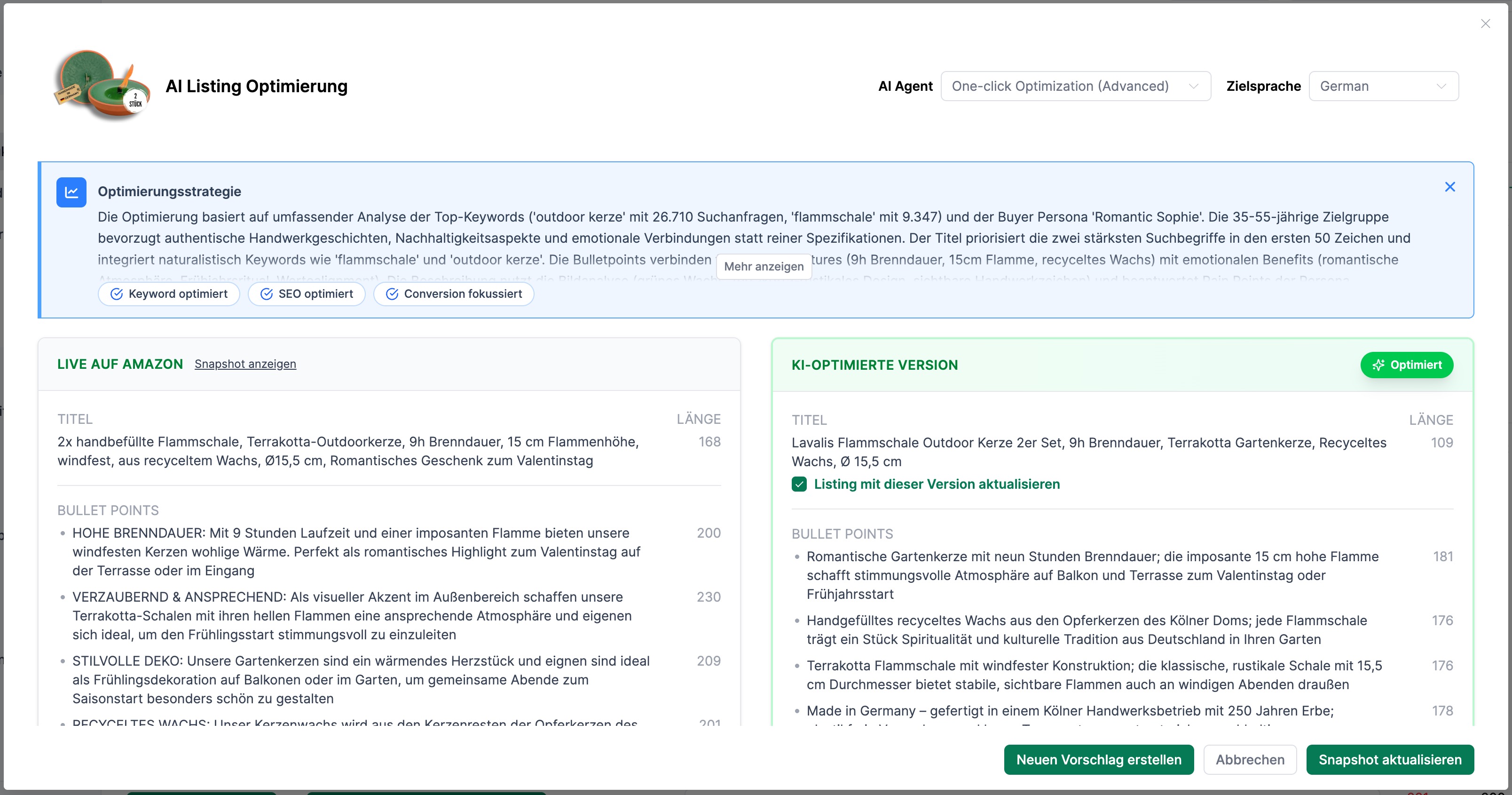
Learn how to best use the one-click optimization in this video:
Related Topics
- Content Detail Page — Overview
- Images — Monitor and manage Amazon product images
- Extended Listing Editor — Store and upload all product information
- Changes & Logs — Listing issues, last changes and logs