Manage Variation Groups
With variation groups, you can define and manage how your Amazon products are grouped as variations. A variation group specifies the variation themes (e.g., color, size) and the possible values for each theme, along with the products that belong to the group.
Page Overview
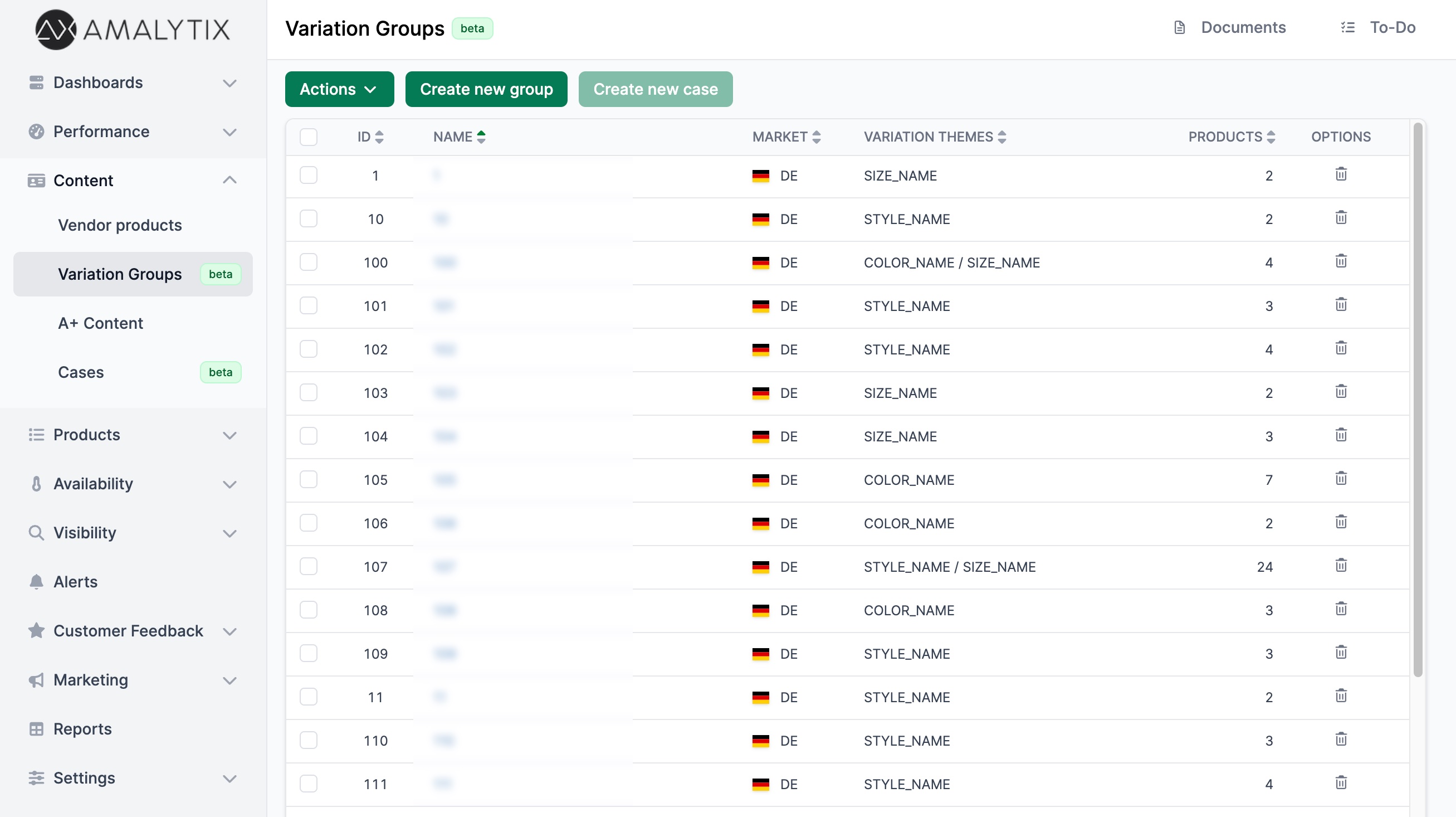
The Variation Groups page shows all your defined variation groups in a table with the following columns:
- ID: The internal identifier of the variation group
- Name: The name you assigned to the group
- Market: The Amazon marketplace (e.g., Amazon.de, Amazon.com)
- Variation themes: The variation dimensions used (e.g., COLOR_NAME, SIZE_NAME)
- Products: The number of products assigned to the group
Click on a group’s Name to open and edit it. Use the delete button on the right side of each row to remove a group.
Filtering and Searching
Use the filter panel to narrow down the list of variation groups:
- Market: Filter by a specific Amazon marketplace
- Name: Search by variation group name
- ASIN: Search for groups containing a specific ASIN
You can save frequently used filter combinations for quick access later using the saved filters feature.
Creating a Variation Group
Click “Create new group” to open the creation wizard. The process consists of two steps:
Step 1: Overview
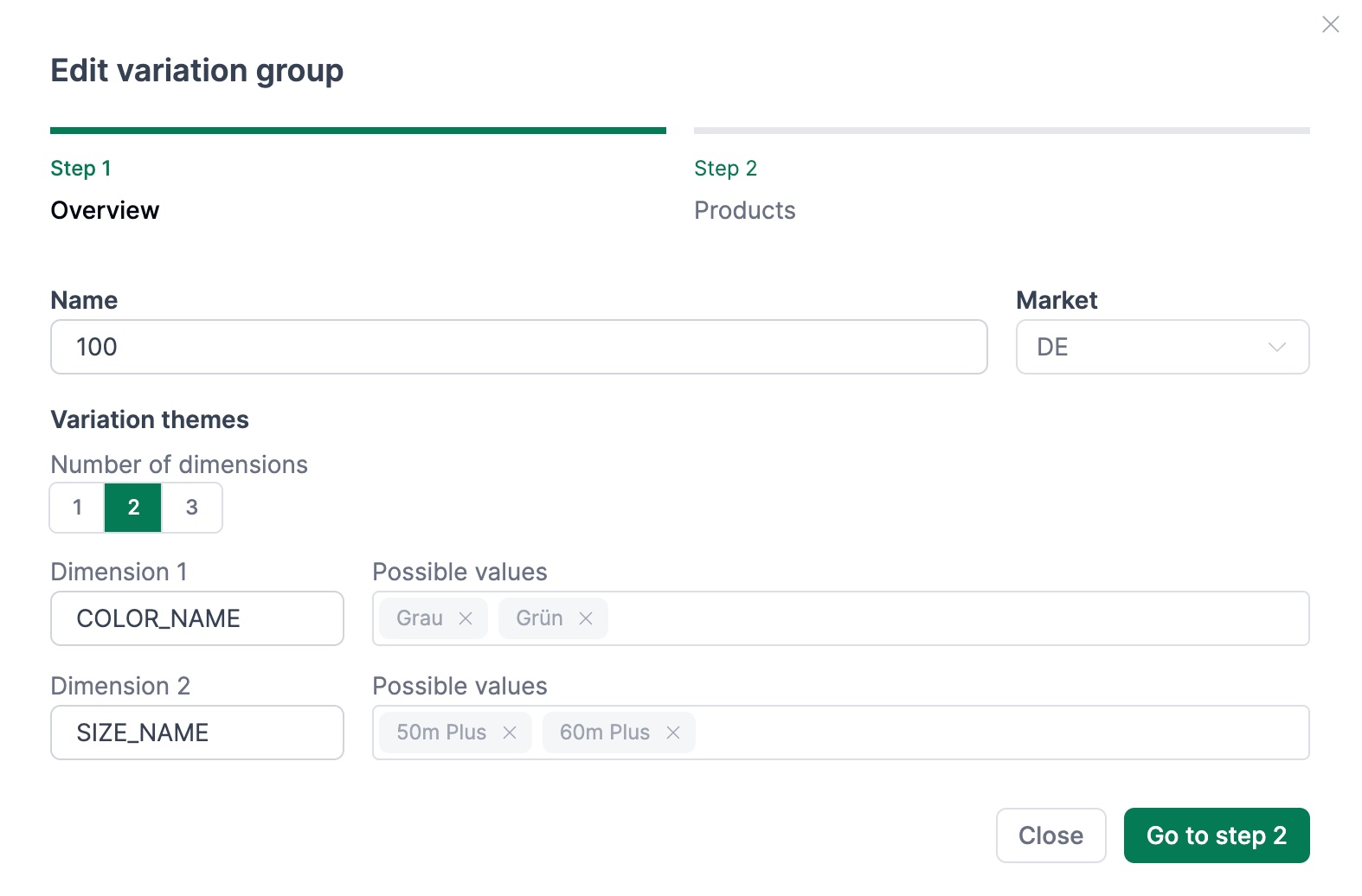
In the first step, you define the basic structure of your variation group:
- Name: Give the group a descriptive name
- Market: Select the Amazon marketplace
- Number of dimensions: The number of variation themes (1–3)
- Variation themes: Define the variation dimensions. Common themes include COLOR_NAME, SIZE_NAME, or STYLE_NAME
- Possible values: For each theme, enter the possible values separated by comma or Enter (e.g., Red, Blue, Green)
Step 2: Products
In the second step, you assign products to the variation group:
- Click “Add product” to add a product by its ASIN
- For each product, select the matching variation attributes (e.g., which color and size this product represents)
- Use “Add missing variations” to automatically generate placeholder entries for any missing attribute combinations
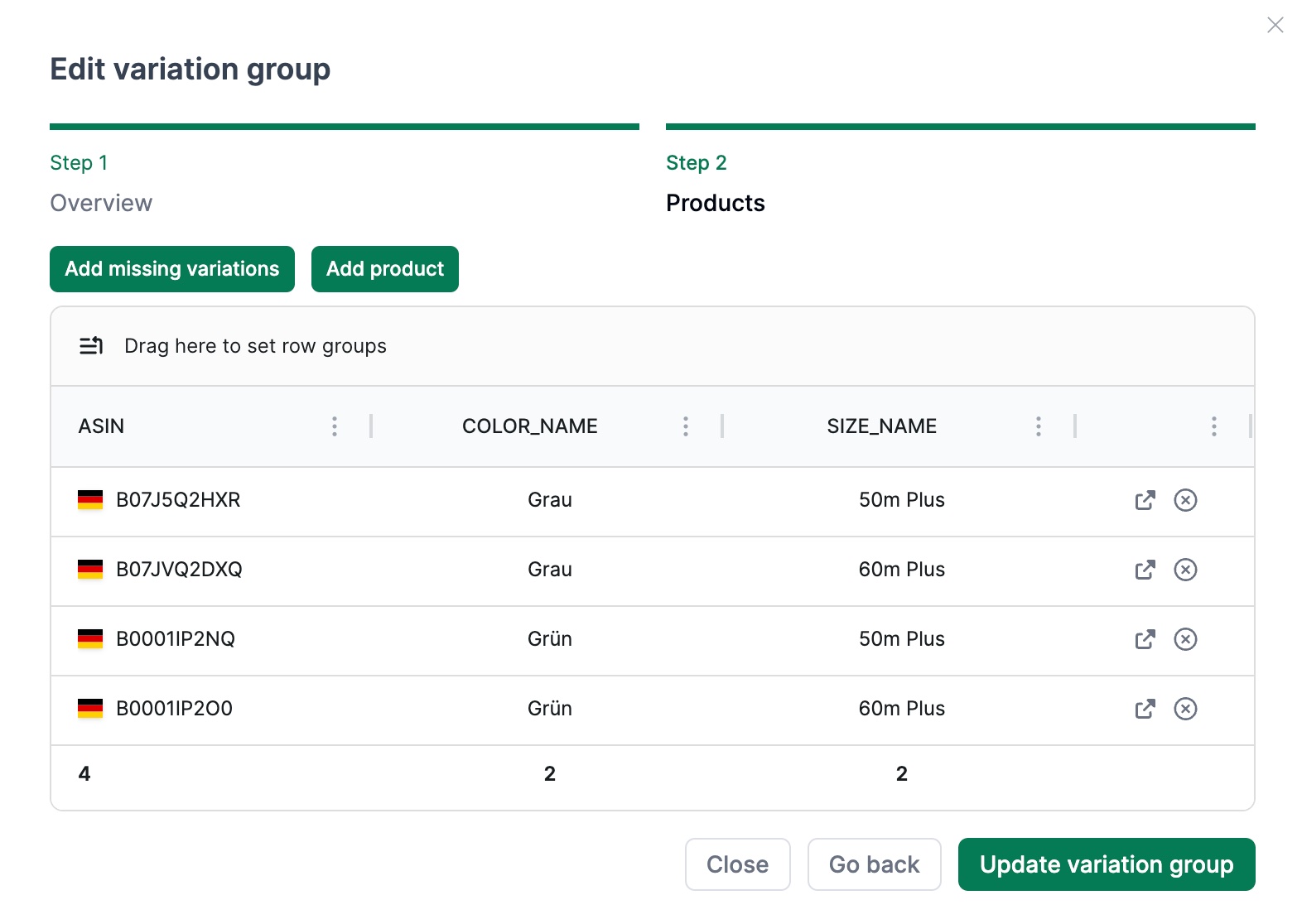
The system validates that each ASIN is unique and that variation attribute combinations are not duplicated.
Creating Variations Update Cases
To update variations on Amazon in bulk, select one or more variation groups using the checkboxes, then click “Create new case”. This creates a variations update case that you can review and submit.
Import and Export
You can manage variation groups in bulk using Excel files:
- Download empty template (XLSX): Download a blank template to fill in your variation groups
- Download filled template (XLSX): Download your existing variation groups as an Excel file
- Upload template (XLSX): Upload a filled template to create or update variation groups
Access these options via the Import/Export menu in the action bar or the table options.
Important when filling out the template:
- The “Group ID” must be an integer
- The “Group Name” must be consistent within a group
Example of a completed Excel file:

Related Topics
- Content Detail Page — Overview of the product detail page
- Listing Editor — Edit product listings and keywords
- Extended Listing Editor — Store and upload all product information