Vendor Orders
The Vendor Orders page shows you all Purchase Orders (POs) that Amazon has placed with you as a Vendor. Stay on top of your B2B relationship with Amazon.
The following video gives you a good overview:
Why This Page Matters
- Track order status: See at a glance which orders are new, acknowledged, or closed
- Monitor delivery windows: Never miss delivery deadlines and avoid chargebacks
- Optimize acceptance rate: Monitor how many units you accept, reject, or Amazon cancels
- Multiple vendor codes: Manage all your Vendor accounts in one place
The Two Views
The Vendor Orders page offers two tabs:
- Orders: Detailed list of all individual Purchase Orders
- Overview: Aggregated metrics and charts across all orders
Tab: Orders
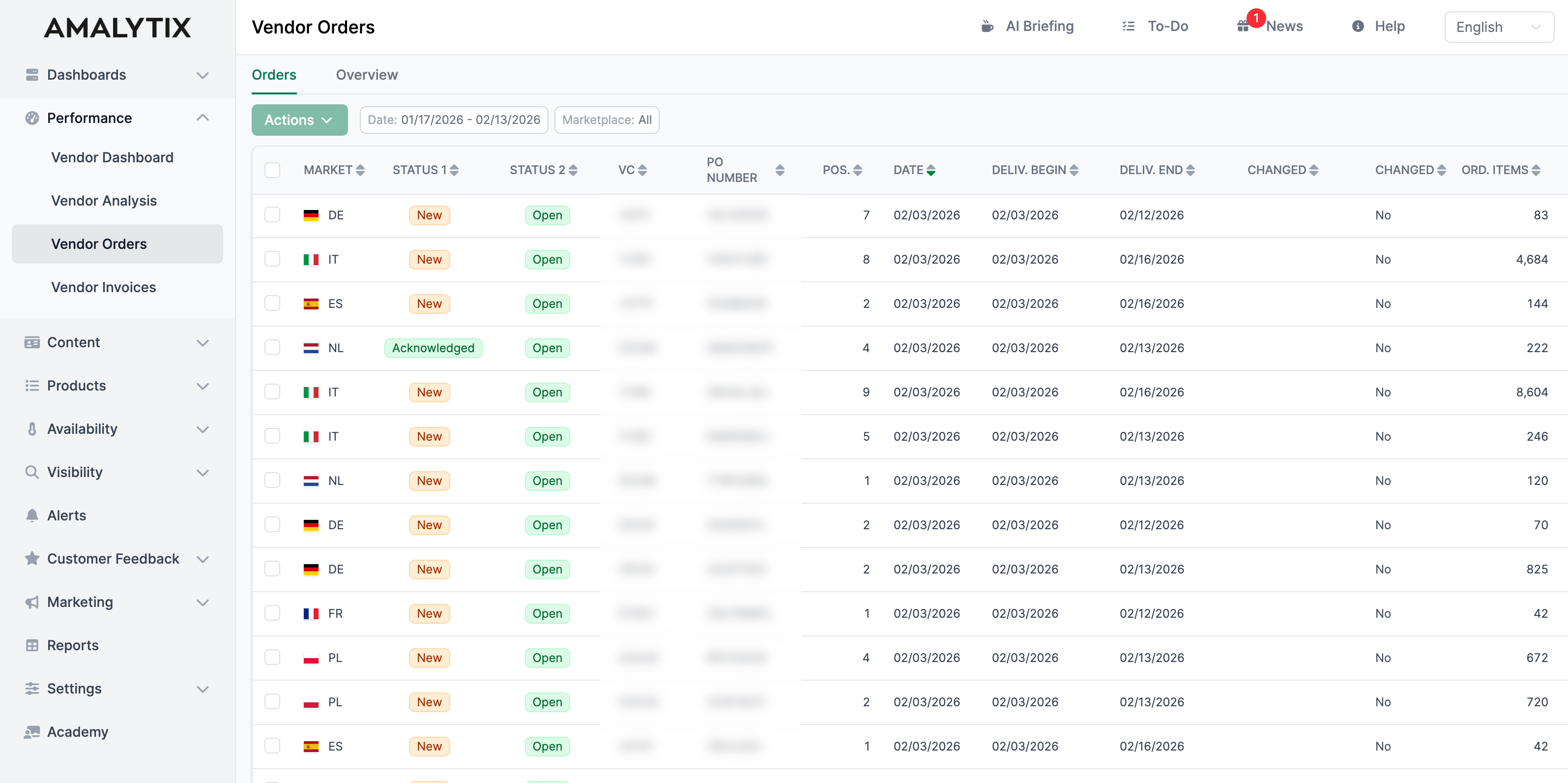
This view shows all Purchase Orders from Amazon in a table.
Displayed Columns
| Column | Description |
|---|---|
| Market | The Amazon marketplace |
| Status 1 | Processing status: New, Acknowledged, or Closed |
| Status 2 | Open status: Open or Closed |
| VC | Your Vendor Code |
| PO number | The Amazon Purchase Order number |
| Pos. | Number of different products in the order |
| Date | The order date from Amazon |
| Deliv. begin / Deliv. end | The delivery window - when goods must arrive at Amazon |
| Changed | Date of last change |
| Ord. units | Number of ordered units |
| Value | Total order value |
| Conf. units | Number of units you have accepted |
| Rej. units | Number of units you have rejected |
| Canc. units | Number of units Amazon has cancelled |
| Rec. units | Number of units Amazon has received |
| Options | Link to order details |
Optional Columns
You can enable these additional columns through the column selector:
- Buyer: The Amazon purchasing department
- Receiver: The destination warehouse
- Invoice receiver: The billing address at Amazon
- Date updated: When the order was last modified
- PO type: Type of order (Regular, Consigned, New Product Introduction, Rush Order)
Filter Options
Click Filter to narrow down your orders.
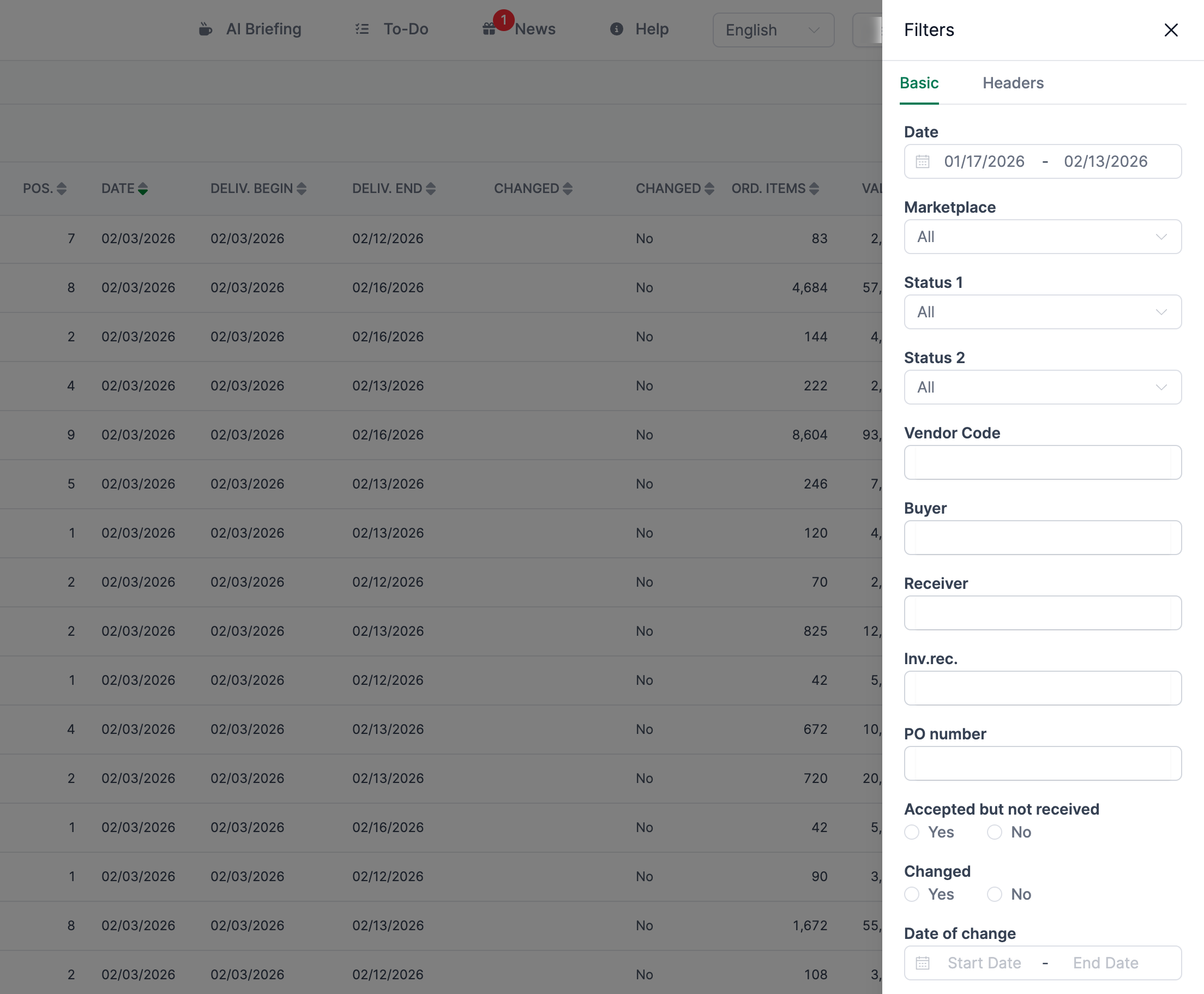
Available filters:
- Date: Order date range
- Marketplace: Single marketplace or all
- Status 1: New, Acknowledged, or Closed
- Status 2: Open or Closed
- Vendor Code: Filter by a specific Vendor account
- Buyer/Receiver/Invoice receiver: Filter by Amazon departments
- PO number: Search for a specific Purchase Order
- Accepted but not received: Shows orders where you have confirmed goods that have not yet arrived at Amazon
- Changed: Shows only orders that have been modified since the order date
- Change date: Filter by the date of last modification
- PO type: Regular, Consigned, New Product Introduction, or Rush Order
- Numeric filters: Filter by number of ordered, accepted, rejected, cancelled, or received units, as well as order value
Save Filters
Save frequently used filter settings using the Saved Filters feature.
Tab: Overview
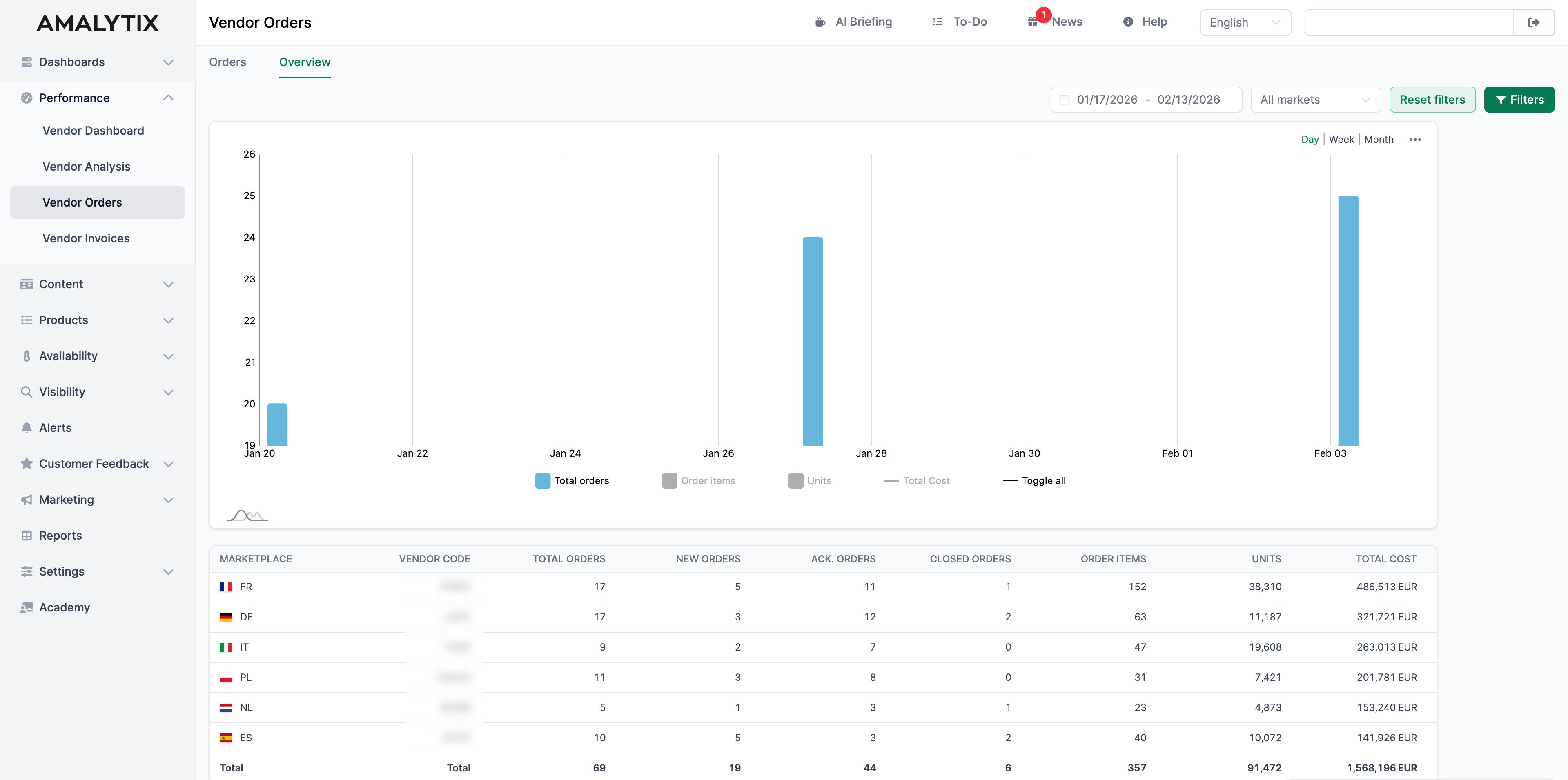
The Overview tab shows you aggregated metrics across all your Vendor accounts.
The Chart
The chart shows the trend over time for:
- Number of orders
- Number of order items
- Number of units
You can switch between daily, weekly, and monthly views.
The Table
The table aggregates your order data by marketplace and Vendor Code:
| Column | Description |
|---|---|
| Marketplace | The Amazon marketplace |
| Vendor Code | Your Vendor Code |
| Total orders | Total number of all orders |
| New orders | Orders with status “New” |
| Ack. orders | Orders with status “Acknowledged” |
| Closed orders | Orders with status “Closed” |
| Order items | Total number of all order items |
| Units | Total number of all ordered units |
| Total Cost | Total value of all orders |
Order Details
In the orders list, click Details to see all information about an order.
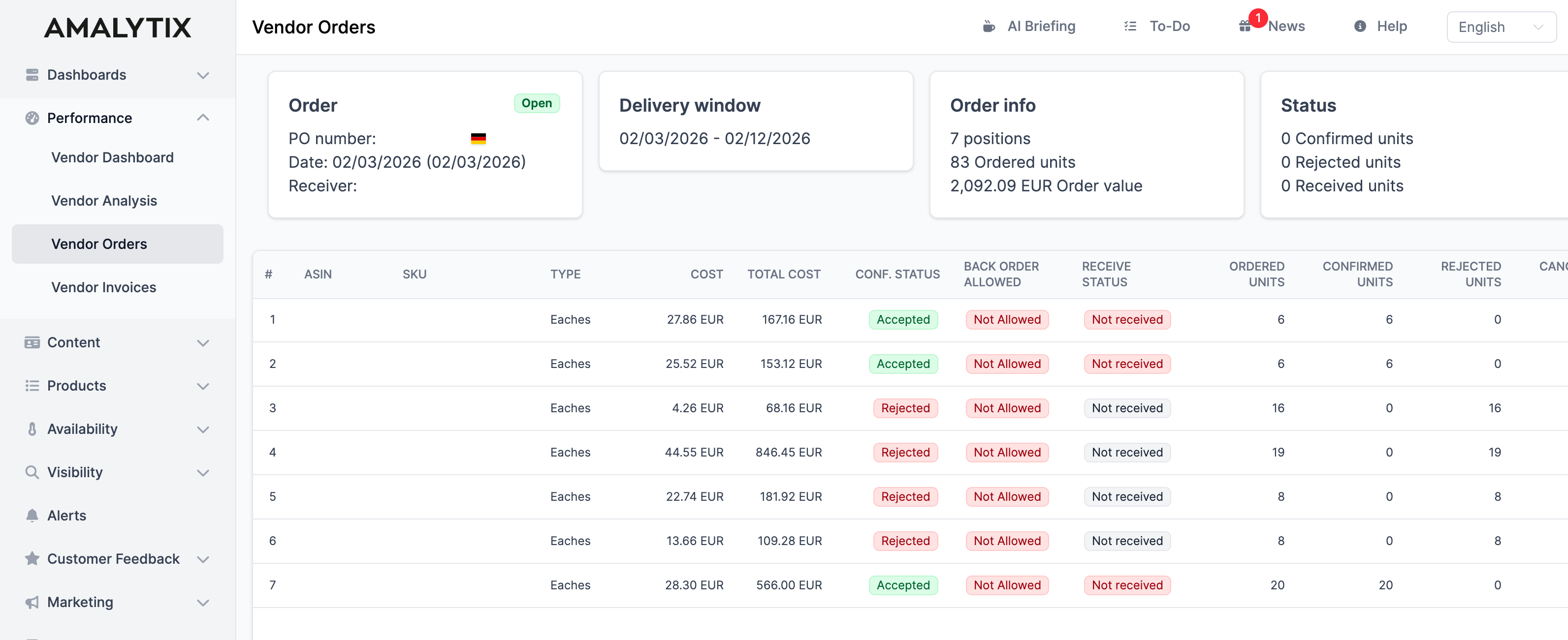
Header Section
At the top, you see general information:
- PO number and marketplace
- Order date and last change
- Receiver (destination warehouse)
- Delivery window
- Order status
- Number of positions and ordered units
- Order value
Product Table
The table shows all ordered products with the following information:
| Column | Description |
|---|---|
| # | Position in the order |
| ASIN | The Amazon product identifier |
| SKU | Your Vendor product ID |
| Type | Unit of measure (e.g., Cases) |
| Cost | Unit price |
| Total Cost | Cost x ordered units |
| Conf. Status | Unconfirmed, Accepted, Rejected, or Partially Accepted |
| Back Order Allowed | Whether deliveries after the delivery window are accepted |
| Receive Status | Not received, Received, or Partially Received |
| Ordered Units | Quantity ordered by Amazon |
| Confirmed Units | Quantity you have accepted |
| Rejected Units | Quantity you have rejected |
| Cancelled Units | Quantity Amazon has cancelled |
| Received Units | Quantity arrived at Amazon |
| Sales last 28 days | Current sales figures for this product |
| Inventory | Current stock at Amazon |
| Days of Cover | How long the current stock is expected to last |
| Delivery days | Days between order and goods receipt at Amazon |
Excel Export
Click Download Excel List at the bottom of the table to export all displayed orders.
Report
You can also export your Vendor orders as a report.
Go to Reports and select the Vendor Orders Report:
- Content: All order items from all Purchase Orders for a given date range
- Type: Vendor
- Category: Performance
- Use case: Order history analysis, planning, tracking
You can restrict the marketplace to export only relevant data.
Related Pages
- Vendor Dashboard: Overall view of your Vendor performance
- Vendor Analysis: Detailed analysis of your Vendor data
- Reports: All available report types