Seller Products
Product overview
On this page, you will find an overview of the products from your Seller account.
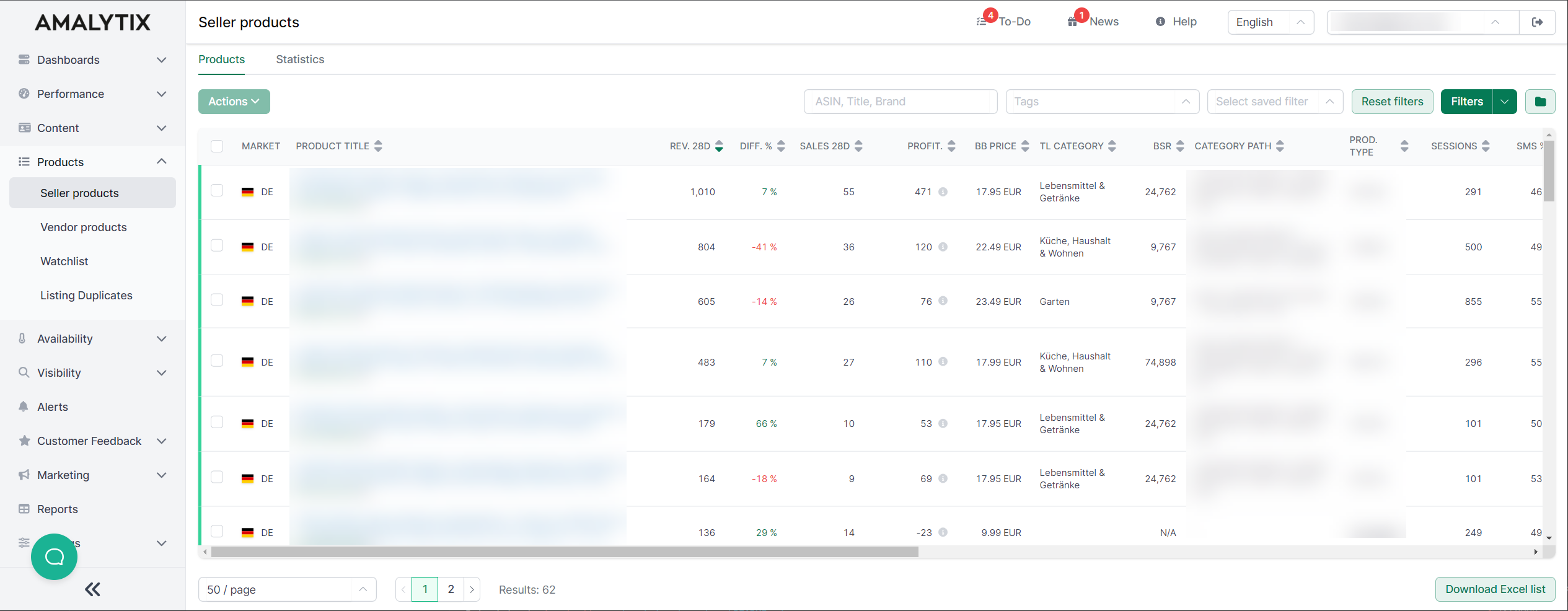
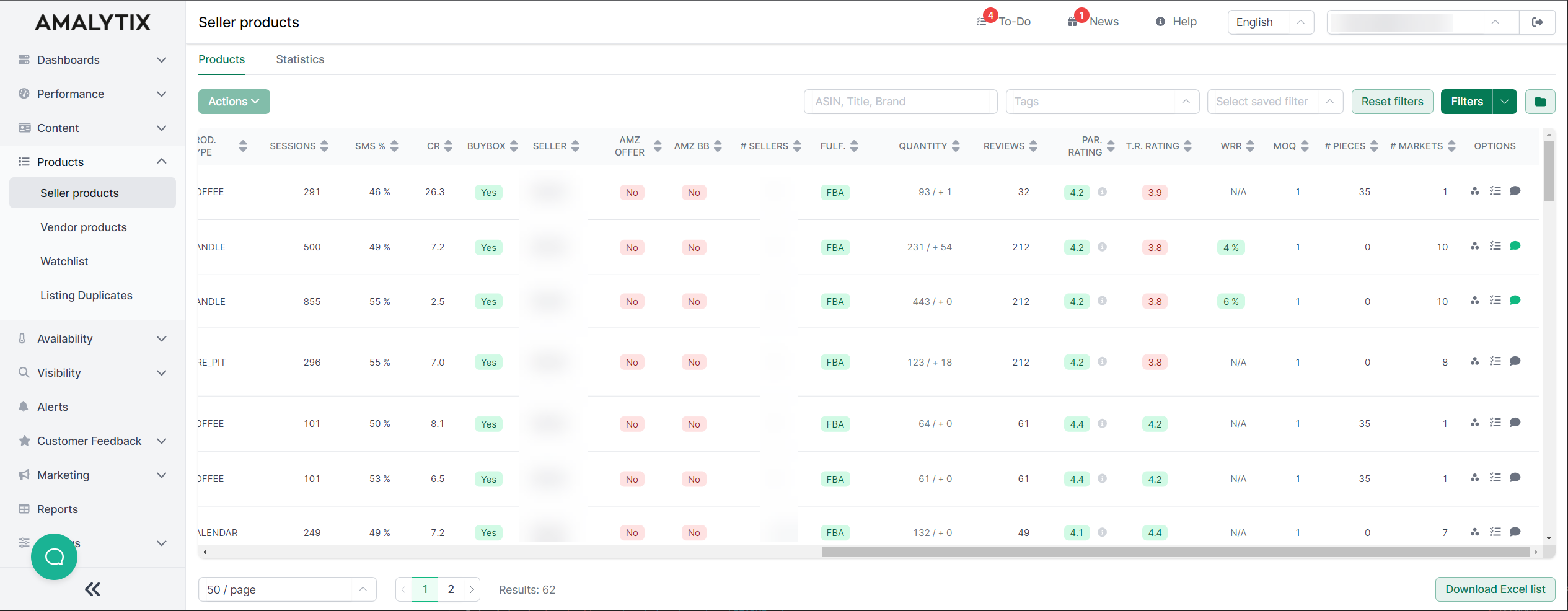
By clicking on the respective product title, you will be directed to the detail page of the product:
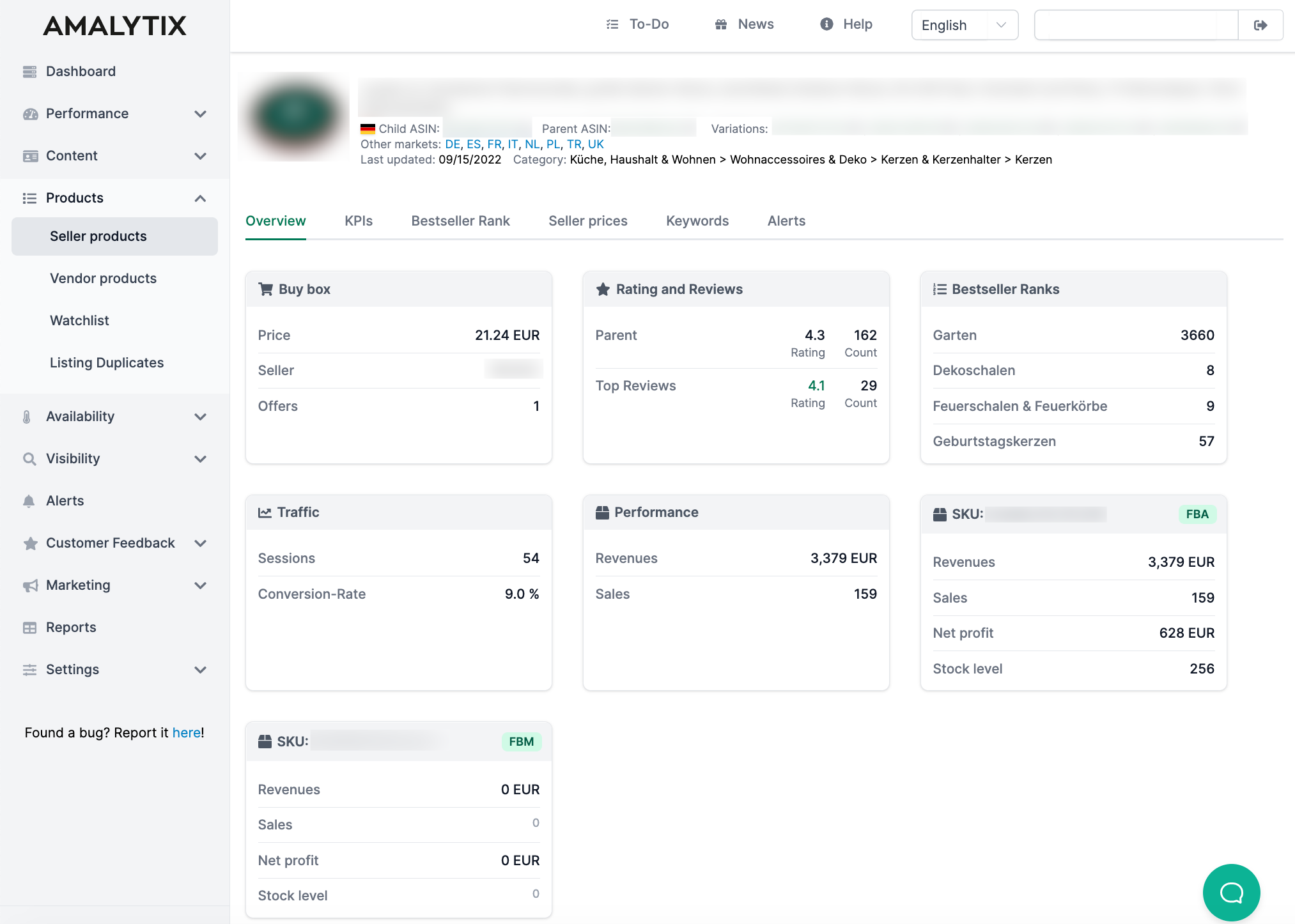
Selection of Amazon products
We show you the products you manage through your Seller account on this page. After the initial registration, AMALYTIX automatically adds the products that have been sold at least once in the last 60 days. Afterward, the products found in new orders are automatically added.
You can also hide individual products yourself at any time. The hidden products can then be found on the Settings / Account / Hidden Products page.
Furthermore, you can fully synchronize your Amazon account with AMALYTIX at any time. To do this, go to “Settings / Products / Manage products and tags / Add all products”. Once hidden, products remain hidden after this step.
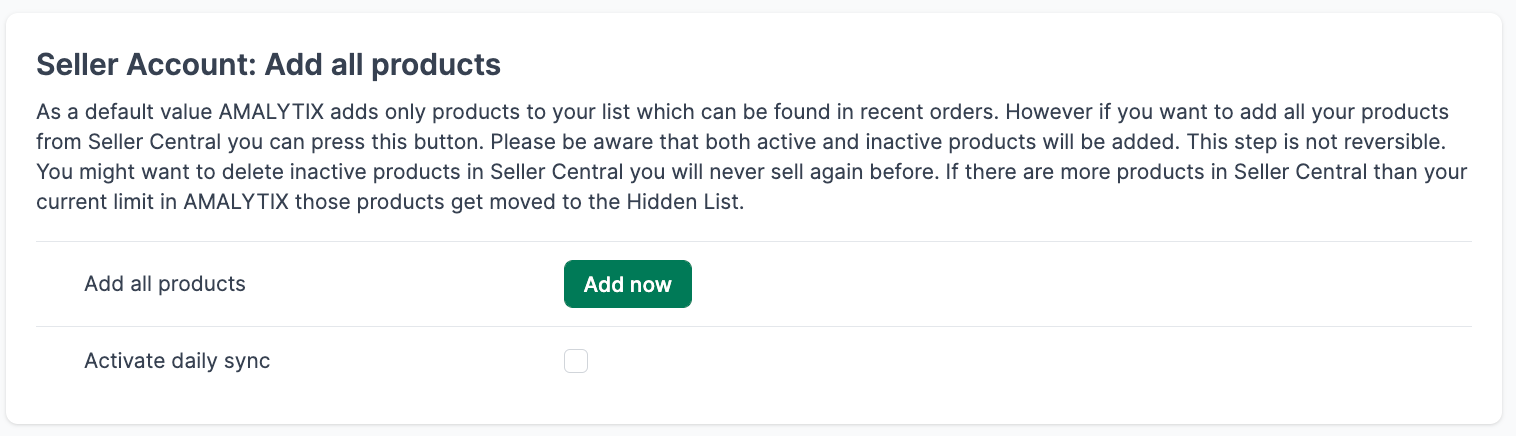
This option can also be automated so that, e.g., AMALYTIX is synchronized daily with your Seller account. This is useful if new products are added but usually not sold immediately.
Here again is the note: Products that AMALYTIX finds in orders are added automatically, as long as your current plan and the Seller product limit allow this.
A product may not appear in your product list if:
- It has not yet had any sales and is not in FBA inventory
- It is inactive or suppressed on Amazon
- It exceeds your current plan limit (visible under "Hidden Products")
- It was temporarily unavailable during import from Amazon (e.g., 404 error or removed variation)
- It is an FBM product that has never been sold
If you want to make sure that all products are fully synchronized, click "Add all products" under Settings / Products / Manage products and tags, and then review the log file if certain ASINs are still missing.
Available columns
You can determine which columns are displayed using the column selection. Some columns are hidden by default. You can show them at any time using the column selection.
Click on the respective column header to sort by that column.
The following columns are available:
- Marketplace: The Amazon marketplace where the product is listed (e.g., DE, UK, FR)
- Product information: Here, we display the following information:
- Product title (hover to see the full title, click to go to the detail page)
- Detailed information is available in the expanded view (see below)
- Revenues last 28 days: The order revenues of the last 28 days help you evaluate your products’ sales performance
- Difference: Absolute change in revenues compared to the previous period
- Difference in percent: Percentage change in revenues of the last 14 days compared to the previous period, to quickly identify trends
- Sales last 28 days: The number of shipped units in the last 28 days
- Profitability last 28 days: The contribution margin of the last 28 days for this product. Hover over the info symbol to see the breakdown.
- Buybox price: The Buybox price at the time of the last check. The time can be viewed on the product detail page.
- Average BB Price 28d: The average Buybox price of the last 28 days, to identify price fluctuations
- Amazon Price: The current price from Amazon for this product (if Amazon has an offer)
- Coupon: Shows the current coupon discount, if applicable
- Promo: Number of units sold through promotions
- Main Category: The main category where the product is listed
- Bestseller Rank: The Bestseller Rank in the main category shows how well the product sells compared to others
- Product Type: The product type assigned by Amazon
- Sessions: The number of sessions (visits) to the product page. If AMALYTIX has access to the reports via a Seller Central User, we can display the number of sessions here.
- Sessions Mobile App %: The percentage of sessions from the Amazon Mobile App
- Conversion Rate: The percentage of sessions that result in a purchase
- Buybox: Shows whether you owned the Buybox at the time of the last check. If not, the current owner is shown on hover.
- Buybox Owner: Name of the current Buybox owner
- Own Offer: Shows whether you have an offer on this product
- Amazon has Offer: Shows whether Amazon has an offer
- Amazon has Buybox: Shows whether Amazon currently owns the Buybox
- Number of Sellers: The number of sellers who have an offer on this ASIN
- Deal Badge: Shows whether the product currently has a deal badge
- Availability: Current availability status of the product
- Fulfillment: Shows whether the item is FBA or FBM
- Stock: For FBA items: current quantity in stock and inbound at Amazon
- Stock in Transit: Number of units currently in transit to Amazon
- Number of Reviews:
- The number of reviews on the parent article (above)
- The number of reviews of the respective child (below), determined from individual product reviews
- Rating:
- The current rating (1-5) of the parent article (above)
- The rating of the respective child (below), determined from individual product reviews
- Rating Top Reviews: The average rating of local top reviews
- Weighted Return Rate: See explanation below
- Bundle: Shows whether the product is a bundle
- Minimum Order Quantity: The minimum order quantity set by Amazon
- Number of Pieces: Number of pieces in the product
- Number of Markets: How many Amazon marketplaces the product is listed on
- Variation Count: Number of variations for parent articles
- Variation Theme: The variation theme (e.g., color, size)
- Traffic 30d: Traffic development over the last 30 days
- Options:
- Click the speech bubble to leave a comment for a product. Comments are indicated by a green speech bubble.
- Click the checklist to create to-dos for individual products.
Advertising Cost Columns (optional)
The following advertising cost columns can be enabled:
- Ad Cost 28d: Advertising costs (ad spend) of the last 28 days
- Ad Revenue 28d: Revenue generated through advertising in the last 28 days
- Ad Orders 28d: Number of orders generated through advertising
- Ad Revenue % 28d: The share of advertising revenue in total revenue
- Total ACoS 28d: Advertising Cost of Sales (ad cost / ad revenue)
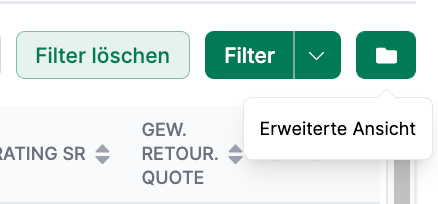
Click on “Expanded view” at the top right to get detailed information in the “Product” column.
You will also see:
- Main image
- ASIN
- SKU
- EAN / GTIN
- Brand
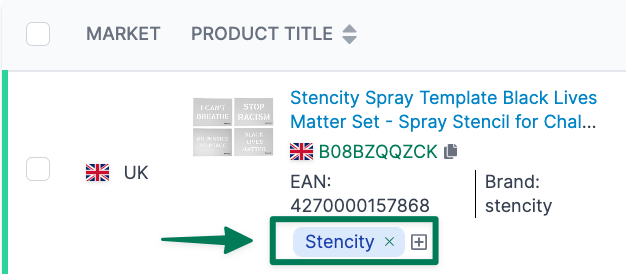
- Tags (see detailed explanation below)
Assigning Tags
You can assign any number of Tags to each product. With Tags, you can structure your products however you like. For example, you can create cross-brand categories, mark new products, assign products to your team members, and much more. A product can have multiple tags.
Watch this video for a quick overview of tags:
To assign a tag, open the expanded view and click the + sign.
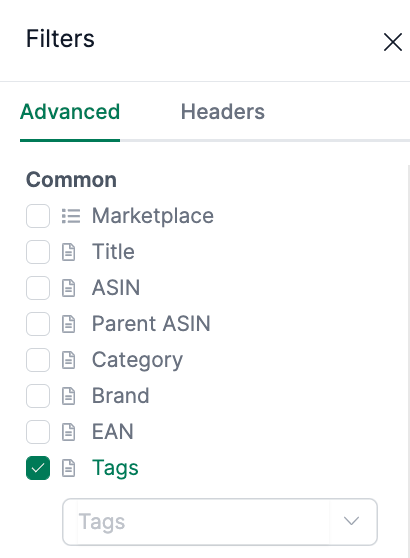
You can use the filter option to display products with a specific tag. This way, you can keep an overview even with large assortments.
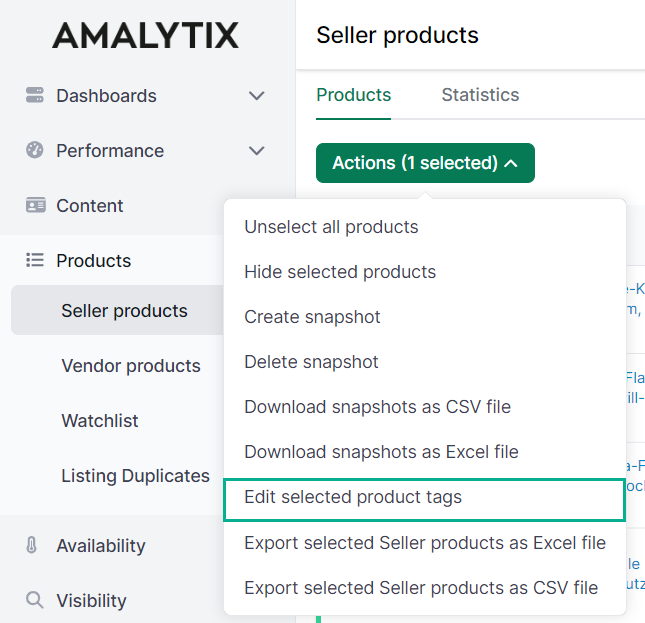
You can also assign tags to multiple products at once by selecting the products in the left column and choosing Actions / Add / Remove tags.
Hiding Products
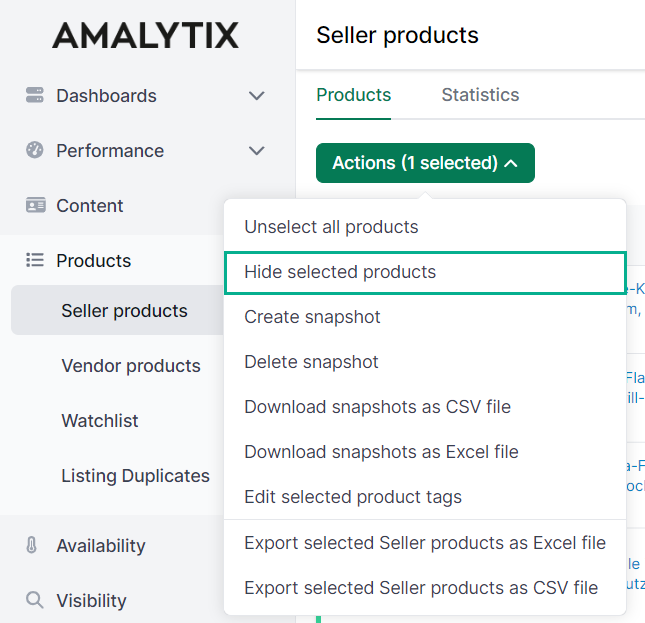
You can temporarily remove products that are not important to you from the overview page. Select the affected products in the left column and click Actions then Hide selected products. The hidden products can then be found on the Settings / Products / Hidden Products page.
Weighted Return Rate on Amazon
The weighted return rate is based on the return rates of the respective SKUs. The individual rates are weighted based on the number of sales in the period under consideration, i.e., the return rate of the SKU with the most sales also has the greatest influence on the weighted return rate.
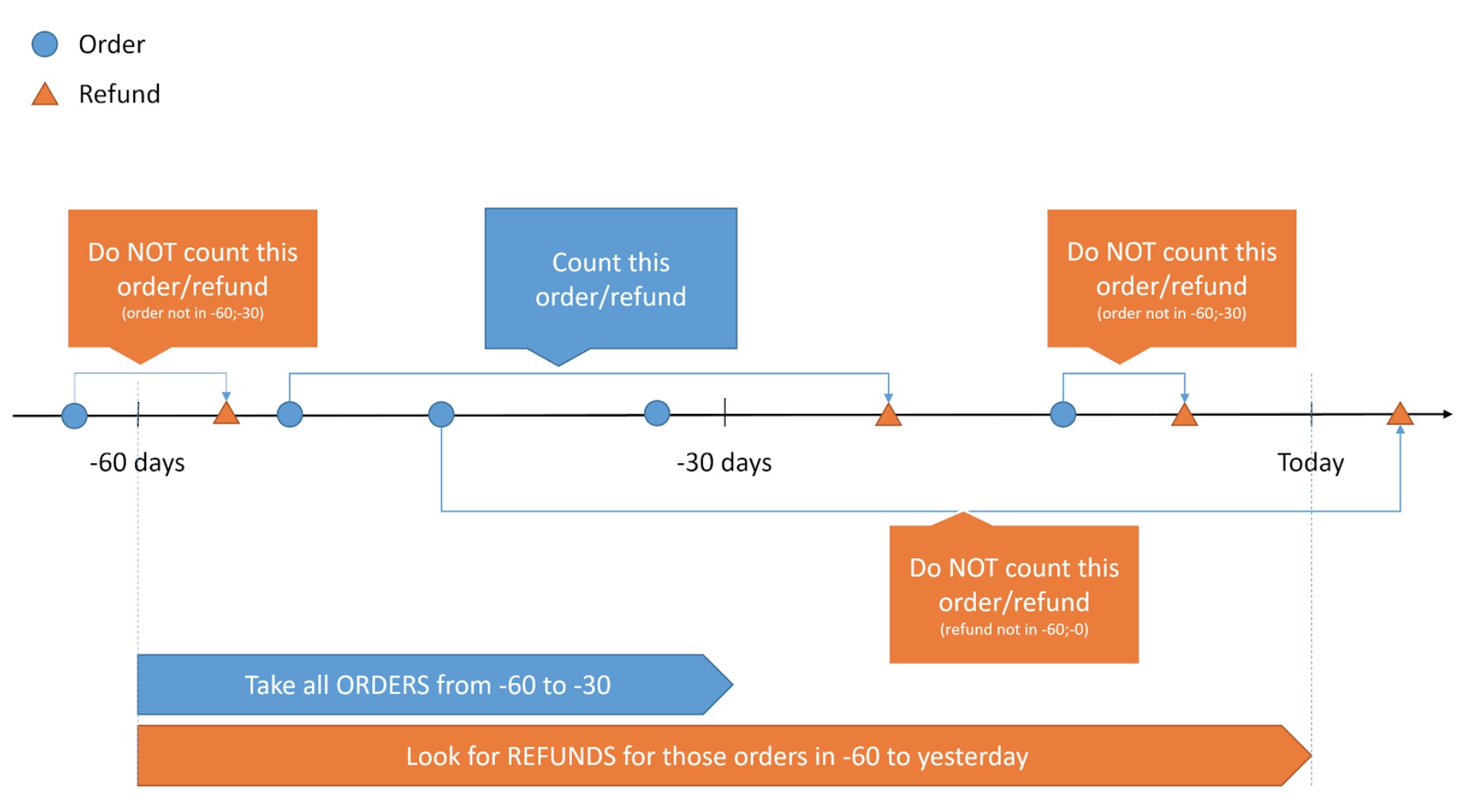
We calculate the return rates of SKUs as follows: We look at the orders in the period -60 days to -30 days and then count the returns that belong to those orders. These can occur from -60 to today, as a customer has 30 days to return a product. We then calculate the ratio of returns to units sold.
Amazon proceeds differently: Amazon compares the number of returns of the last 30 days to the number of units sold during the last 30 days, regardless of whether the returns match those exact orders. This method can cause distortions, e.g., at Christmas. Before Christmas, the number of orders is very high, but the number of returns is constant. Here, Amazon would report a too-low return rate. After Christmas, orders decrease, but returns increase sharply. Here, Amazon would report a too-high return rate.
With our method, the reference value would always be correct. The only disadvantage is that our return rate lags somewhat in time.
Details on the Amazon Return Rate
Hover your mouse over the weighted return rate to get more details on the customer returns of all SKUs for this ASIN over the last 90 days.
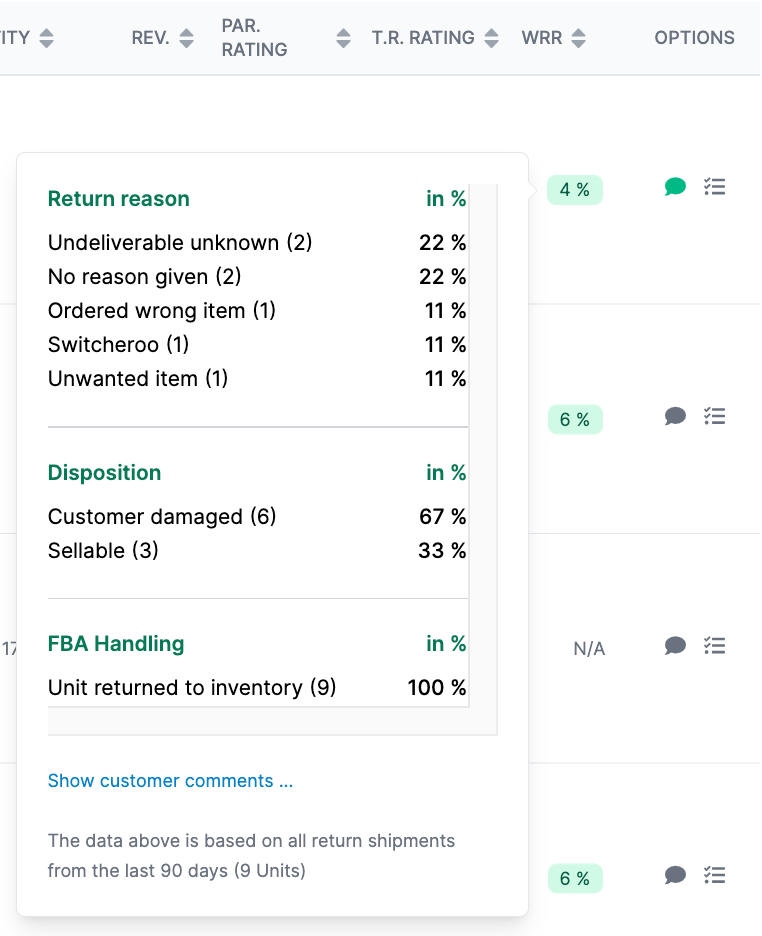
In the popover, all customer returns of the last 90 days are classified according to the following independent criteria:
- Reason for return: What were the main reasons customers returned the item?
- Condition: What percentage of the items are resalable or defective?
- FBA Handling: What did Amazon do with the returns?
Click on Show customer comments … below to view customers’ latest free-text comments.
With one click on Show statistics … you get back to the previous view.
Product Detail Page
Click on a product title in the overview to go to the product detail page.
With the help of the product detail page, you can quickly get a detailed picture of your products and track past developments.
Here you will find detailed information about the product detail page.
More Topics
- Statistics — Overview of statistics for your Seller Products
- Reports & Alerts — Export reports and subscribe to alerts
- Issues — Identify issues with your products