Vendor Products
Amazon Vendor Product Overview
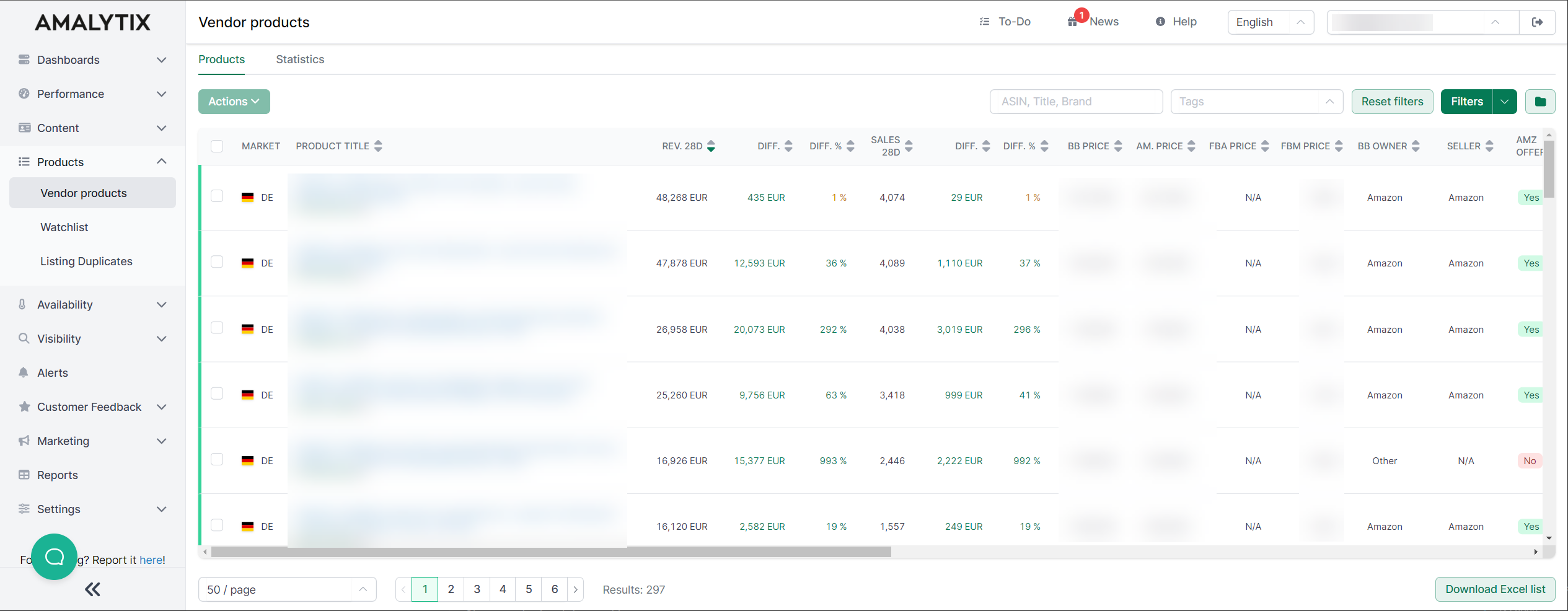
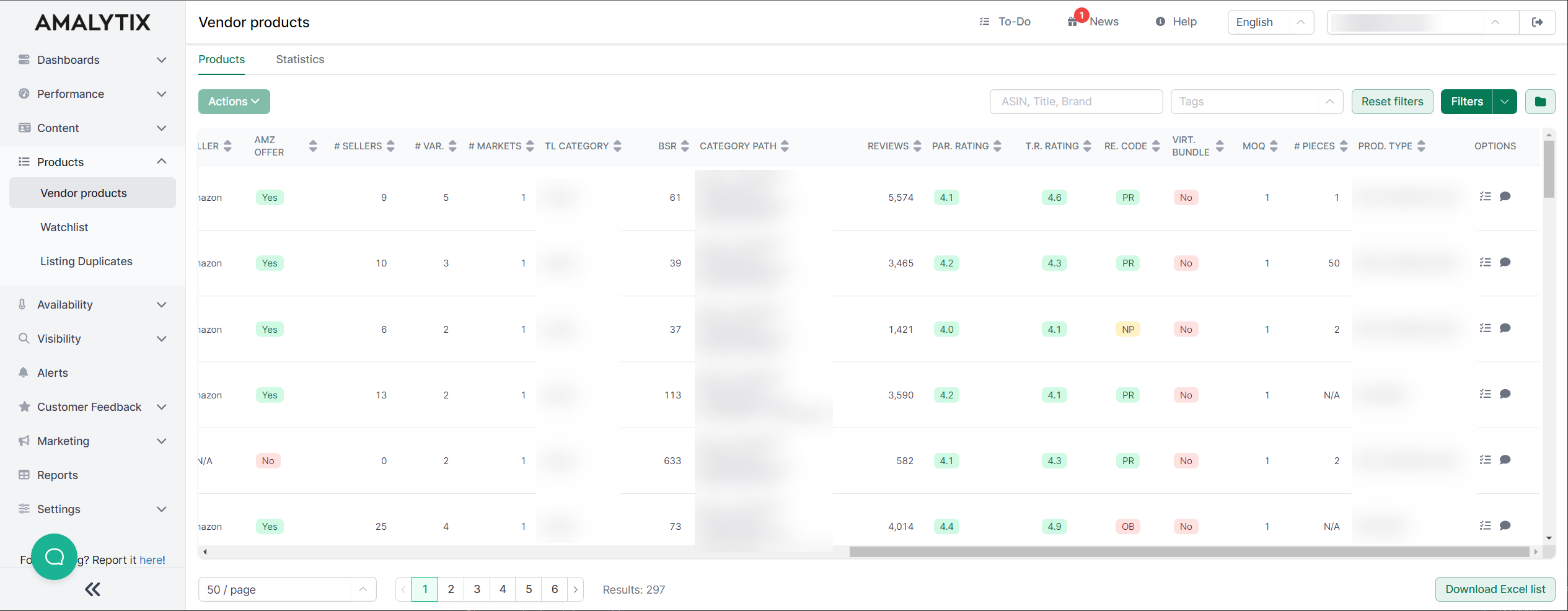
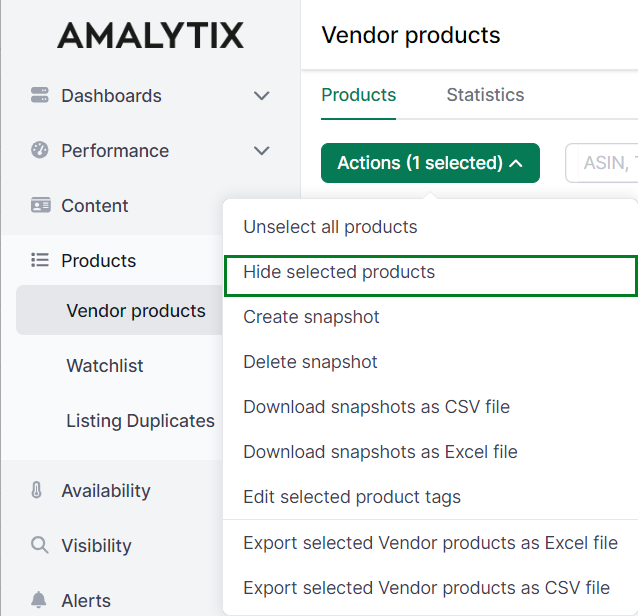
On the “Vendor Products” page, we give you a product overview of all products from your Vendor account. We display the products found in the “Sales Diagnosis” report. The products are also automatically added to the “Watchlist.” Only products on the Watchlist are monitored for content or reviews. Therefore, you should not delete the products there. You can hide products from the “Vendor Products” page by selecting the products and clicking Actions then Hide selected products.
On the “Vendor Products” page, you can find the following information, among others:
- Important product key figures can be captured at a glance (revenue, availability, reviews, and more)
- Which products are currently not available?
- For which products does Amazon currently not have the Buybox?
- Which products differ from the target situation in terms of content, e.g., title, bullet points, and description (Content View)?
- Which products currently do not meet your content requirements (Content View)?
- Which products does Amazon not reorder, i.e., which products have a replenishment code other than “Planned Replenishment”?
- And much more
Available columns
AMALYTIX displays various metrics for each product. Some columns are hidden by default. You can show them at any time using the column selection.
Click on the respective column header to sort by that column.
The following columns are available:
- Marketplace: The Amazon marketplace where the product is listed (e.g., DE, UK, FR)
- Product information: Product title and additional details (in expanded view also ASIN, EAN, brand, tags)
- Revenues last 28 days: The net sales from sales to Amazon in the last 28 days
- Difference: Absolute change in revenues compared to the previous period
- Difference in percent: Percentage change in revenues of the last 14 days compared to the previous period
- Sales last 28 days: The number of units sold per product in the last 28 days
- Glance Views 28d: The number of product page views in the last 28 days (from Amazon Vendor Analytics)
- Conversion Rate 28d: The conversion rate of the last 28 days
- Buybox Price: Current Buybox price
- Average BB Price 28d: The average Buybox price of the last 28 days
- Amazon Price: Current price from Amazon
- Lowest FBA Price: Lowest price of an FBA merchant
- Lowest FBM Price: Lowest price of an FBM merchant
- Net PPM: Net Pure Product Margin - the net product margin Amazon earns on this product
- Net PPM Report Date: Date of the last Net PPM update
- Amazon Margin %: The relative margin Amazon earns on this product
- Net Cost: The net cost of the product for Amazon
- Buybox Owner: Name of the Buybox owner
- Buybox Seller: Fulfillment type of the current Buybox owner
- Amazon has Offer: Yes, if Amazon has an offer
- Amazon has Buybox: Shows whether Amazon currently owns the Buybox
- Coupon: Shows the current coupon discount, if applicable
- Promo: Number of units sold through promotions
- Number of Sellers: The number of sellers who have an offer on this ASIN
- Deal Badge: Shows whether the product currently has a deal badge
- Availability: Current availability status of the product
- Number of Markets: How many Amazon marketplaces the product is listed on
- Variation Count: Number of variations for parent articles
- Variation Theme: The variation theme (e.g., color, size)
- Bestseller Rank: Bestseller rank of the product in the main category
- Main Category: The main category where the product is listed
- Reviews: Number of reviews on the listing
- Parent Rating: Current rating of the product
- Rating Top Reviews: Average rating of top reviews
- Replenishment Code: The replenishment code Amazon has on file for this product. Shows whether Amazon reorders the product (e.g., “Planned Replenishment”) or not.
- Sell-Through Rate: The rate indicating how quickly inventory sells at Amazon
- Receive Fill Rate: The rate at which Amazon received the ordered units
- Vendor Confirmation Rate: The rate at which the vendor confirmed Amazon’s orders
- Bundle: Shows whether the product is a bundle
- Minimum Order Quantity: The minimum order quantity set by Amazon
- Number of Pieces: Number of pieces in the product
- Product Type: The product type assigned by Amazon
- Shipped COGS 30d: Cost of Goods Sold (merchandise cost) of shipped units in the last 30 days
- Shipped Units 30d: Number of shipped units in the last 30 days
- Options: Here you can add a comment or a To-Do
Advertising Cost Columns (optional)
The following advertising cost columns can be enabled:
- Ad Cost 28d: Advertising costs (ad spend) of the last 28 days
- Ad Revenue 28d: Revenue generated through advertising in the last 28 days
- Ad Orders 28d: Number of orders generated through advertising
- Ad Revenue % 28d: The share of advertising revenue in total revenue
- Total ACoS 28d: Advertising Cost of Sales (ad cost / ad revenue)
Click on “Expanded view” at the top right to get detailed information in the “Product” column.
You will also see:
- Main image
- ASIN
- EAN
- Brand
- Tags
Assigning Tags
You can assign any number of Tags to each product. With Tags, you can structure your products however you like. For example, you can create cross-brand categories, mark new products, assign products to your team members, and much more. A product can have multiple tags.
Watch this video for a quick overview of tags:
To assign a tag, open the expanded view and click the + sign below the brand name.
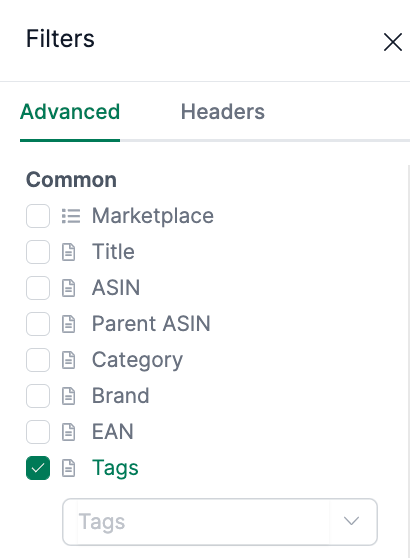
You can use the filter option to display products with a specific tag. This way, you can keep an overview even with large assortments.
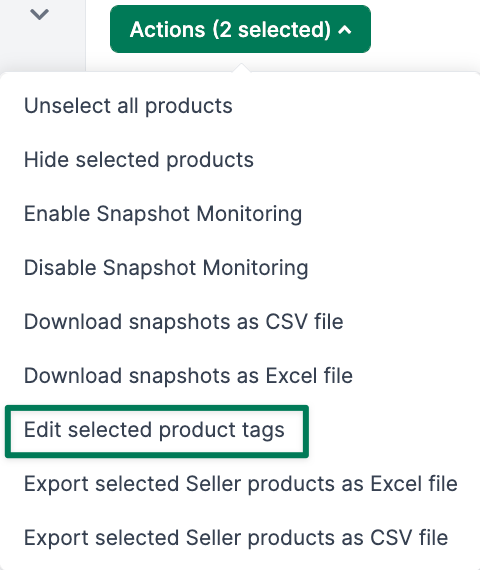
You can also assign tags to multiple products at once by selecting the products in the left column and choosing Actions / Add / Remove tags.
Hiding Products
You can temporarily remove products that are not important to you from the overview page. Select the affected products in the left column and click Actions then Hide selected products. The hidden products can then be found on the Settings / Products / Hidden Products page.
Product Detail Page
By clicking on the respective product title, you will be directed to the detail page of the product:
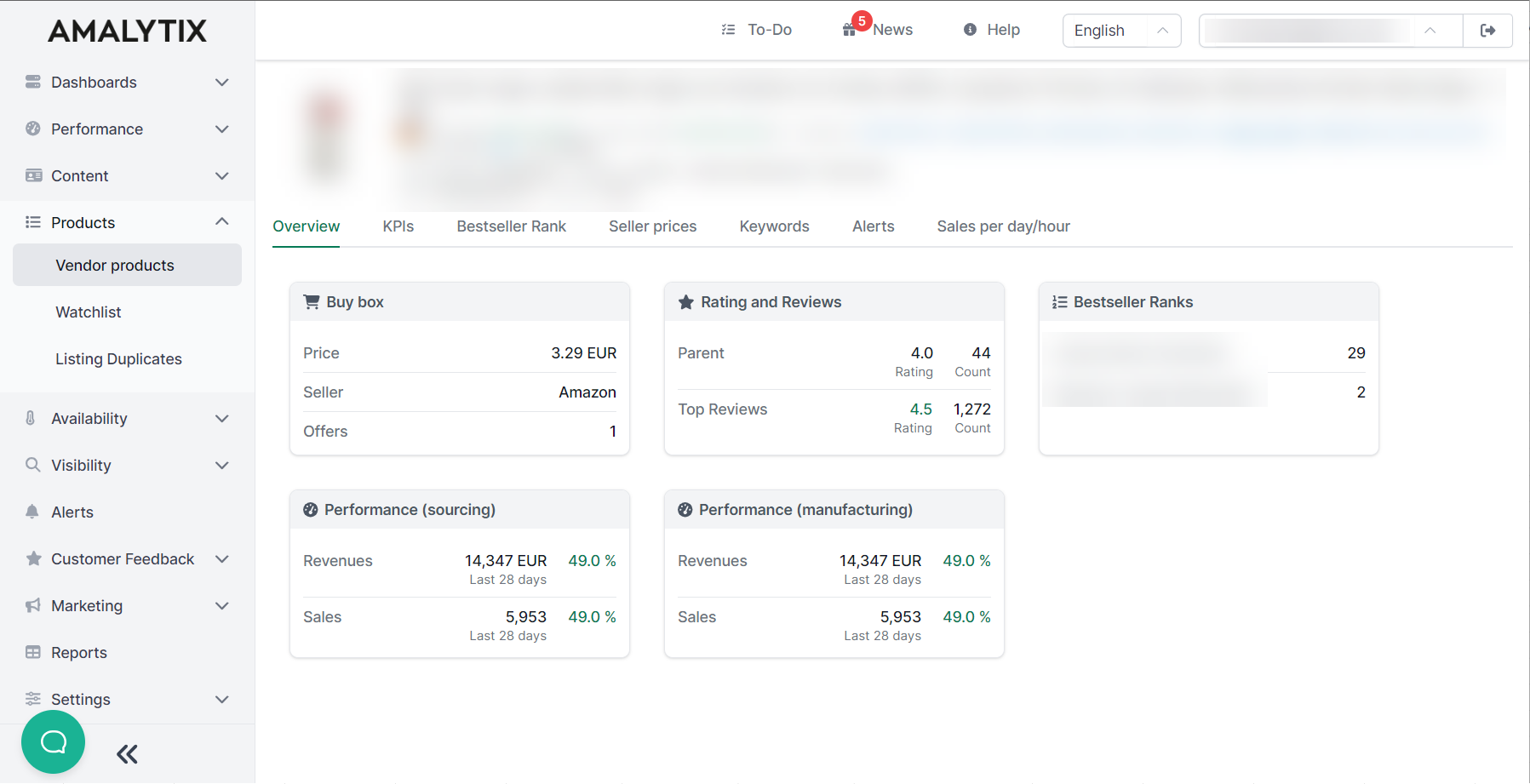
With the help of the product detail page, you can quickly get a detailed picture of your products and track past developments.
Here you will find detailed information about the product detail page.
More Topics
- Statistics — Overview of statistics for your Vendor Products
- Reports & Alerts — Export reports and subscribe to alerts
- Issues — Identify issues with your products