Agent Settings
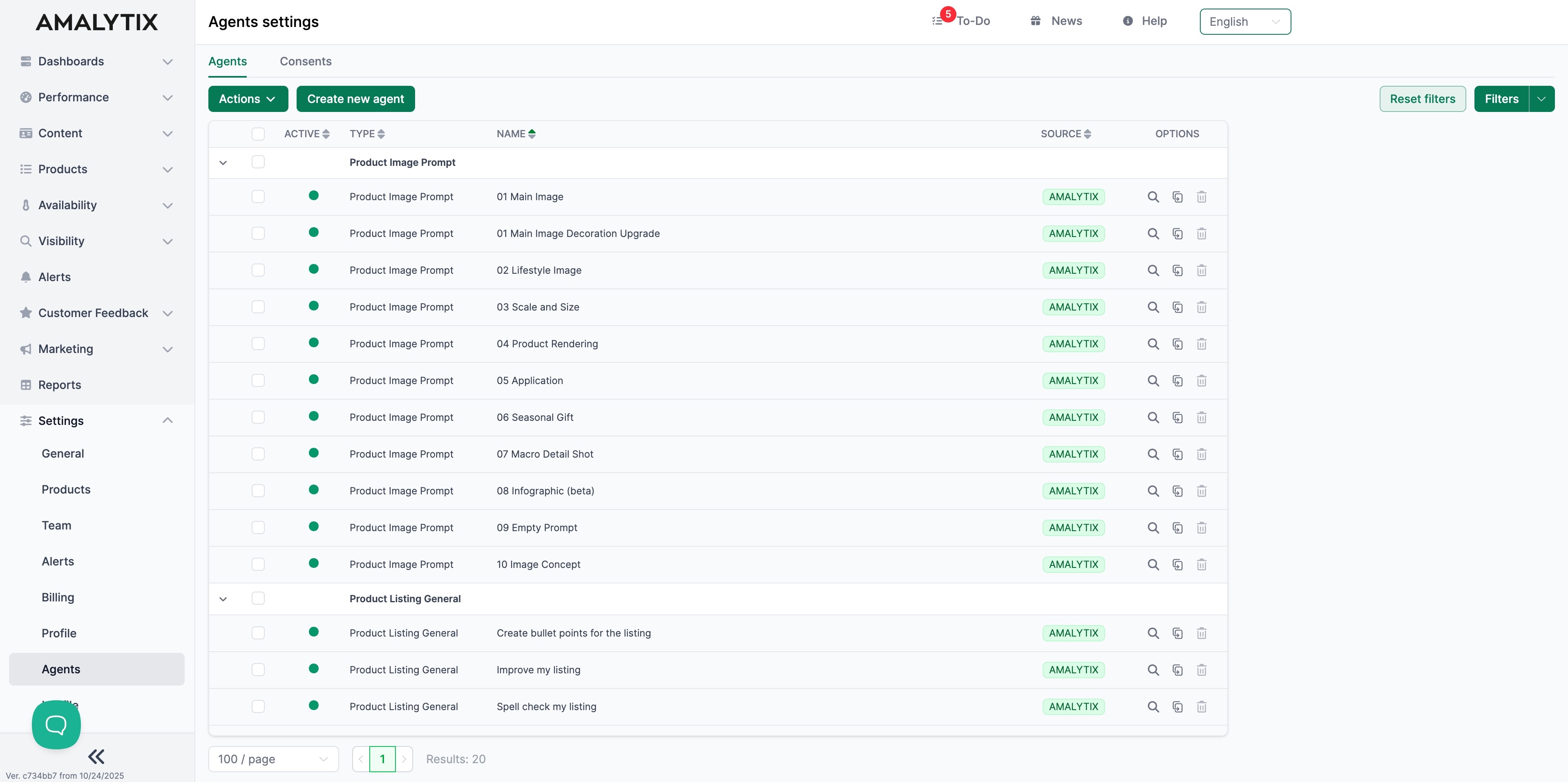
Under Settings > Agents, you manage AI agents that help you optimize your Amazon listings and create product images. Agents are preconfigured prompts that work with ChatGPT.
What Are Agents?
Agents are instructions for an AI that perform specific tasks for you. AMALYTIX provides predefined agents and allows you to create your own.
Agents can:
- Generate or improve product images
- Analyze listings and provide feedback
- Optimize, translate, or review texts
- Overhaul complete listings with one click
- Translate snapshots
Agent Types
There are four types of agents, each serving different purposes:
| Type | Focus | Usage |
|---|---|---|
| Product Image Prompt | Image creation and optimization | For AI-generated product photos |
| Product Listing General | Text optimization and translation | For product descriptions, titles, bullet points |
| One-Click Optimization | Complete listing optimization | For automated improvement of entire listings |
| Fix-My-Listing | Listing repair | For fixing errors in Amazon listings |
| Snapshot Translation | Translation of snapshots | For translating content with LQI guidelines taken into account |
Predefined vs. Custom Agents
AMALYTIX distinguishes between two sources of agents:
- AMALYTIX Agents (green badge) - Provided by AMALYTIX, cannot be deleted or edited
- User Agents (orange badge) - Created by you, fully customizable
Creating a New Agent
You have two options for creating a new agent:
Option 1: Duplicate an Existing Agent
- Find an existing agent that is close to your requirements
- Click Duplicate under Options
- Customize the copy to your needs

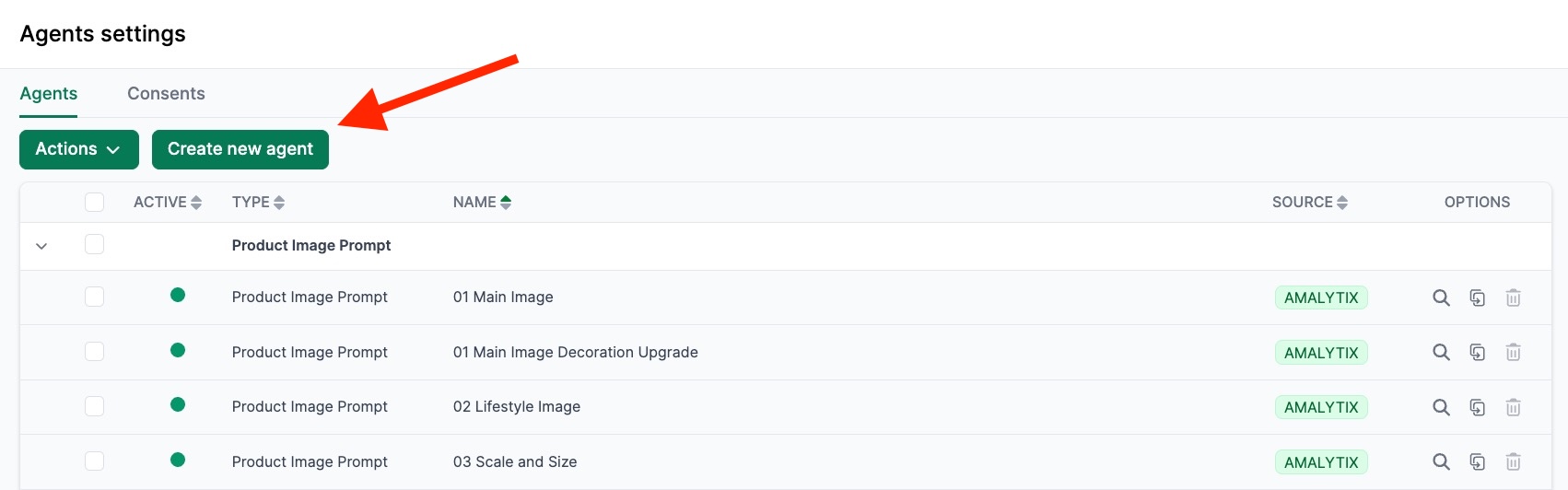
Option 2: Create a New Agent
- Click Create New Agent
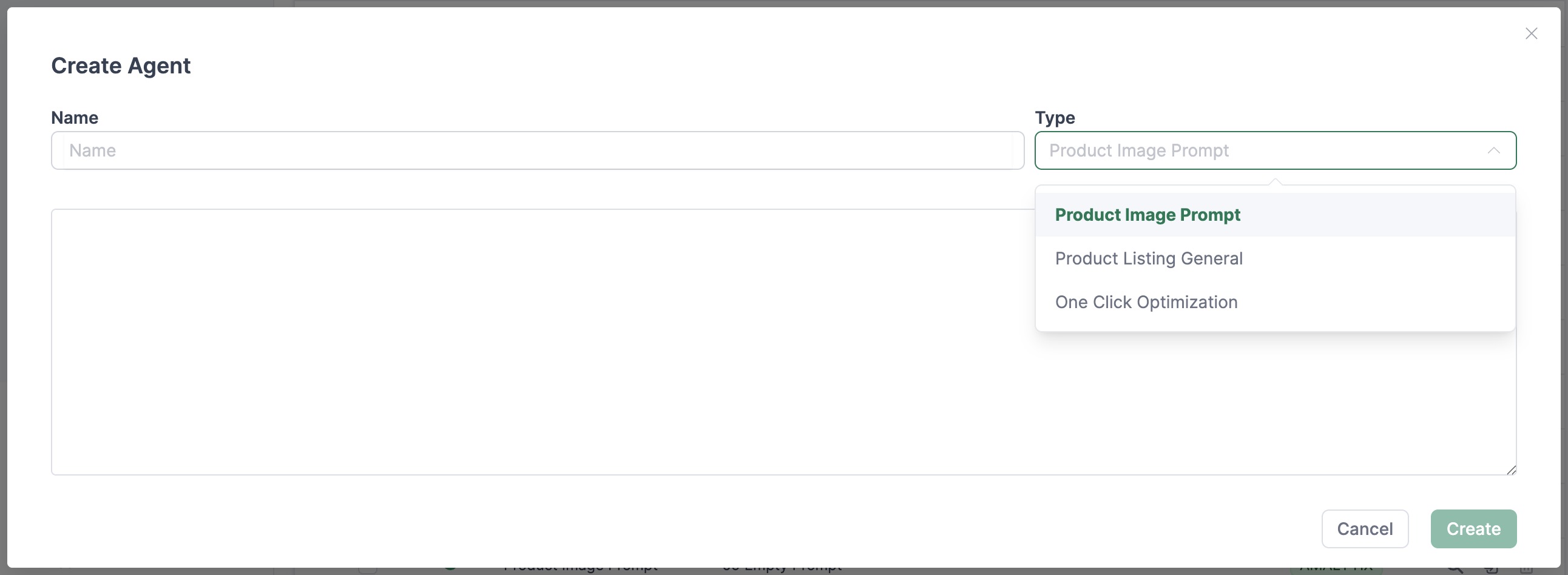
- Enter a descriptive name
- Select the agent type
- Formulate the instruction
Formulating Instructions
In the instruction, describe how the agent should behave and what tasks it should perform.
Use the “Insert Placeholder” function to automatically insert dynamic values such as product title, bullet points, or descriptions.
Examples of instructions:
- “Please summarize the following customer questions and identify typical issues.”
- “Translate the product description from {listing language} to {language}.”
- “Analyze the bullet points and suggest improvements for SEO.”
- Be specific: Add examples when helpful.
- Experiment: Refine your request based on the results.
- Use templates: Use existing agents as a guide.
- Formulate professionally: Write as if you were briefing an agency.
Agent Type: Product Image Prompt
Product image agents generate AI images for your Amazon listings. They create consistent, high-quality product photos in various styles.
Predefined product image agents:
| Agent | Description |
|---|---|
| 01 Main Image | Main image according to Amazon guidelines |
| 02 Lifestyle Image | Product in a realistic environment |
| 03 Scale and Size | Size ratios and dimensions |
| 04 Product Rendering | Photorealistic product image |
| 05 Application | Product in use |
| 06 Seasonal Gift | Seasonal representations (e.g., Christmas) |
| 07 Macro Detail Shot | Detail shots and textures |
| 08 Infographic | Explanatory images with text and icons |
| 09 Empty Prompt | Empty prompt for custom design |
| 10 Image Concept | Creative image concepts based on product features |
Using Product Image Agents
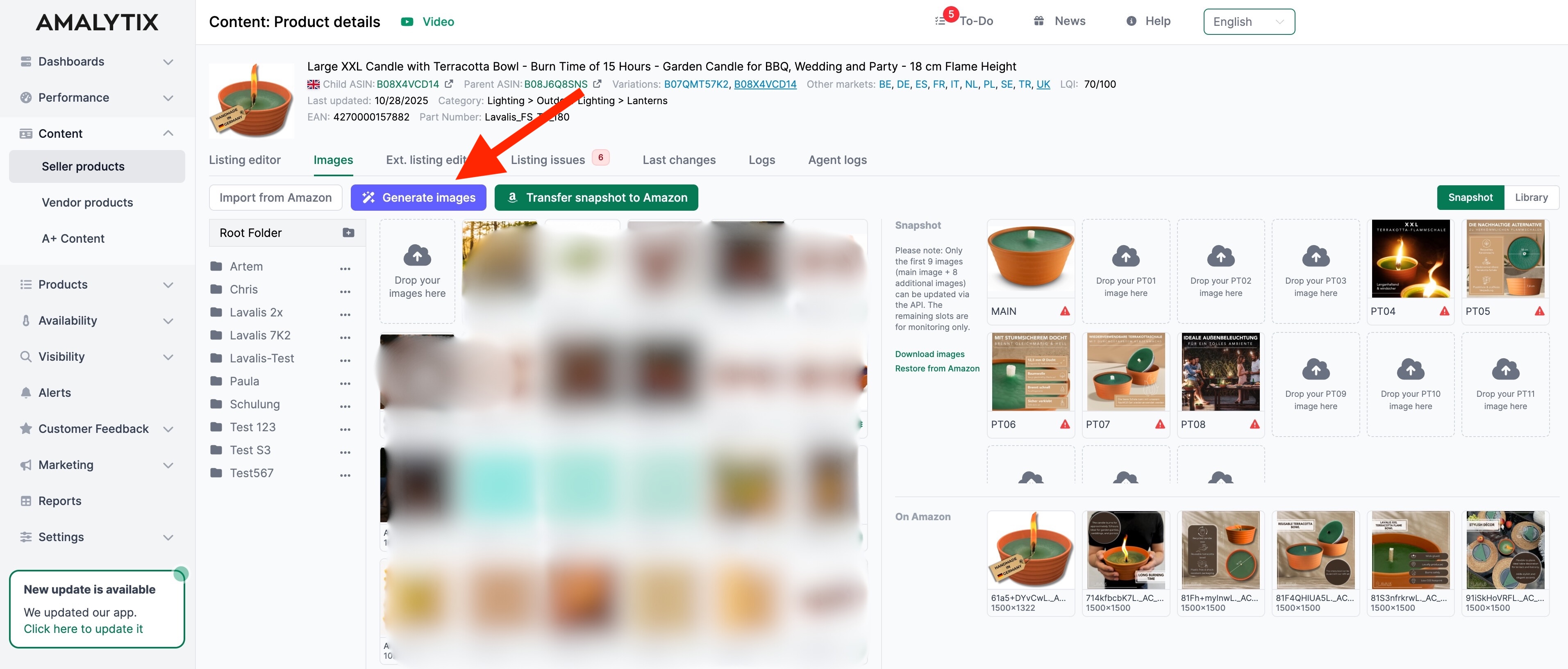
- Open Content and click on a product
- Switch to the Images tab
- Click Generate Images
- Select a prompt and follow the 4-step process
The image generation process:
- Step 1: Select prompt and add details if needed
- Step 2: Review generated prompt and adjust
- Step 3: Upload reference images (ideally the main image) and choose AI model
- Step 4: View and save finished images
Agent Type: Product Listing General
These agents optimize your product texts linguistically, content-wise, and for SEO.
Predefined listing agents:
| Agent | Description |
|---|---|
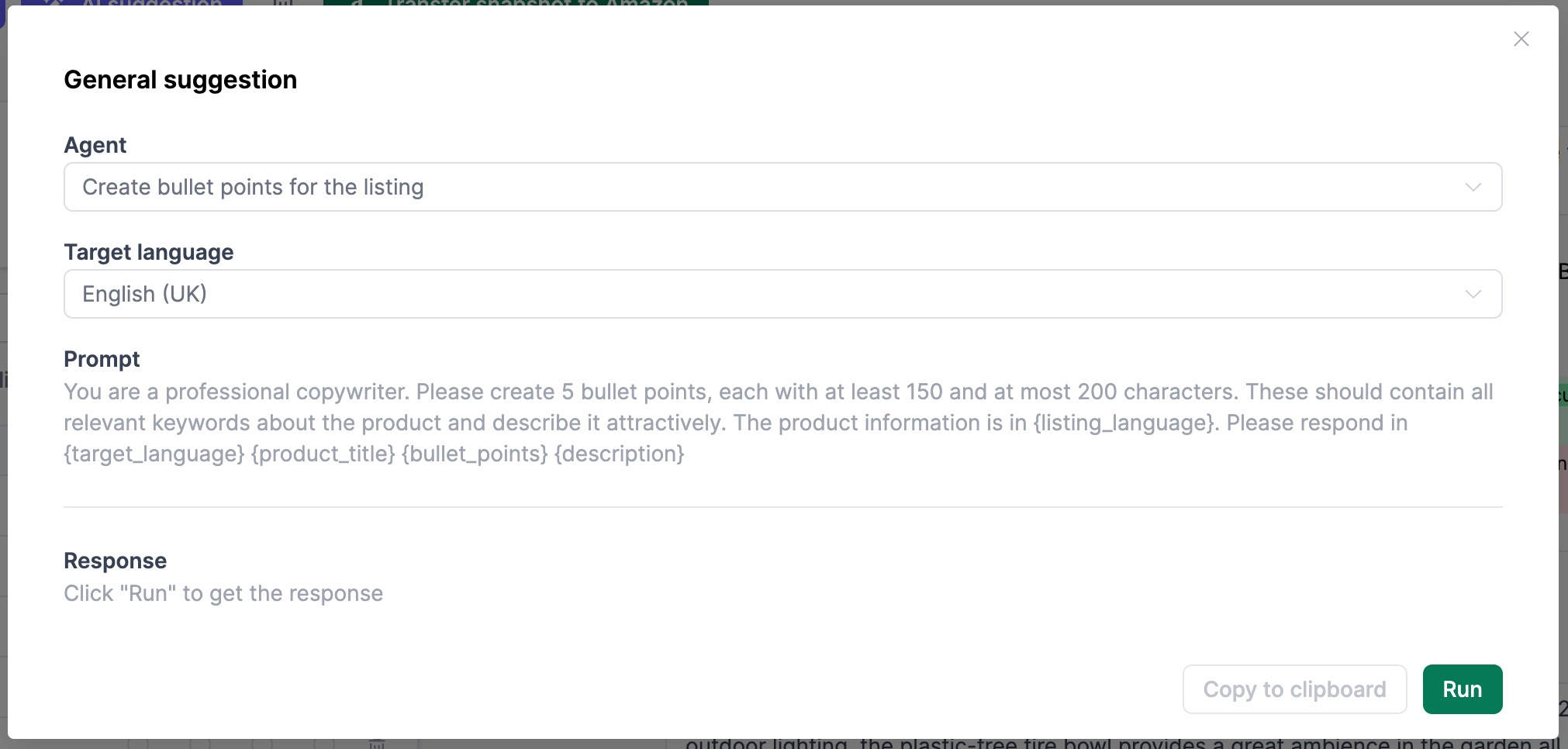
| Create bullet points | Create structured bullet points |
| Improve my listing | Improve style, grammar, and readability |
| Spell check my listing | Check spelling and grammar |
| Suggest keywords | Suggest relevant keywords |
| Tell a joke | Creative, entertaining descriptions |
| Translate to | Translate listings to other languages |
Using Listing Agents
- Open Content and click on a product
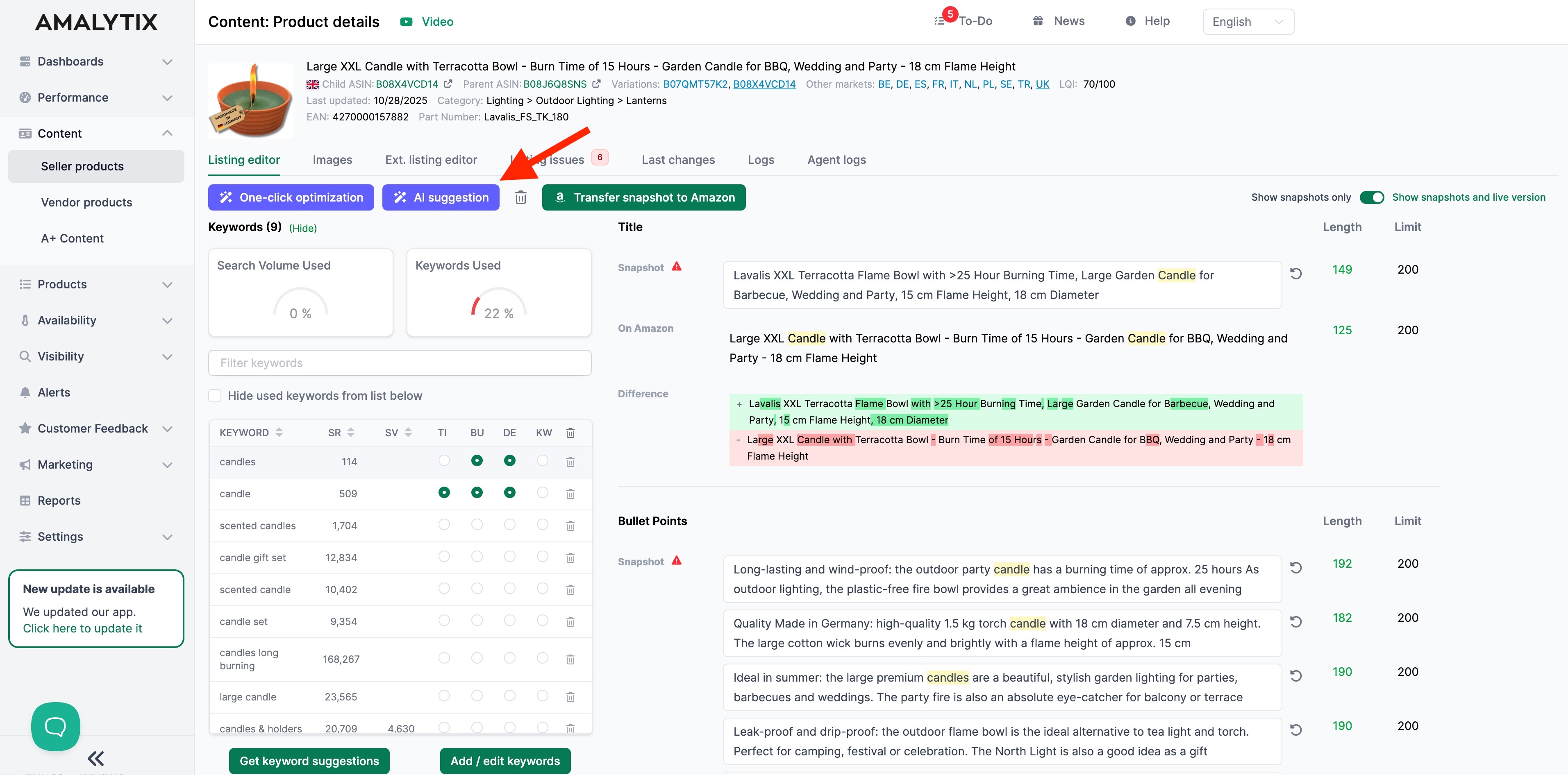
- Click the purple AI Suggestion button
- Select the desired agent and target language
- Click Execute
Agent Type: One-Click Optimization
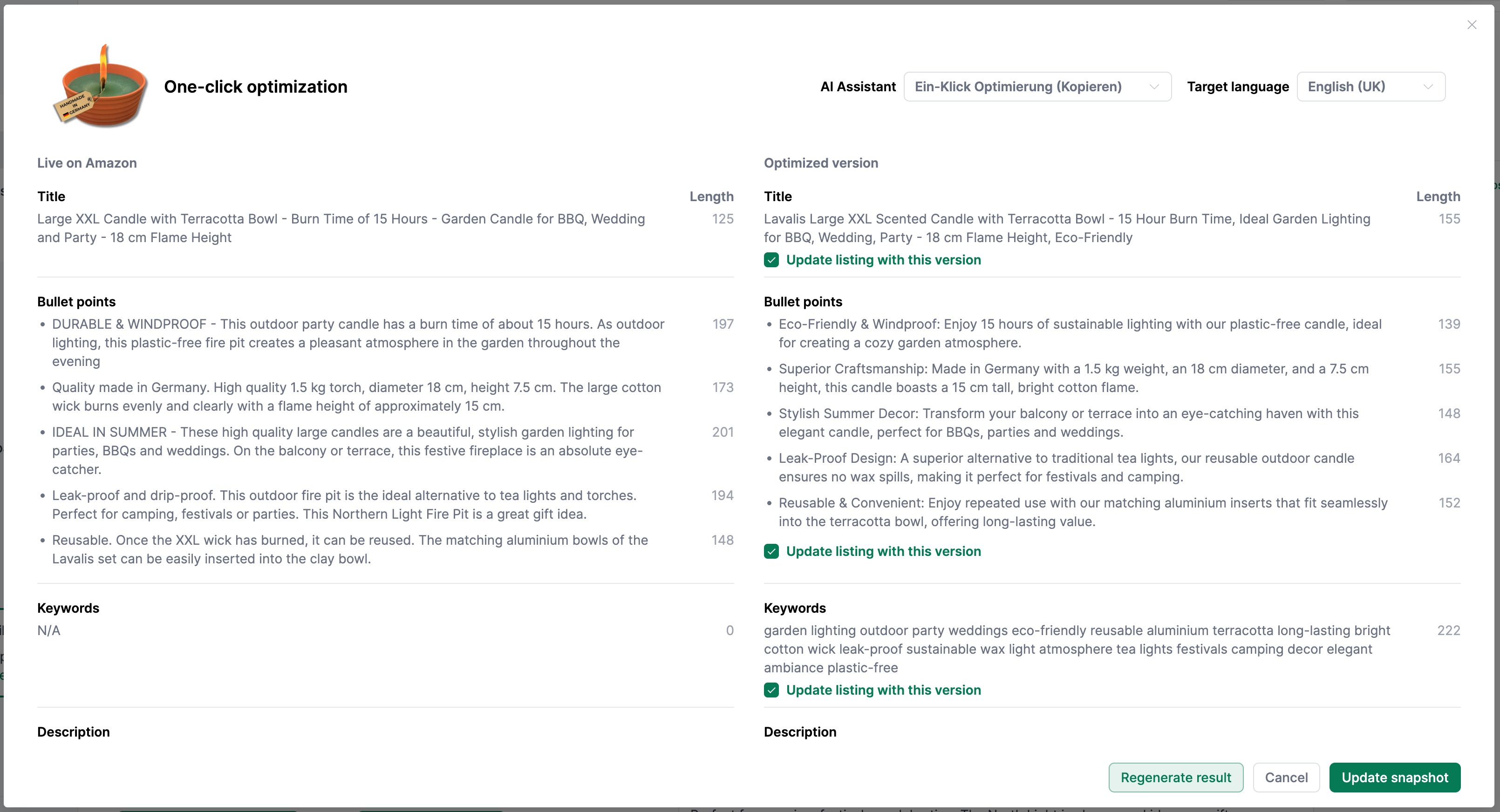
The one-click optimization performs a comprehensive revision - including title, bullet points, and keyword list. All elements are optimized according to Amazon best practices.
Goal: A complete, SEO-optimized, and sales-strong product presentation in one step.
In this video, we show you how to fully customize the one-click optimization in just a few steps:
Using One-Click Optimization
- Open Content and click on a product
- Click One-Click Optimization
- On the left you see the current content, on the right the suggestions appear
- Use the checkboxes to select which suggestions should be applied
Agent Type: Snapshot Translation
This agent specializes in translating snapshots. It translates content, compares it against LQI guidelines, and automatically makes corrections where needed.
The agent is available as an alternative to the DeepL integration and can be executed via the Actions button for selected products.
Using Snapshot Agents
- Open Content and click on Seller / Vendor Products
- Select the desired product
- Click Actions at the top and then Translate Snapshots
- Choose the target language and target marketplace and start the translation
Agent Type: Fix-My-Listing
The Fix my listing agent validates your current listing on Amazon and repairs fixable errors.
You remain in full control: The correction suggestions are displayed for your review and are only applied after your explicit approval.
Using Fix-My-Listing Agents
- Open Content and click on a product
- Open the extended listing editor
- Select the Fix my listing agent and enter the Vendor Code and SKU
- The suggestions are displayed and can be accepted by you
Related Topics
- Content Optimization - Manage and optimize product listings
- General Settings - Account details and API connections