Alerts in Microsoft Teams
With AMALYTIX, you can receive all alerts directly in a Microsoft Teams channel. This way, you never miss important product changes and your team can react quickly.
Prerequisites
To receive alerts in Microsoft Teams, you need:
- A Microsoft Teams channel (preferably a dedicated channel for AMALYTIX alerts)
- Permission to create webhooks in Teams
- The webhook URL from Teams
What is a Webhook?
A webhook is a special URL that allows AMALYTIX to send messages to your Teams channel. The URL is created once in Teams and then stored in AMALYTIX.
Guide for Teams Classic
Step 1: Create Channel
Create a Teams channel for AMALYTIX alerts (e.g., “AMALYTIX-Alerts”).
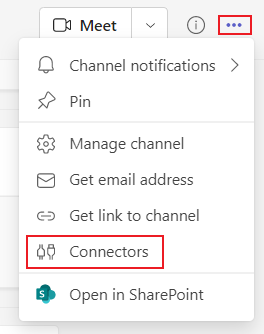
Step 2: Open Connectors
Click on the three dots (1) next to the channel name. Select Connectors (2) from the dropdown menu.
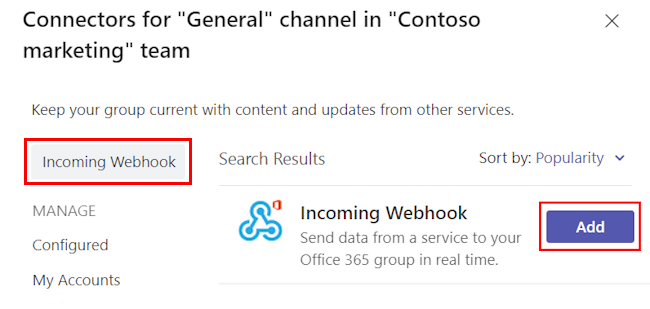
Step 3: Search for Incoming Webhook
Search for “Incoming Webhook” and select Add (3).
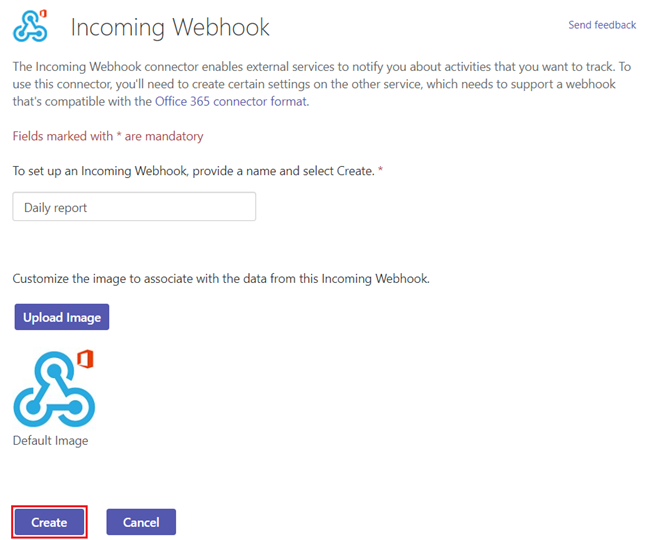
Step 4: Configure Webhook
Enter a name for the webhook (4), e.g., “AMALYTIX”. Optionally, you can also upload an image. Then click Create (5).
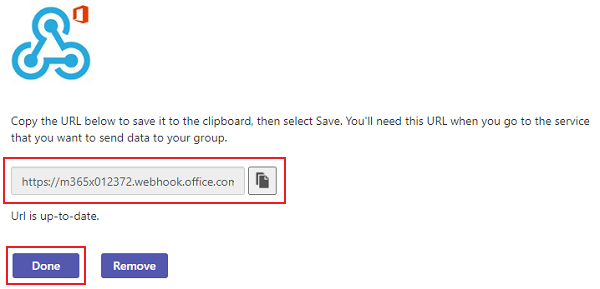
Step 5: Copy Webhook URL
Copy the displayed webhook URL - you will need this in AMALYTIX.
Guide for New MS Teams
Step 1: Create Channel
Create a Teams channel for AMALYTIX alerts (e.g., “AMALYTIX-Alerts”).
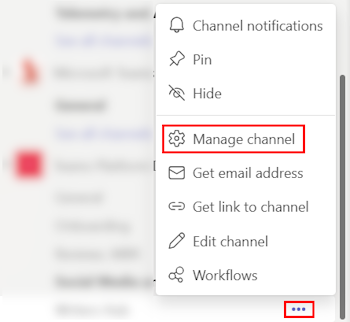
Step 2: Manage Channel
Click on the three dots (1) next to the channel name. Select Manage channel (2) from the dropdown menu.
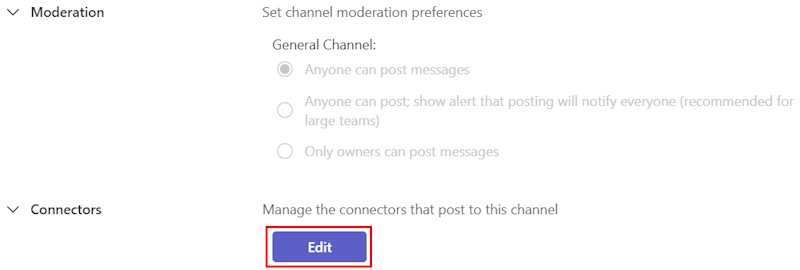
Step 3: Edit Connectors
Search for “Connectors” in the settings and click Edit (3).
Step 4: Search for Incoming Webhook
Search for “Incoming Webhook” and click Add (4).
Step 5: Configure Webhook
Enter a name for the webhook (5), e.g., “AMALYTIX”. Optionally, you can also upload an image. Then click Create (6).
Step 6: Copy Webhook URL
Copy the displayed webhook URL - you will need this in AMALYTIX.
Set Up Webhook in AMALYTIX
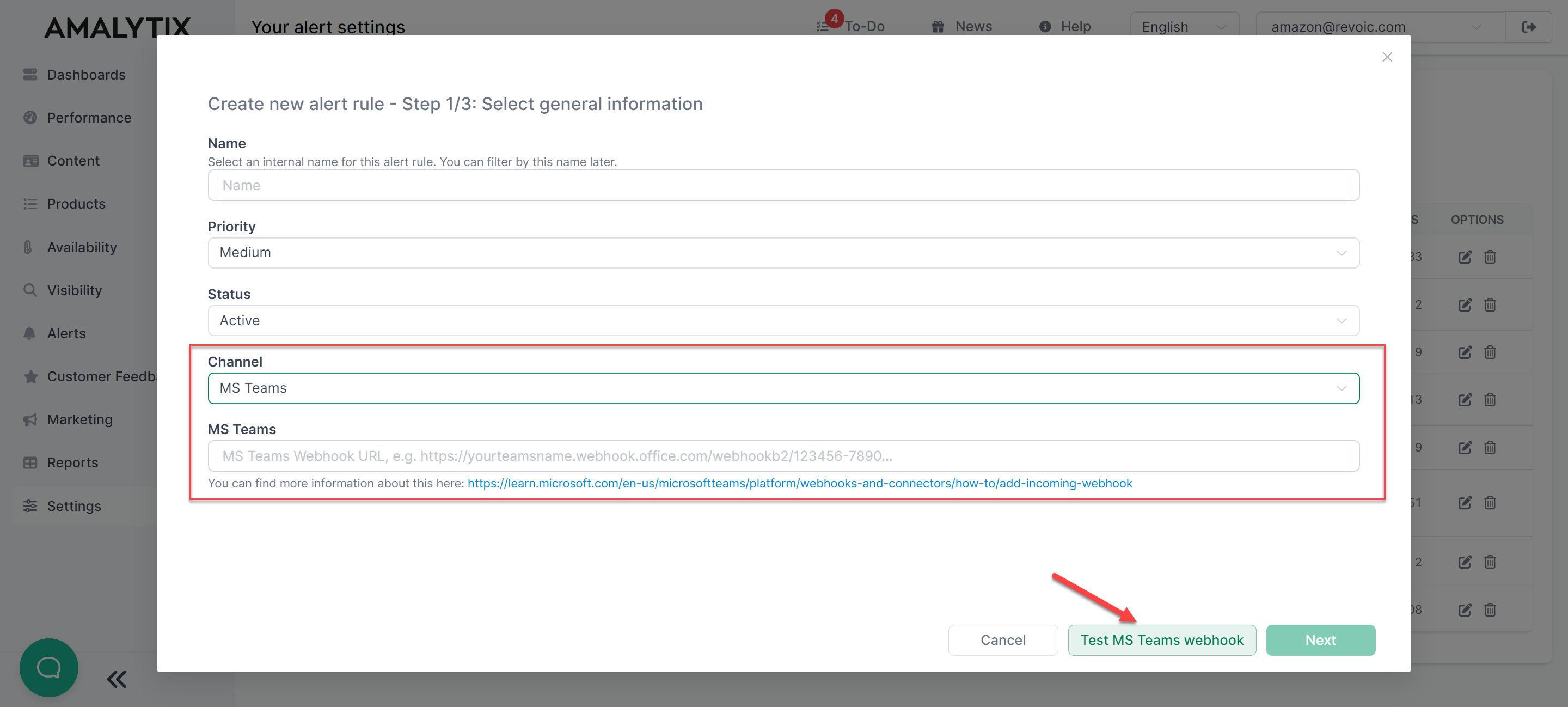
- Open Settings / Alerts in AMALYTIX
- Click Create new alert rule
- Select MS Teams under Channel
- Paste the copied webhook URL
- Click Test MS Teams Webhook
- Once the test message is successful, you can configure and save the alert rule
Troubleshooting
Webhook Test Fails
Possible causes:
- The webhook URL was copied incorrectly or incompletely
- The webhook was deleted in Teams
- Firewall settings are blocking the connection
Solution: Create a new webhook in Teams and copy the URL again.
No Messages in Channel
Possible causes:
- The alert rule is paused
- The product filters are too narrow
Solution: Check the status and filters of the rule in AMALYTIX under Settings / Alerts.
Related Topics
- Configure Alerts - All options for alert rules
- Available Alert Types - Overview of all alert types