SKU Data & Keywords
Seller SKU Data
For each SKU, you can store additional data that will then be considered in analyses such as the dashboard.
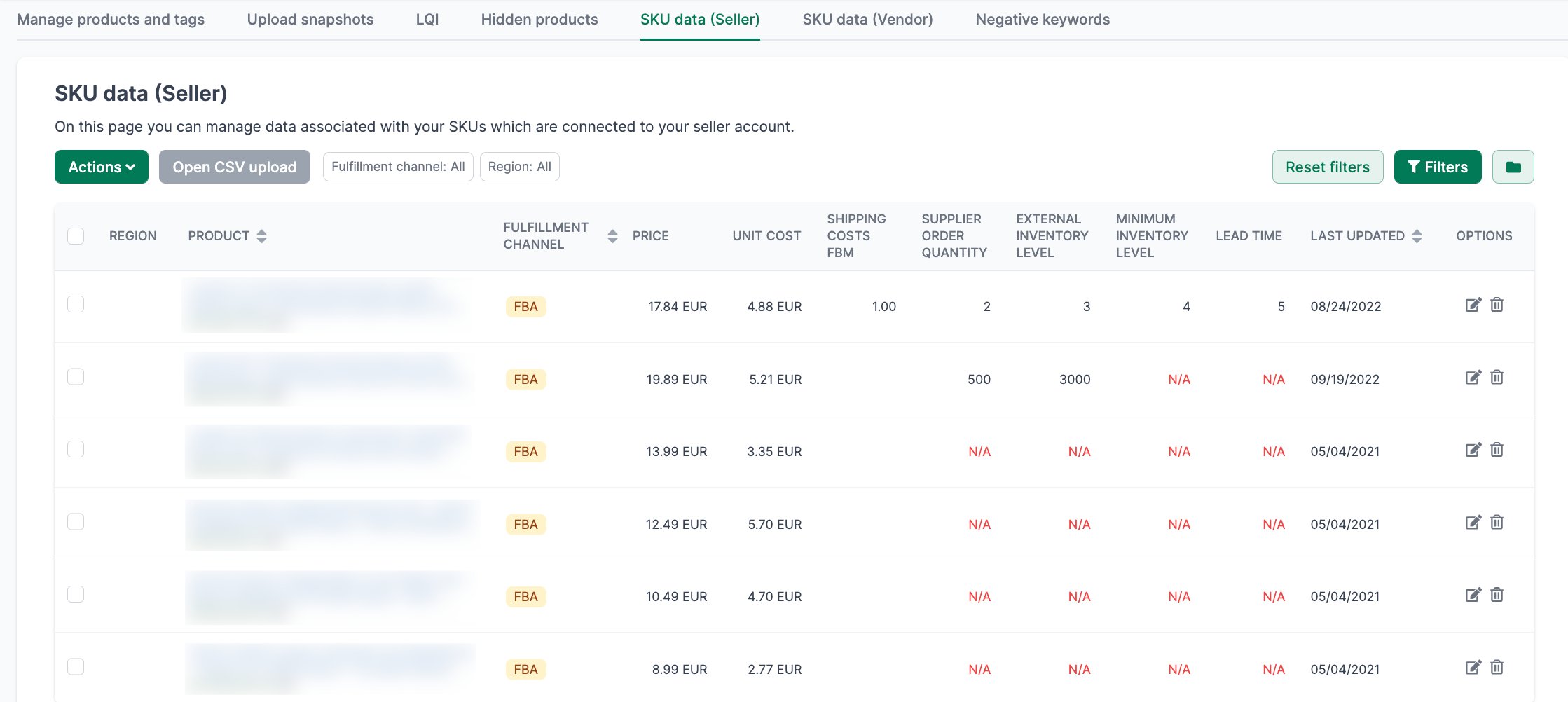
Edit Data
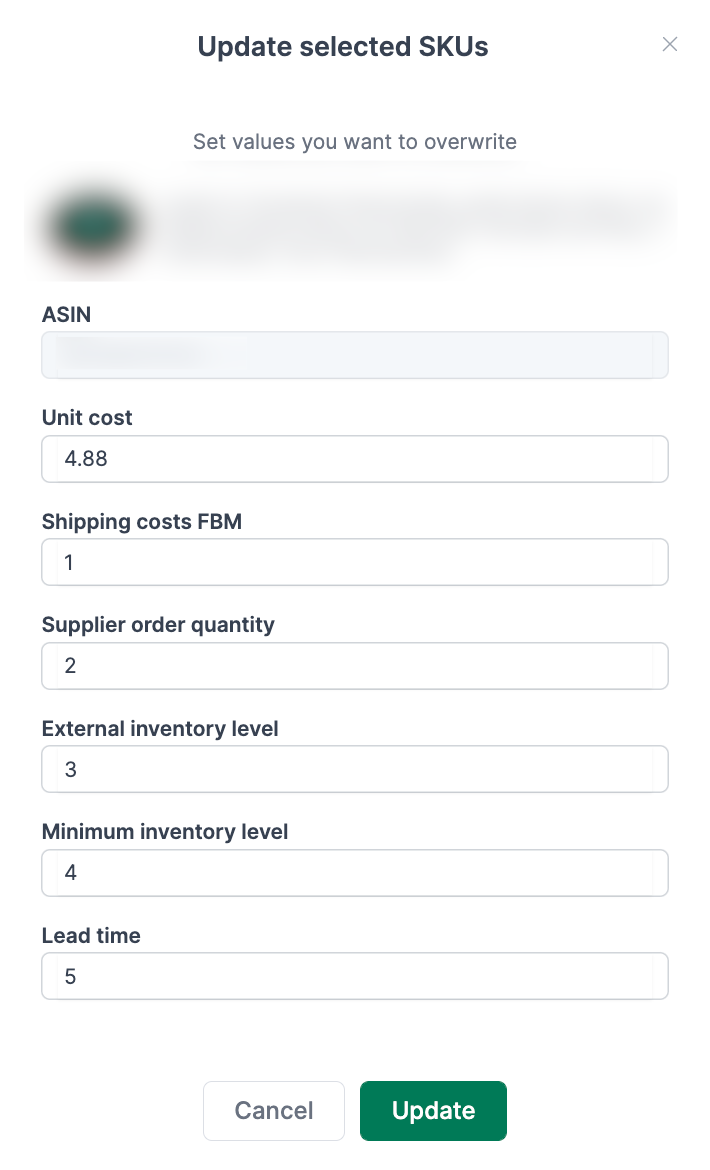
Click “Edit” in the “Options” column to adjust individual SKUs:
Upload Data via CSV
Download the CSV file and fill in the corresponding columns:
| Column | Meaning | Format |
|---|---|---|
| Unit Cost | Net purchase price in Euro | Number (comma or period) |
| Shipping Cost | Shipping costs for self-fulfillment | Number |
| Min Inventory Level | Minimum stock level (FBA) | Integer |
| Inventory Lead Time | Minimum lead time in days (FBA) | Integer |
Please leave the first columns (SKU, ASIN, Product Title, MFN/AFN) unchanged.
If you have upload problems, check the file with a text editor. Some spreadsheet programs enclose each row in quotation marks - this is not correct.
Vendor SKU Data
As a Vendor, you can store the following data for each SKU:
| Column | Meaning |
|---|---|
| MSRP (gross) | Manufacturer’s suggested retail price |
| Amazon PP | Amazon’s purchase price |
| Manufacturing costs | Your production costs |
Download the CSV file and fill in the corresponding columns.
Please leave the first columns (SKU, ASIN, Product Title, MFN/AFN) unchanged.
If you have upload problems, check the file with a text editor. Some spreadsheet programs enclose each row in quotation marks - this is not correct.
Negative Keywords
With negative keywords, you get notified when certain terms appear in your listings. This is particularly useful for detecting legally problematic terms like “guarantee” or “cure.”
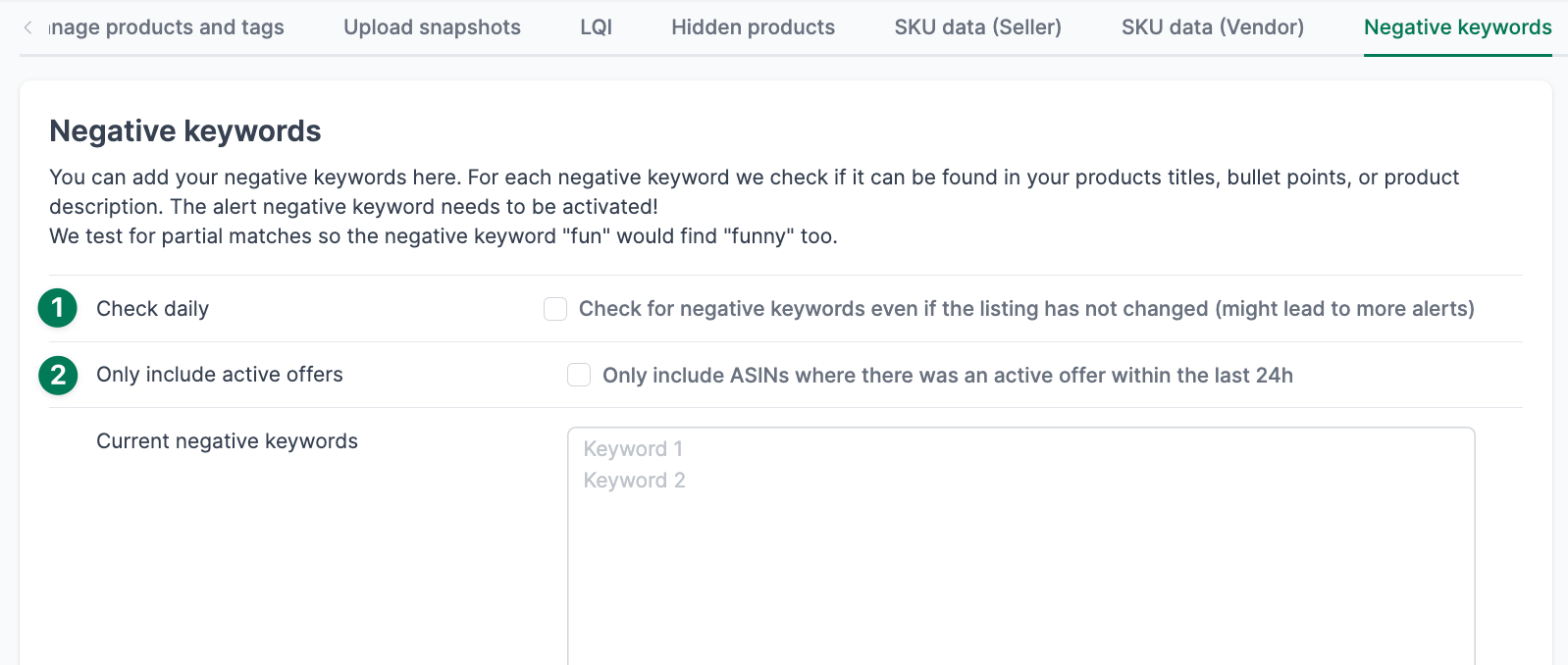
Choose Check Mode
Under Point 1, you specify how AMALYTIX should check the negative keywords:
| Option | Description | Recommended for |
|---|---|---|
| Option A | Check only when listing changes (default) | Most use cases |
| Option B | Daily check of the current version | Strict monitoring, may lead to more alerts |
With Option A, no alert is triggered when:
- The listing already contains the negative keyword (e.g., "guarantee" on day 1)
- You attach yourself as a seller to the listing later (day 3)
Since the listing has not changed, no alert is generated. Therefore, check listings beforehand with the "Product list long" report.
Additional Settings
Under Point 2, you can specify that you only want to be notified if you also had an active offer within the last 24 hours.
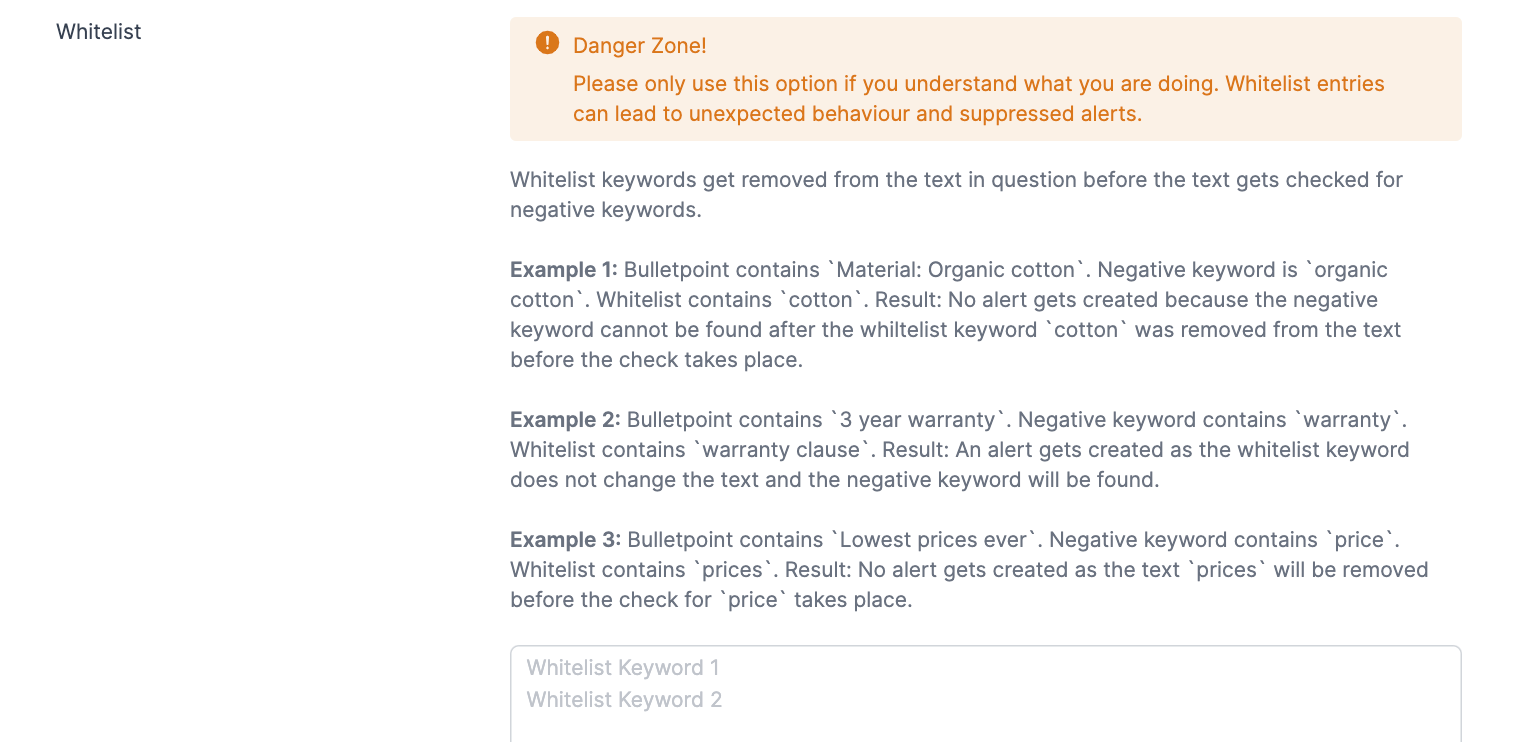
Use Whitelist
You can whitelist keywords to avoid false alarms.
Example: You want to be notified for “guarantee” but not for “guaranteed.” Put “guaranteed” on the whitelist.
Related Topics
- Manage Seller Products - Overview and content view for Sellers
- Manage Vendor Products - Overview and content view for Vendors
- Configure Alerts - Set up notifications for product changes
- Logfile - Check errors and warnings for product imports