Listing Snapshots
With snapshots, you define the target state of your listings. AMALYTIX then compares the actual state with your target state and informs you of deviations.
To create multiple snapshots at once, upload a CSV file with the desired state of your products:
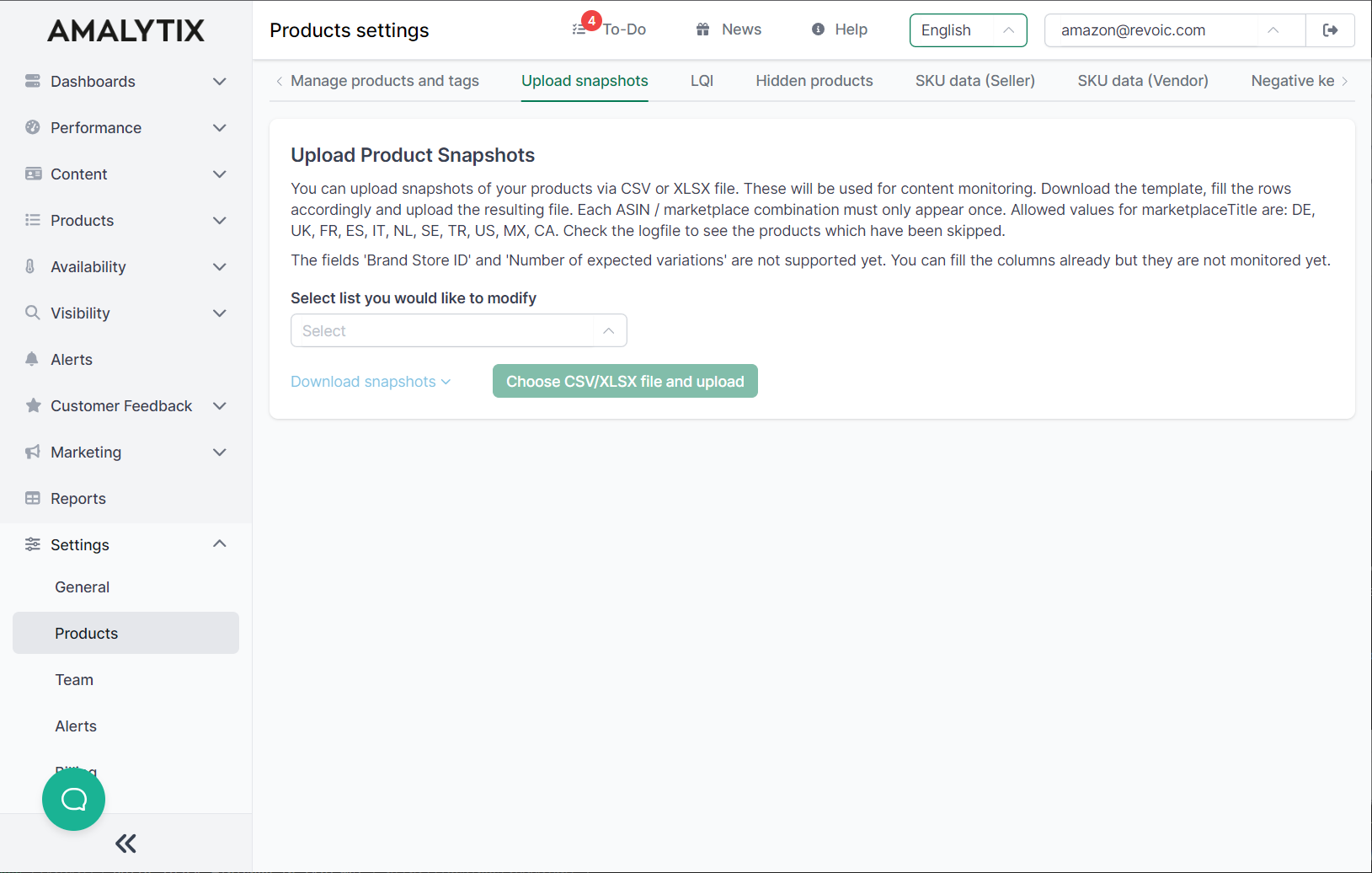
The following fields can be stored as snapshots:
- Product title
- Bullet points
- Keywords
- Product images
Tips for Uploading Product Images
When product images are uploaded via CSV file upload, you must provide links to the respective images in the CSV file. These links must:
- Be publicly accessible
- Lead directly to the image (no login, no embedded pages)
AMALYTIX accepts the following link formats:
1. Direct Links to Image Files
Links must point directly to image files with one of these extensions: jpg, png, gif, jpeg
Example: https://example.com/path/to/image.jpg
2. Google Drive Links
Images stored on Google Drive must be provided as direct download links:
Example: https://drive.google.com/uc?export=download&id=File-ID
3. Dropbox Links
For Dropbox links, the link must end with the parameter dl=1:
Example: https://www.dropbox.com/s/uniqueFileIdentifier/imageName.png?dl=1
Related Topics
- Manage Seller Products - Overview and content view for Sellers
- Manage Vendor Products - Overview and content view for Vendors
- Configure Alerts - Set up notifications for product changes
- Logfile - Check errors and warnings for product imports