Cases
In the “Cases” section, you manage all requests that are submitted directly from AMALYTIX to Amazon. These include image updates, content adjustments, or changes to product attributes, among others. Each case created is documented and clearly displayed with its status, Amazon response, and data comparison.
Where can you find Cases?
Click on Content > Cases to view current cases.
In the overview, you can see the following details for each case:
- Title
- Assigned products
- Amazon Case ID
- Case type
- Status at Amazon
- Amazon response (including date, if available)
- Snapshot match
This lets you immediately see which cases are still being processed and which have already been completed.
How to create a case
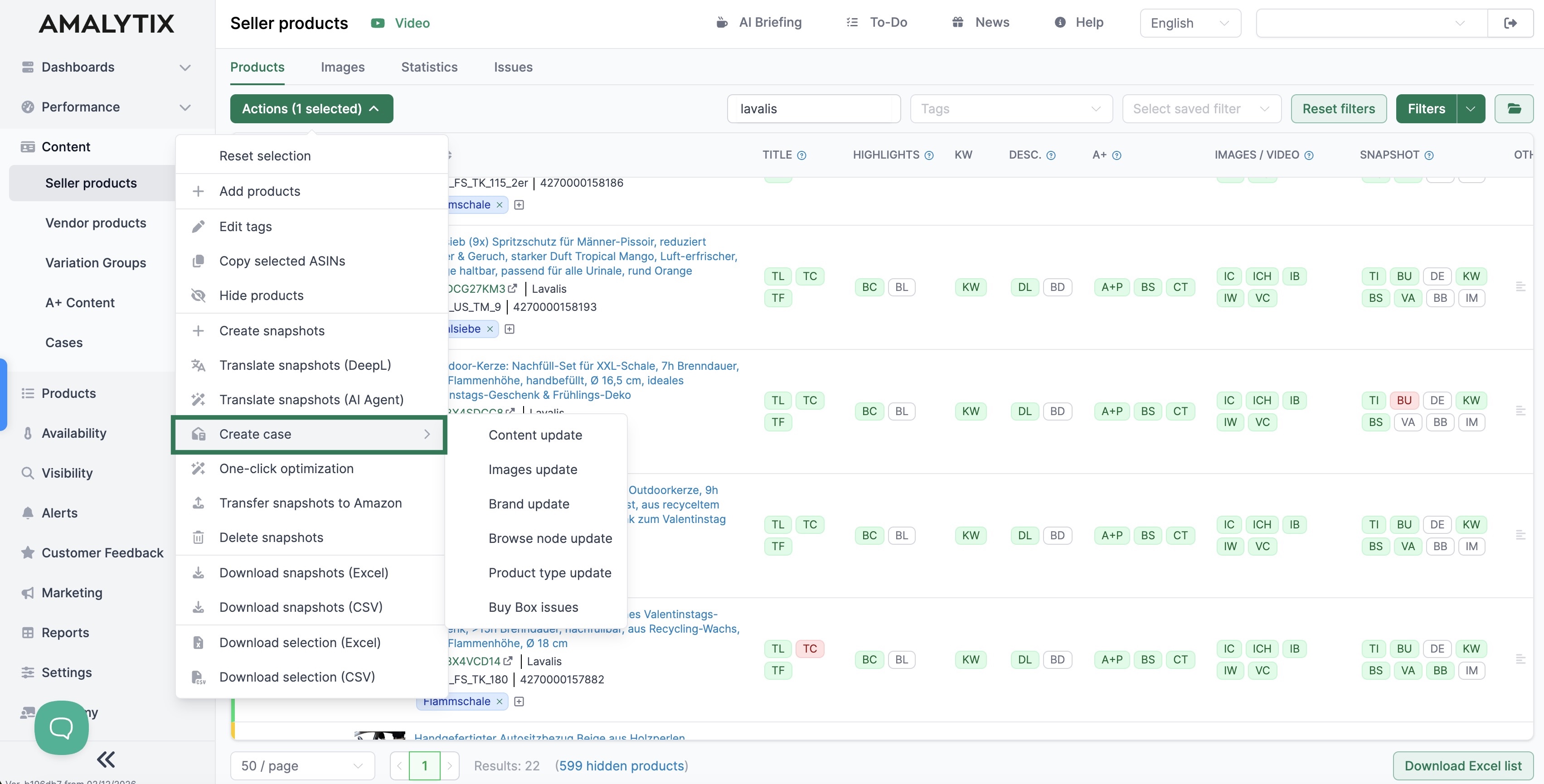
A case is created directly from the product overview:
- Navigate to Content > Products
- Select one or more products
- Click on Actions
- Select “Create case”
You then choose the desired case type.
Available case types
Depending on your need, the following options are available:
- Update content: For adjustments to title, bullet points, description, or other content elements.
- Update images: For submitting new or revised product images to Amazon.
- Update brand: When brand information needs to be corrected or adjusted.
- Update browse node: For changing the category or structural assignment within Amazon.
- Update product type: When the stored product type needs to be adjusted.
- Buybox issues: For resolving restrictions or anomalies related to the Buybox.
Status and history
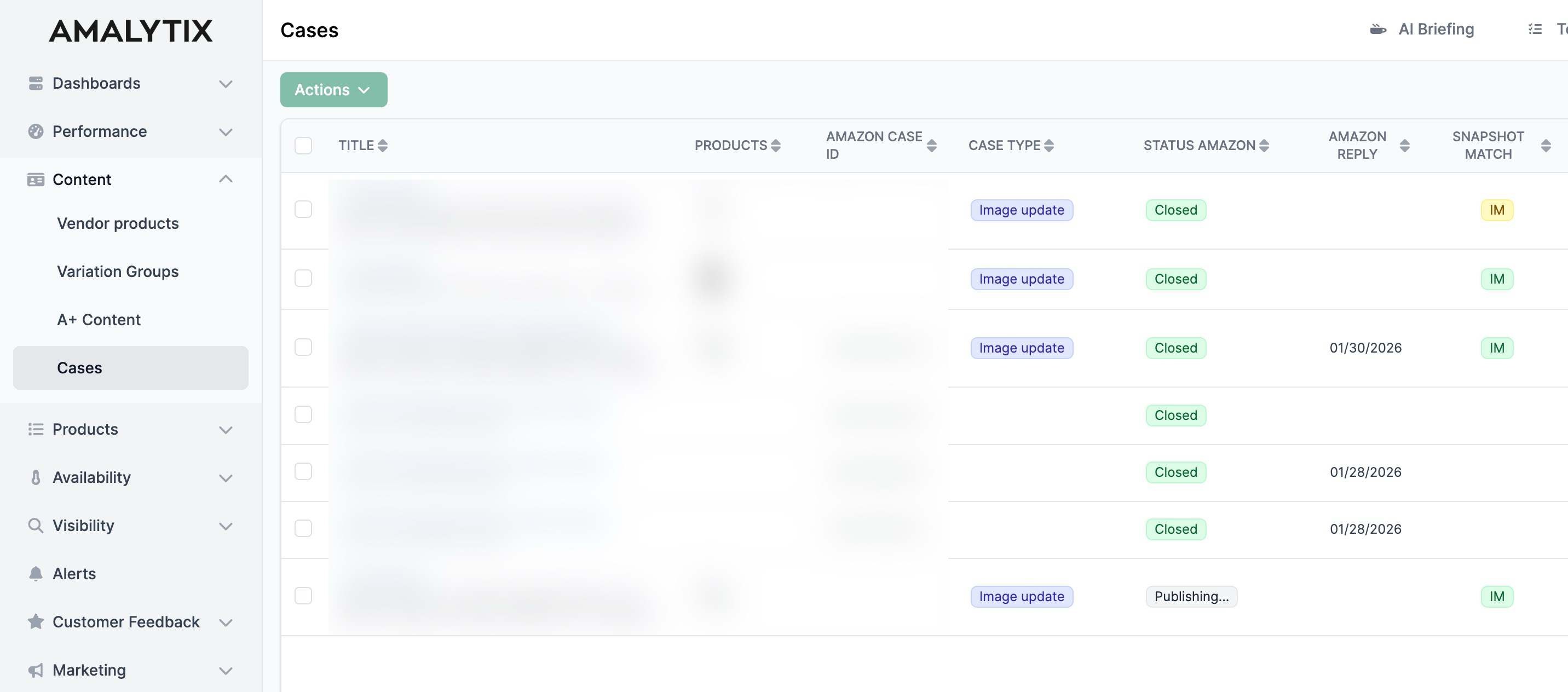
Each case receives a status after creation that reflects the current processing state. Typical status indicators include:
- Closed: The case has been processed and closed by Amazon
- Publishing: The change is currently being processed
- Open / In progress: The case is active and being reviewed
In the “Amazon Response” column, you will find supplementary information or timestamps for the most recent response.
The “Snapshot Match” column shows whether your most recently submitted data matches the current state on Amazon.
Related Topics
- Content Optimization - Manage and optimize product listings
- General Settings - Account details and API connections