Amazon Content Monitoring
With the Content module of AMALYTIX, you can monitor the content of your product listings.
The following content applies to both the Seller Products and Vendor Products pages.
The following video provides a good overview.
Amazon Content Overview
This page gives you an overview of the content of your Seller or Vendor products.
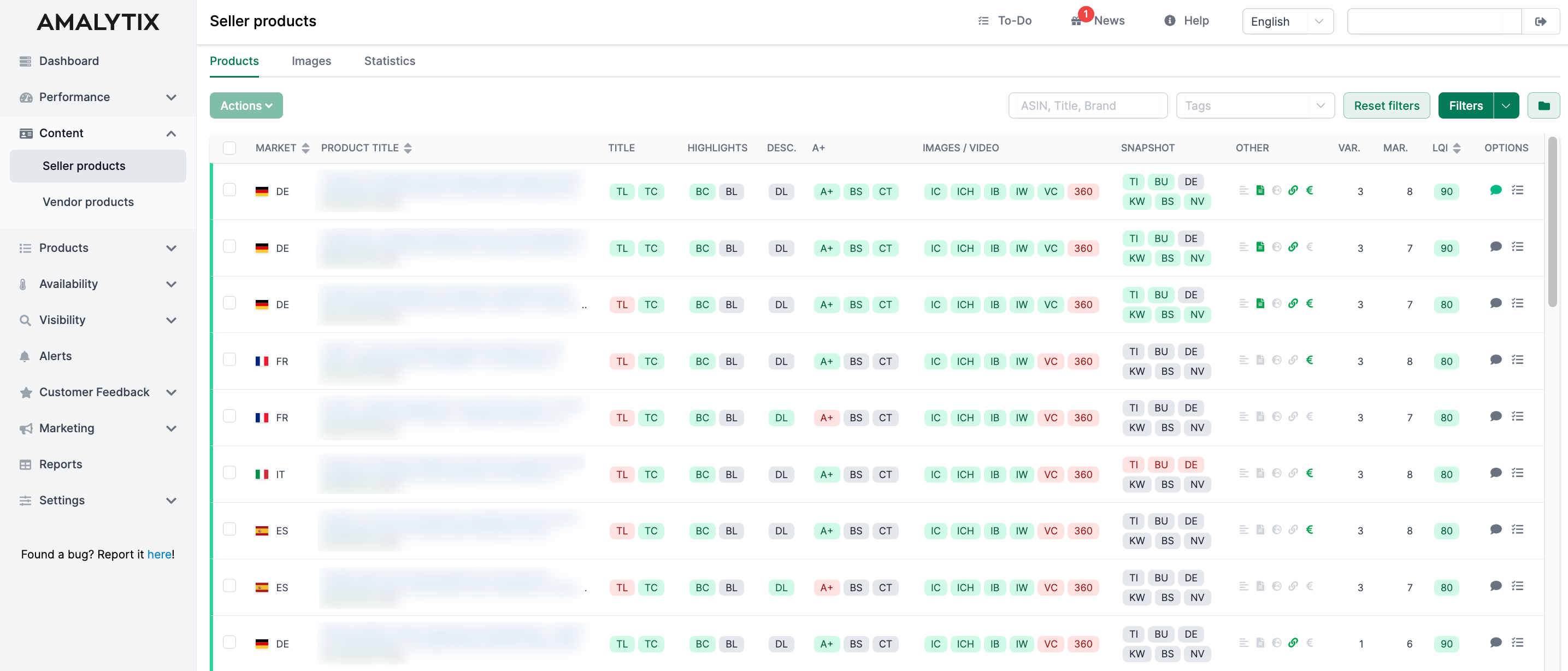
Clicking on the respective product title will take you to the product’s detail page:
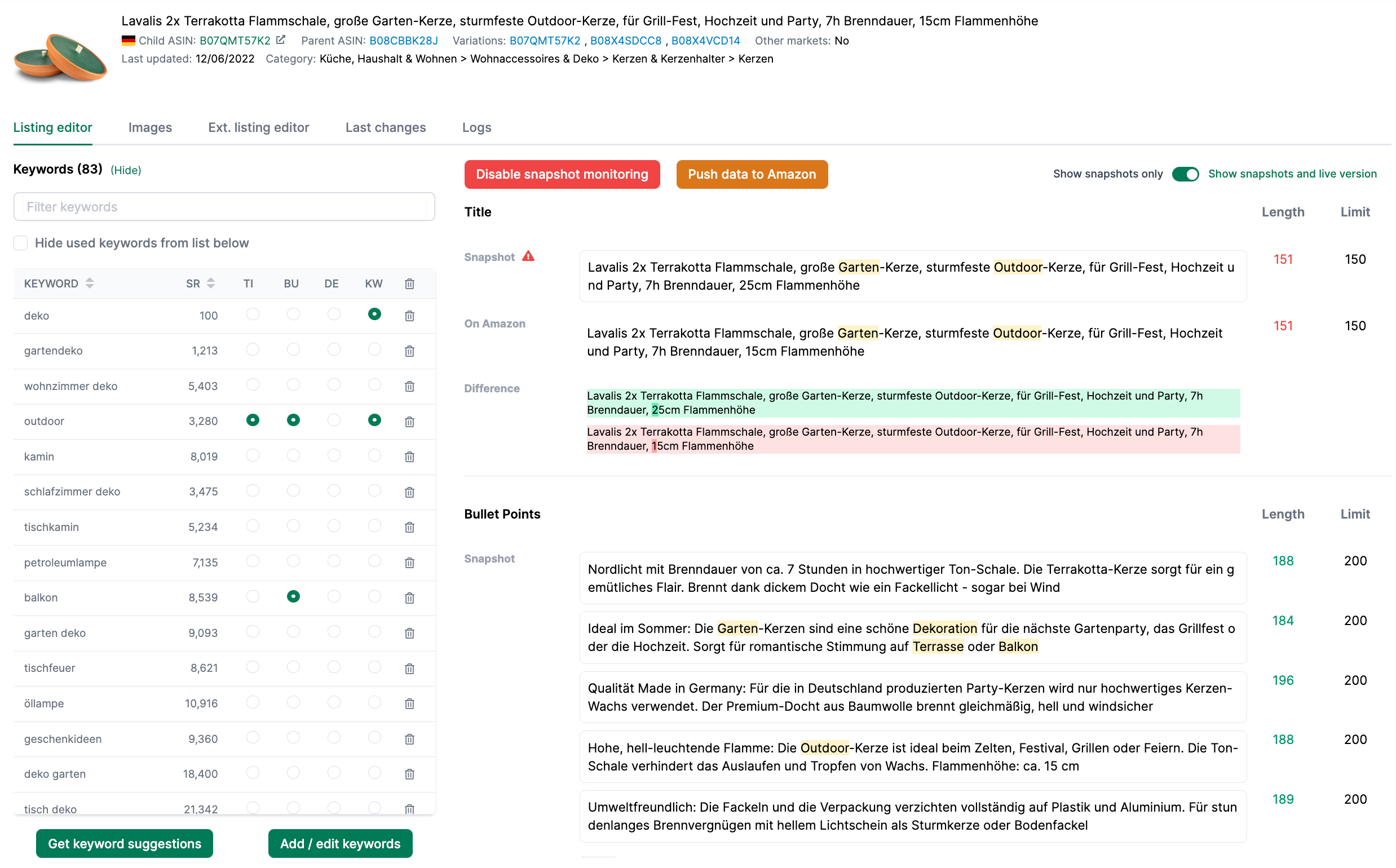
An optimized product listing ensures several things:
- Good findability in the Amazon search
- High conversion once the visitor is on the listing
- Fulfillment of advertising requirements from legislators
- Fulfillment of product listing requirements by Amazon
Manufacturers and sellers therefore have a great interest in ensuring that their listings meet the above requirements and invest time and money in optimizing them. While points 1 and 2 ensure further growth, points 3 and 4 help you avoid revenue losses due to listing suspensions or legal warnings.
Once listings have been optimized, you as a manufacturer or seller must ensure that the condition of the listings is maintained. With a large number of products, this is only possible with the help of tools like AMALYTIX.
How Does AMALYTIX Support Content Monitoring?
On the “Content” page, you can answer the following questions, among others:
-
Do the individual elements fulfill your general requirements set in the LQI settings?
- Is the title at least / at most x characters long?
- Does the title contain one of the following prohibited characters: ~ ! * $ ? _ ~ { } # < > | * ; ^ ¬ ¦
- Are at least x bullet points filled?
- Are the bullet points in total not longer than x characters?
- Is the simple product description at least / at most x characters long?
- Are backend keywords (generic keywords) stored with the products, and how long are they?
- Is A+ Content available?
- Is a brand story available?
- Is a comparison table available?
- Are there at least / at most x images?
- Are at least x high-resolution images available?
- Does the main image have a white background?
- Is a video available?
- Is there a 360-degree image?
-
Do your listings (still) match the specific requirements you uploaded via snapshots 1
?- Does the title match your specification?
- Do the bullet points match your specification?
- Does the product description match your specification?
- Do the keywords match your specification?
- Does the brand story match your specification?
- Does the number of variations match your specification?
-
For which products is additional data available?
- Energy efficiency label
- Download PDF
- Climate Pledge Friendly Badge
- Link to the Amazon Brand Store
- Base price (Seller)
- Accessory products (Vendor)
-
How many variants are available of this item?
-
Are items available in a set?
-
On how many markets is a listing of this ASIN available?
You also have the option to download the table as an Excel file. To do this, click on “Download Excel List” below the table.
Filter Settings
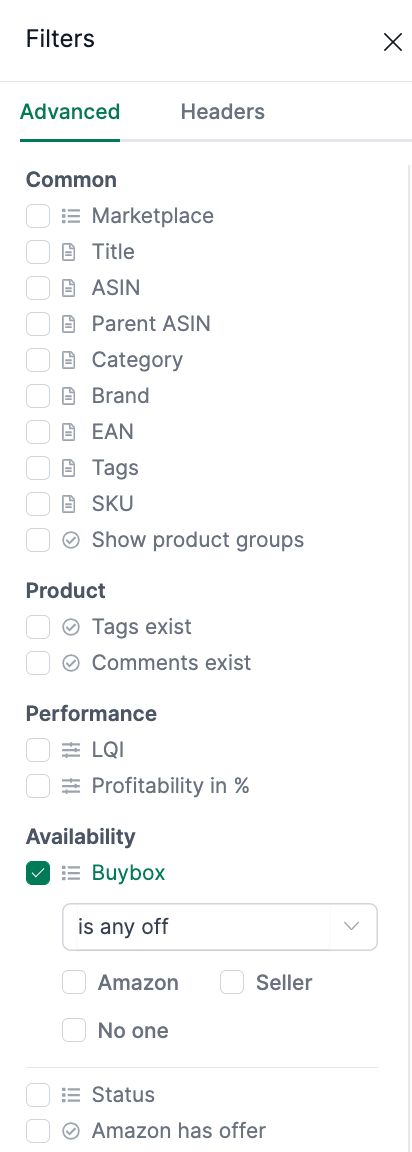
Click “Filter” in the upper right corner to search for products where optimization is possible.
You can filter by:
- Product (ASIN, Title, Brand, Tags)
- Performance
- Availability
- Content
- Product reviews
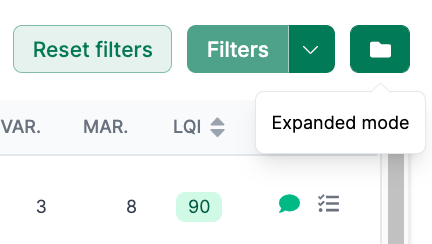
Expanded View
Click “Expanded View” in the upper right corner to see detailed information about the products.
You will additionally see:
- The main image of the product
- The ASIN
- The SKU number
- The EAN number
- The brand name
LQI Settings
By the coloring of the symbols in red, green, and gray, you can see whether your individual LQI settings are being adhered to.
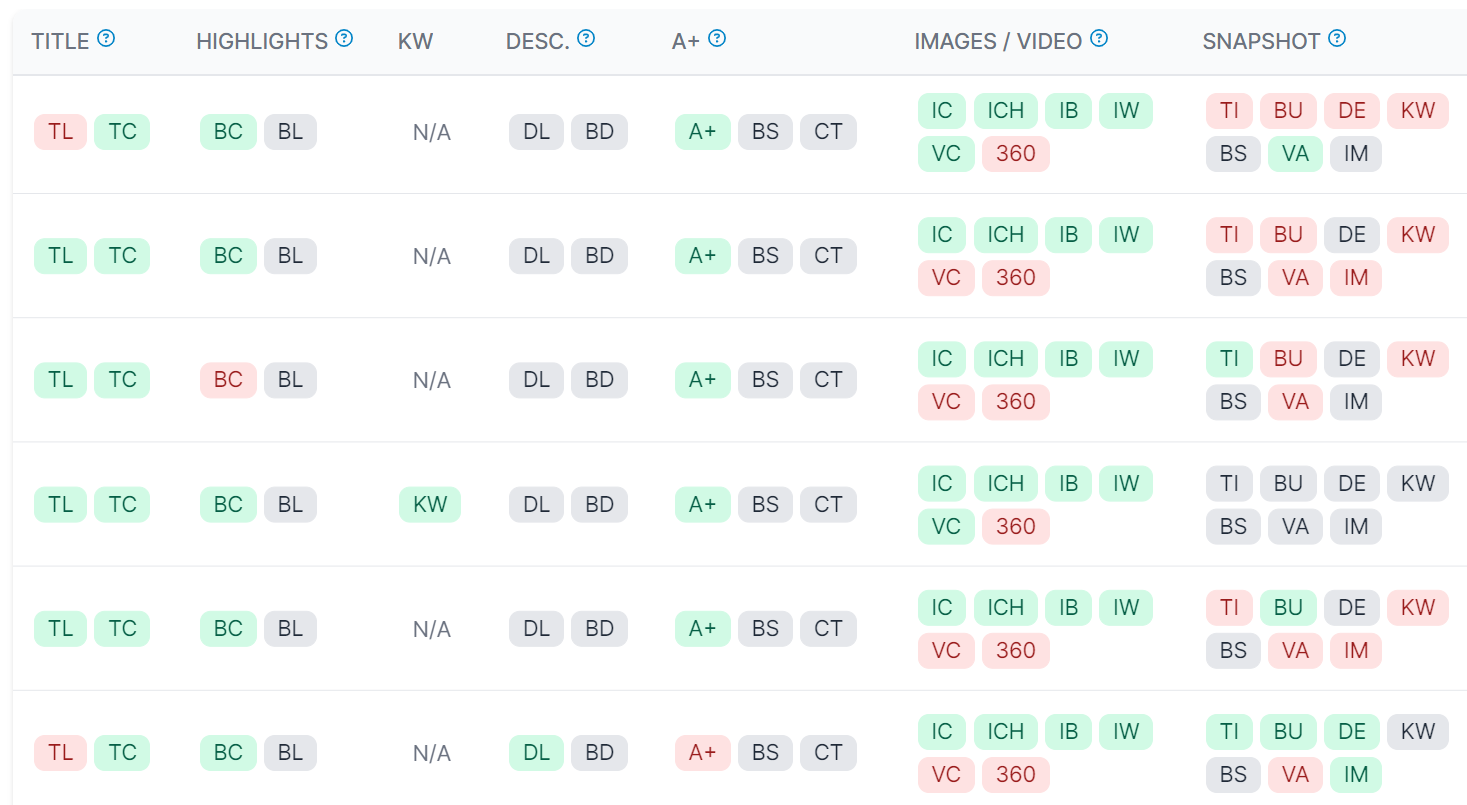
The abbreviations stand for the following elements:
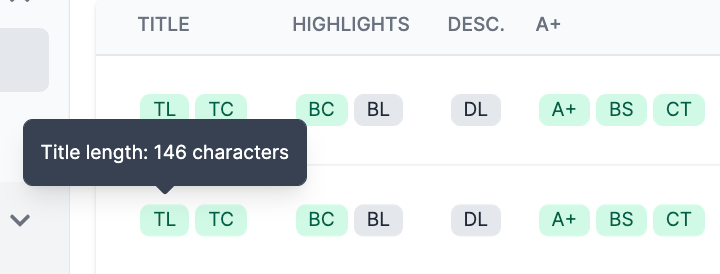
- TL = Product title length (“Title Length”)
- TC = Title compliance (“Title Compliance”)
- BC = Number of Bullet Points / Highlights (“Bullet Count”)
- BL = Total length of all bullet points / highlights (“Bullet Length”)
- KW = Length of generic keywords (“Keywords”)
- DL = Length of the standard product description (“Description Length”)
- BD = Brand description included in the description (“Brand Description”)
- A+ = A+ Content is available
- BS = An A+ Brand Story is available (“Brand Story”)
- CT = A comparison table is available (“Comparison Table”)
- IC = Number of images (“Image Count”)
- ICH = Number of high-resolution images (“Image Count High-Res”)
- IB = The image has a white background (“Image Background”)
- 360 = A 360-degree photo is available
- IW = The image does not have too much white space (“Image Whitespace”)
- VC = Number of videos (“Video Count”)
Snapshot comparison:
- TI = Title matches snapshot
- BU = Bullet points match snapshot
- DE = Product description matches snapshot
- KW = Keywords match snapshot
- BS = Brand story matches snapshot
- VA = Variations match snapshot
- BB = Buybox price is at or above the stored minimum price
- IM = Images match snapshot
The individual element will turn green if it matches your individual LQI settings or Amazon’s (title compliance) specifications, or red if not. If an element is gray, then this area has been deactivated in the LQI settings or found to be irrelevant.
The Listing Quality Index
The LQI column shows the well-known Listing Quality Index.
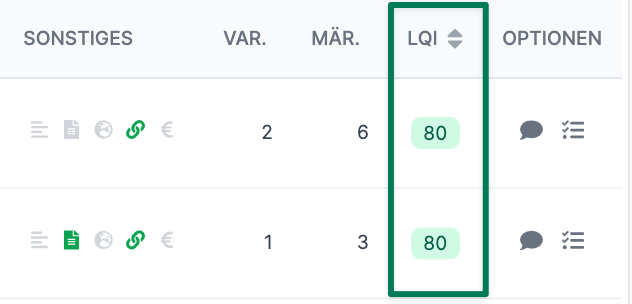
Hover your mouse over the LQI value to get more detailed information:
More information about the LQI can be found here.
You can configure your LQI settings under Settings / Products / LQI:
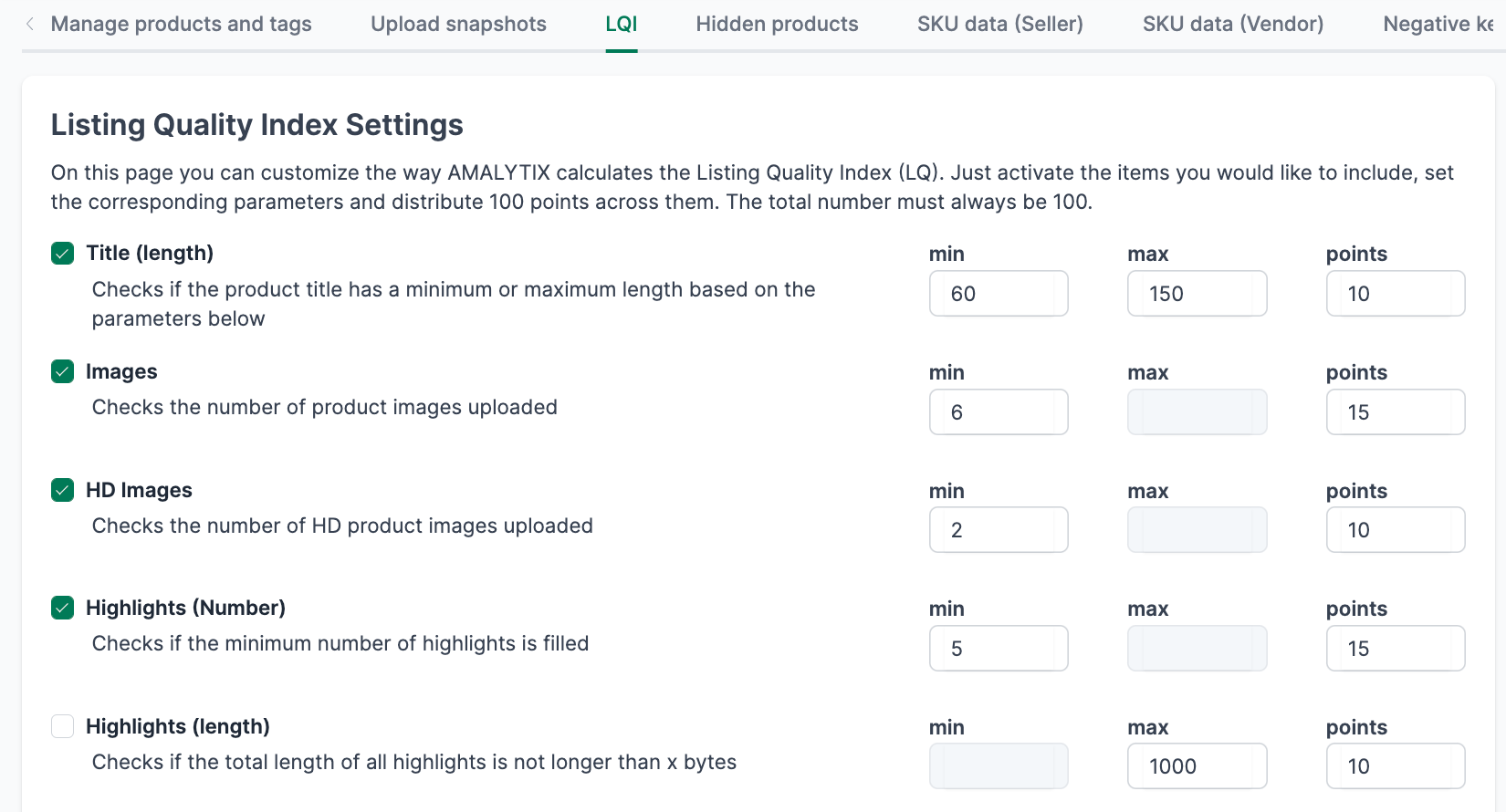
More information about this here.
Specific Match to Your Snapshots
Here is a short video that gives you a good overview of content deviations and snapshot comparison:
AMALYTIX can also compare the current content with a version you have stored, e.g., the title. These stored versions are called snapshots. You store the snapshots on the product detail page for each product.
On the right side of the following illustrations, you can see which listings match your “snapshots”.
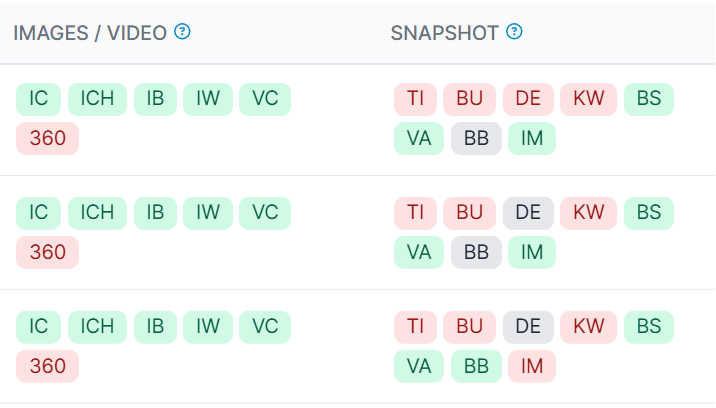
The abbreviations mean the following:
- TI = Title (“Title”)
- BU = Bullet Points / Highlights (“Bullet Points”)
- DE = Description (“Description”)
- KW = Keywords (“Keywords”)
- BS = Brand Story (“Brand Story”)
- NV = Number of Variations (“Number of Variations”)
The individual element will turn green if it matches your previously defined or uploaded snapshots. It will turn yellow if it generally matches but contains additional content found on Amazon (e.g., extra images not included in the snapshot). It will turn red if it does not match. If an element is gray, no snapshot has been uploaded for this product yet.
How to create snapshots in AMALYTIX, you will learn here.
Amazon Images
Click “Images” in the upper column.
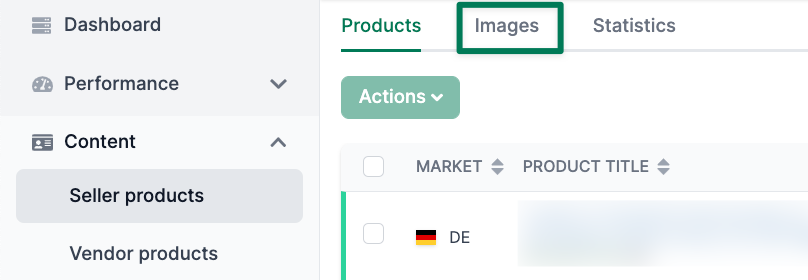
You will get an overview where you can see the different images stored with your products.
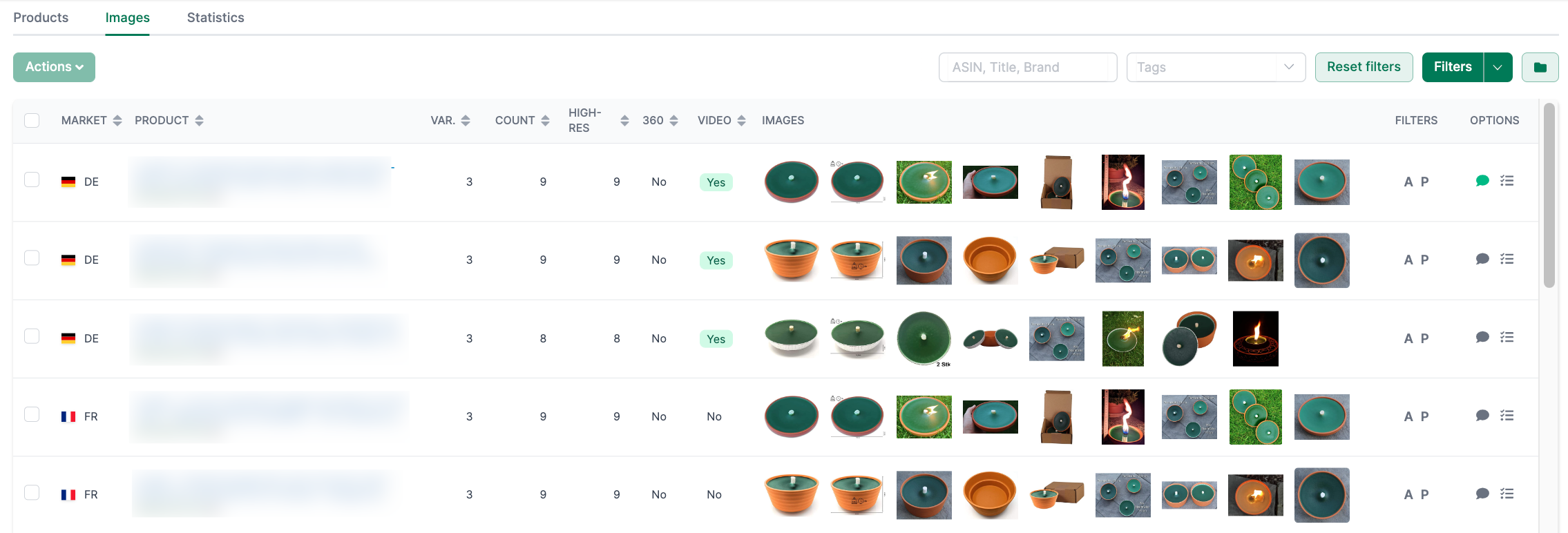
With the help of this overview, you can derive the following insights:
- Does a product family have the same images?
- Does a single product have the same images across all markets?
- Which products do not have product images in sufficient resolution?
In the row of the respective product, you will find two buttons on the far right labeled “A” and “P.”
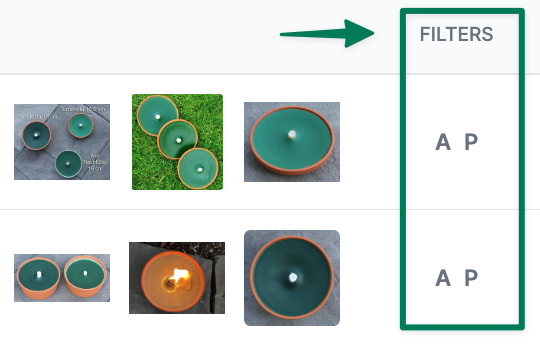
- Click “A” to filter by the Child ASIN
- Click “P” to filter by the Parent ASIN This allows you to quickly reduce the search results to the respective group.
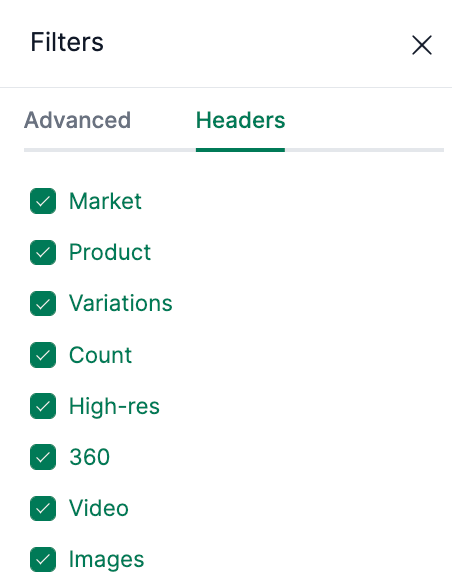
You can customize all columns. To do this, open the filter and go to the “Columns” tab. Save the view as a new filter to open it at any time with two clicks.
Statistics
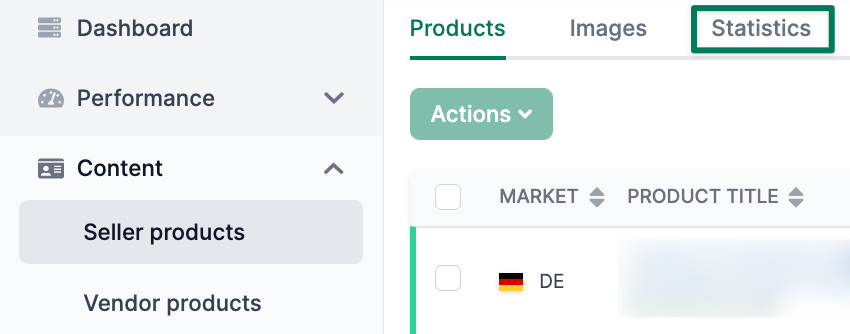
Click “Statistics” in the upper column.
You will get an overview where you can see various statistics about your content.
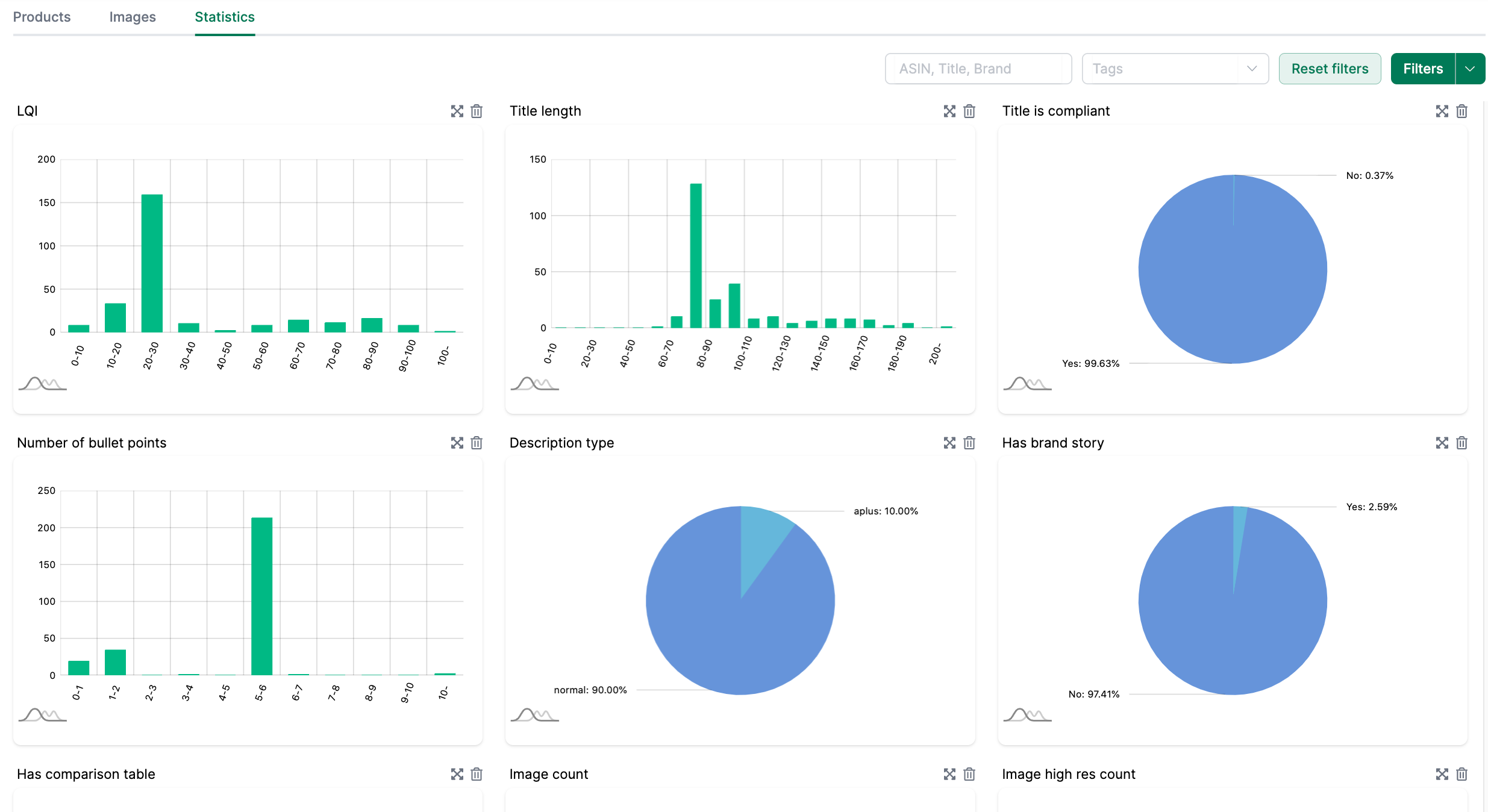
With the help of the statistics, you will recognize:
- The level of the Listing Quality Index (LQI)
- The length of the titles
- Whether your titles are Amazon-compliant
- The number of bullet points
- Whether A+ Content, A+ Premium Content, or a “normal” product description is present (Vendor)
- Whether A+ Content or a “normal” product description is present (Seller)
- Whether a brand story is available
- Whether an A+ comparison table is available
- The number of images
- The number of HD images
- The number of videos
- Whether a 360-degree image is present
- Whether snapshot monitoring is active
- The length of the keywords
Issues
Click “Issues” in the upper column.
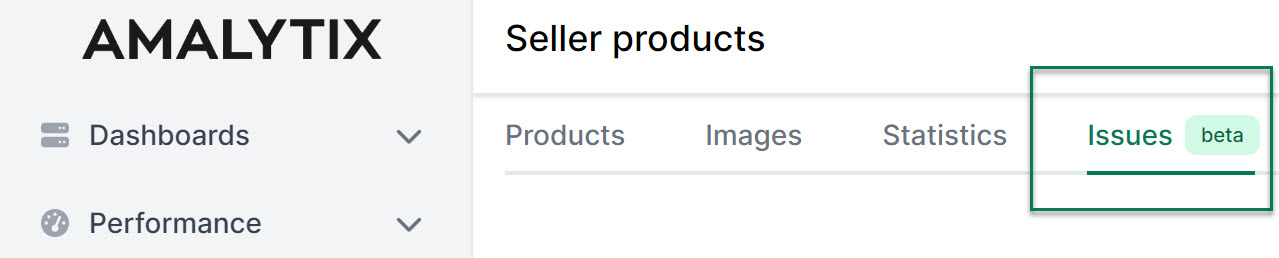
You will be taken to an overview listing all the problems that affect your products.
We distinguish between 3 severity levels: Errors, warnings, and notices. Errors are the most serious and include, for example, a loss of the Buybox or errors in the listing. Low product availability is an example of a warning, which is not as serious as errors. Finally, there are notices, which usually refer to optional but not necessary aspects.
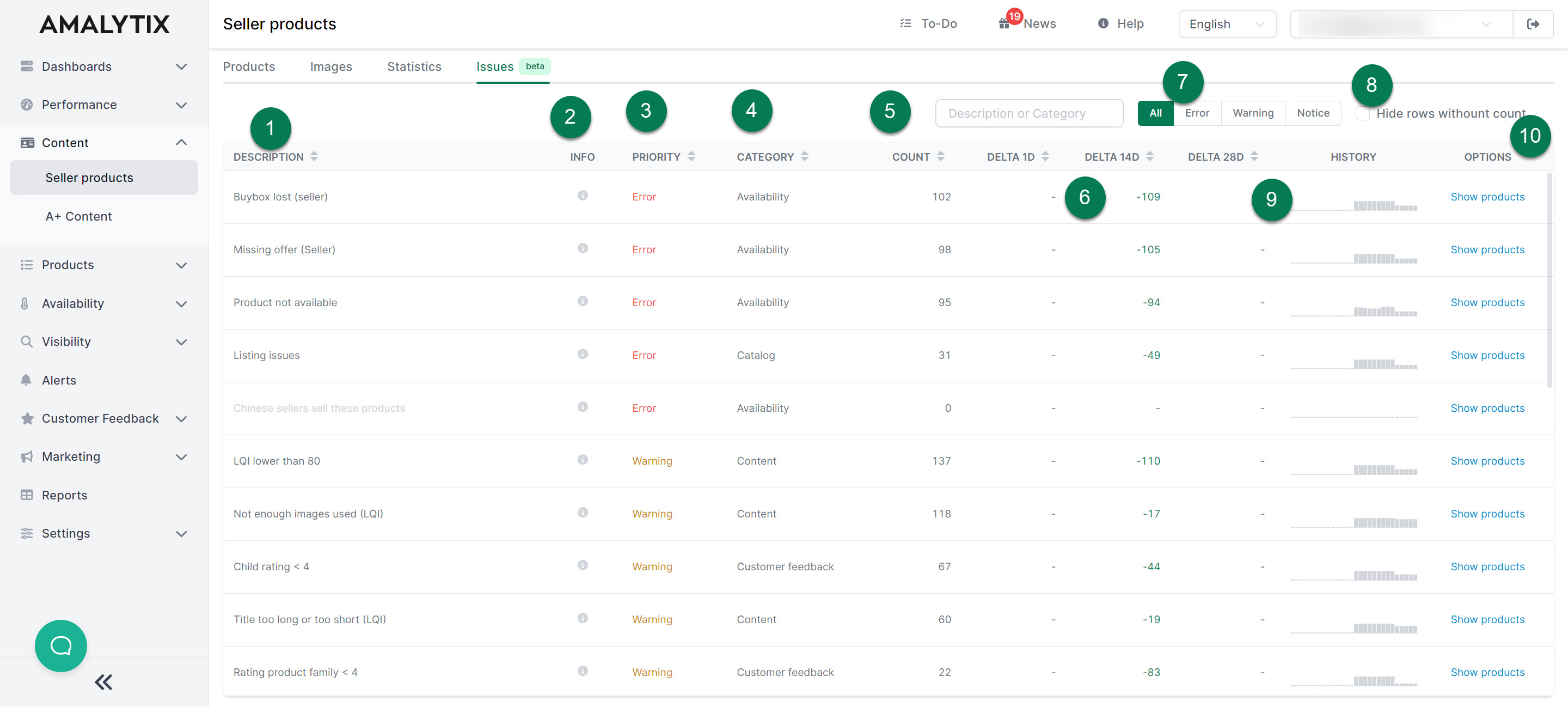
Here is a brief overview of the Issues page:
- The problem is briefly described here.
- Hover over the small info icon for more information about the issue.
- Here we show the priority or severity of the problem.
- Here we indicate under which category the error falls.
- The count describes the number of products affected by the error.
- The delta shows you the change in the number of affected products. You can see the difference compared to the previous day, 14 days ago, and 28 days ago.
- Here you can filter by the severity of the problem.
- Here you can hide issues with 0 products.
- Under History, we show you the number of affected products over the past 28 days in the form of a bar chart, so you can track changes over a longer period.
- Under Options, you can view the affected products.
Subscribe to Alerts
You can subscribe to the following alerts about content:
- Product title has changed: Triggers when the title of a product has changed.
- Product attributes have changed: Triggers when the attributes (bullet points) have changed.
- Product description has changed: Triggers when the product description has changed.
- A+ product description has changed: Triggers when the A+ product description has changed.
- Table with general product information has changed: Triggers when the general product information table has changed.
- Table with nutritional information has changed: Triggers when the nutritional information table has changed.
- Variations have changed: Triggers when the product variations have changed.
- Bestseller badge lost: Triggers when a bestseller badge can no longer be found, but was previously present.
- Bestseller badge received: Triggers when a bestseller badge is received.
- Amazon Choice badge lost: Triggers when an Amazon Choice badge can no longer be found, but was previously present.
- Amazon Choice badge received: Triggers when an Amazon Choice badge is received.
- Main image has changed: Triggers when the main image has changed.
- Additional images have changed: Triggers when the additional images have changed.
- Product not found: Triggers when a product listing no longer exists.
- Product not available: Triggers when a product is displayed as “Currently unavailable.”
- Content deviates from the saved version: Triggers when the current listing data deviates from the saved values.
- Category has changed: Triggers when the main category of the product has changed.
- Amazon shows competitor products: Triggers when Amazon displays a banner with competitor products above the listing.
- Product from A+ comparison table not available: Triggers when a product from the A+ comparison table is no longer available.
Go to Settings / Alerts to activate one or more of these alerts.
Amazon Reports
You can export all alerts as a report as well. Simply go to one of the Seller Products (long/short) or Seller Prices reports and set the appropriate marketplace if needed to narrow down the results.
Seller Products Report (long)
- Description: Contains data on the product listing (including attributes and product description), your offers, the Buybox, reviews, order and financial data
- Type: Seller
- Category: Products
Seller Products Report (short)
- Description: Contains data on the product listing, your offers, the Buybox, reviews, order and financial data
- Type: Seller
- Category: Products
Seller Prices Report (Seller Products)
- Description: Contains the daily seller prices of your own products. This feature is available from the Large plan. Monitoring must be activated under Settings / Other
- Type: Seller
- Category: Products
Seller Prices Report (Watchlist)
- Description: Contains the daily seller prices of products from the Watchlist. This feature is available from the Large plan. Monitoring must be activated separately under Settings / Other
- Type: Seller and Vendor
- Category: Products
A list of all columns of the Seller Products (long) report can be found here.
A list of all columns of the Seller Products (short) report can be found here.
A list of all columns of the Seller Prices report can be found here.