Seller Feedback
Watch this video for a quick overview of the feature:
Why Seller Feedback Matters
On Amazon, customers can rate not only products but also sellers. These ratings reflect buyer satisfaction with you as a seller.
Too many negative seller ratings can jeopardize your right to sell on Amazon. Therefore, you should always monitor your seller feedback and respond quickly to negative reviews.
With AMALYTIX, you can react quickly to both positive and negative seller feedback.
Seller Feedback Overview
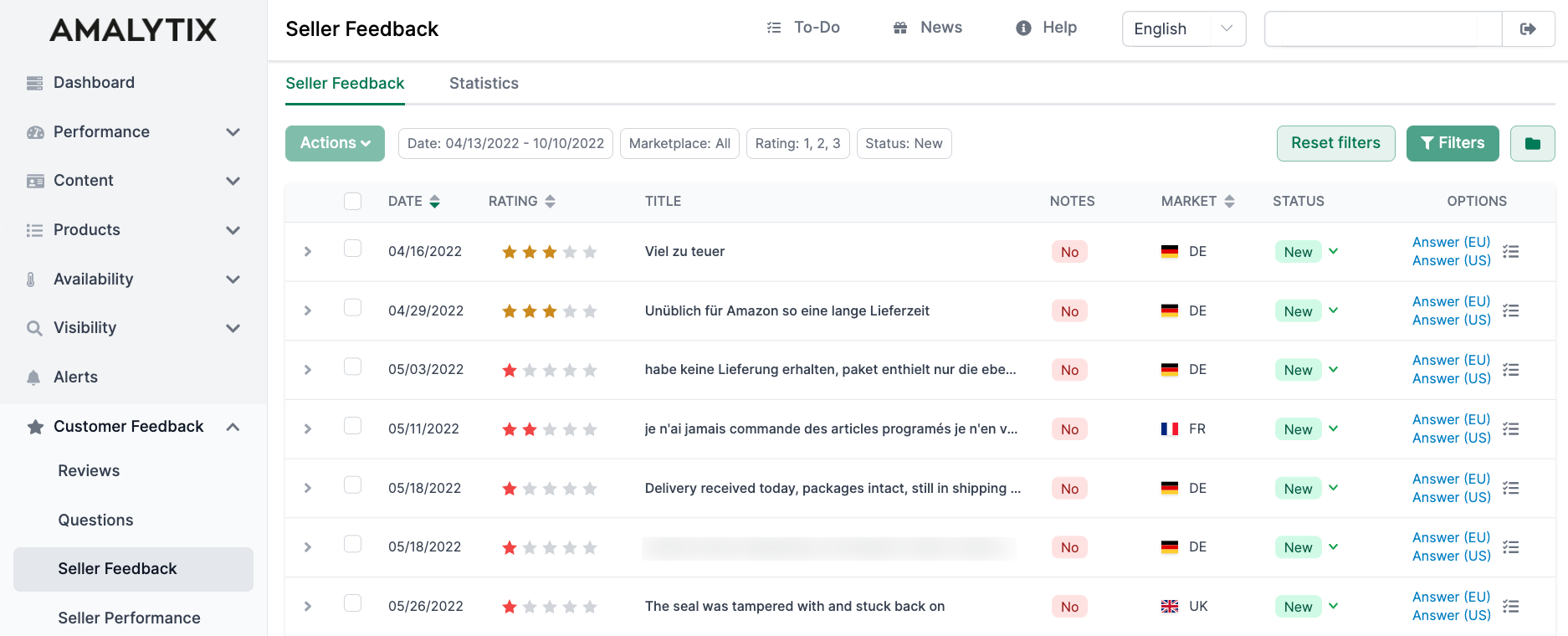
This page shows all feedback you receive as a seller. The page consists of two tabs:
- Seller Feedback: List view of all feedback
- Statistics: Visual analysis of feedback over time
- If the feedback is a positive product review, you can ask the buyer to post it as a product review instead.
- In case of a negative review regarding an FBA order, you can ask Amazon to delete it since Amazon was responsible for shipping.
Using the Seller Feedback Module
Filtering Feedback
You can filter feedback by various criteria:
- Date: Select a date range
- Marketplace: Filter by individual marketplaces or show all
- Status: Filter by New, In Progress, or Done
- Rating: Filter by star ratings (1-5)
By default, AMALYTIX shows new feedback with 1, 2, or 3 stars from the last 28 days. This way, you can see at a glance which negative reviews require your attention.
Sorting
Sort feedback by date (newest first) or by rating (worst first). Click on a column header multiple times to change the sorting order.
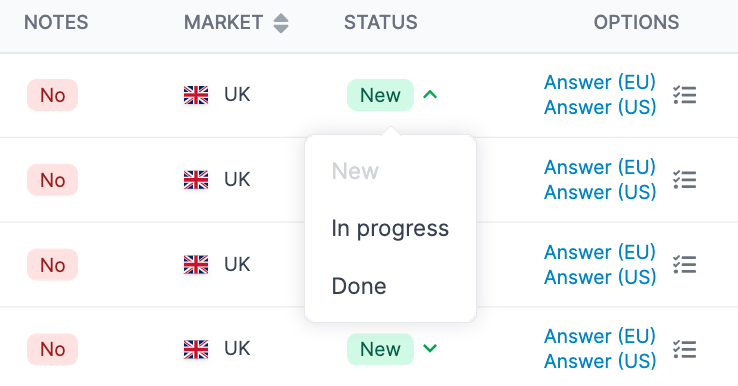
Changing Status
If you actively process feedback, you can update its status:
- New: Feedback that has not been processed yet
- In Progress: Feedback currently being processed
- Done: Feedback that has been processed
This gives you and your coworkers an overview of which feedback still needs attention.
You can change the status of individual feedback items or select multiple items and use the “Actions” button to change the status for all of them at once.
Responding to Feedback
To reply to seller feedback, click “Answer (EU)” or “Answer (US)” under “Options.” You will be redirected to Seller Central where you can respond to the feedback.
Translating Feedback
Click on a feedback item to open the detail view. For foreign-language feedback, click Translate to see an automatic translation.
Internal Notes
Add internal notes to feedback items that only you and your team can see. For example, you can document agreements with customers or the outcome of your processing.
Click on a feedback item and then on “Add Note.”
Creating Tasks
You can create a task directly from any feedback item:
- To-Do: Create a task in the AMALYTIX To-Do list
- Asana: Create a task in Asana (if the integration is set up)
Excel Export
Click “Download Excel List” at the bottom of the table to download all filtered feedback as an Excel file.
Seller Feedback Statistics
Click on the “Statistics” tab to get a visual analysis of your seller feedback.
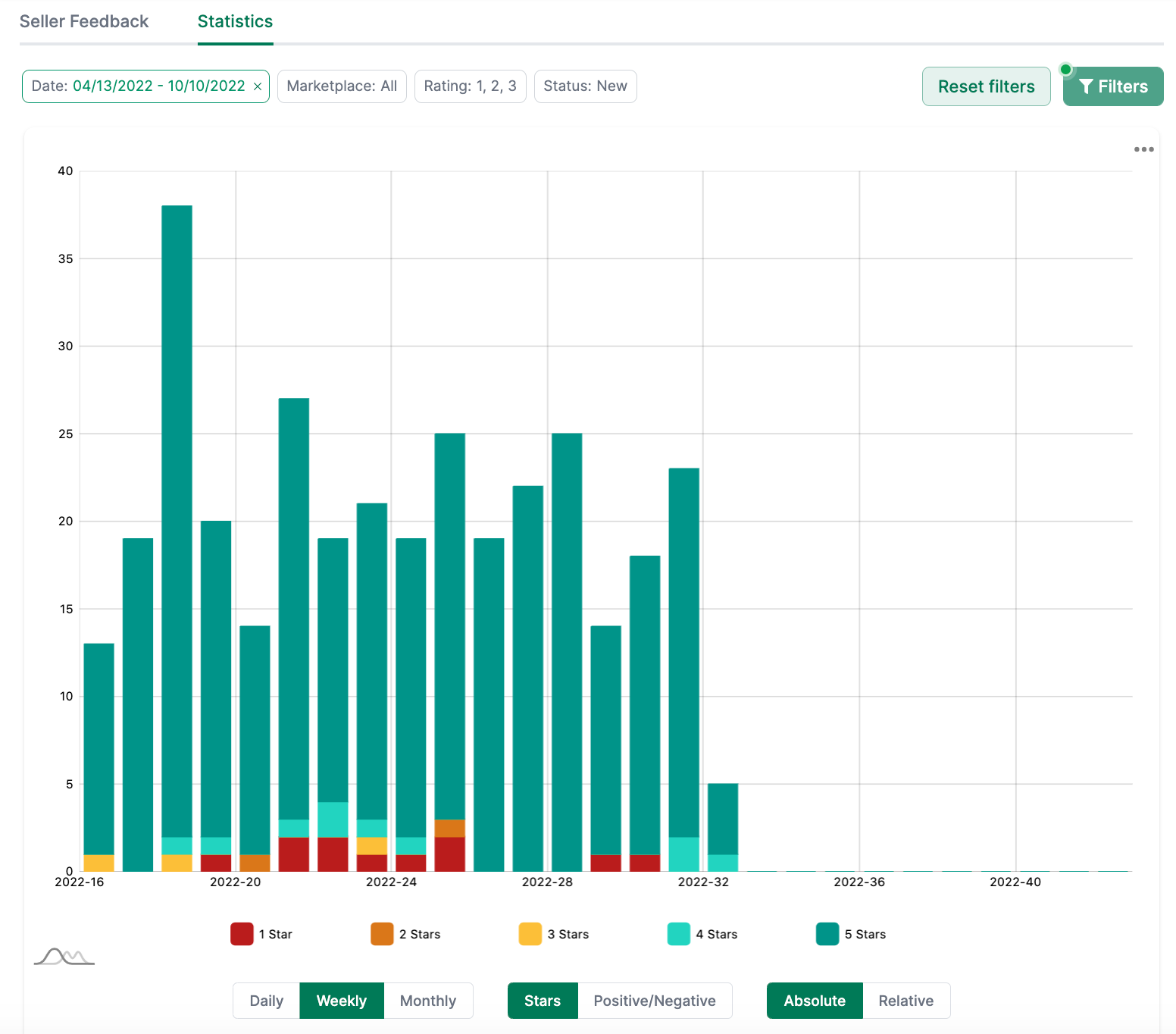
Here you can see the history of all seller ratings over time. The statistics use the same filter settings as the list view.
Alerts
You can receive automatic notifications for new seller feedback. The following alerts can be set up:
- Negative seller feedback: Triggers when negative feedback is detected (1, 2, or 3 stars)
- Positive seller feedback: Triggers when positive feedback is detected (4 or 5 stars)
Go to Settings / Alerts to activate one or more of these alerts.
Available Reports
You can export all seller feedback as a report. Go to Reports and select the Seller Feedback report. You can narrow down the results by marketplace and date.
Seller Feedback Report
- Description: Contains all your seller feedback received from customers
- Type: Seller
- Category: Customer Feedback
You can find a list of all columns in this report here.