Manage Products and Tags
On the Settings / Products page, you manage your product lists, upload snapshots, adjust the LQI calculation, and maintain your SKU data.
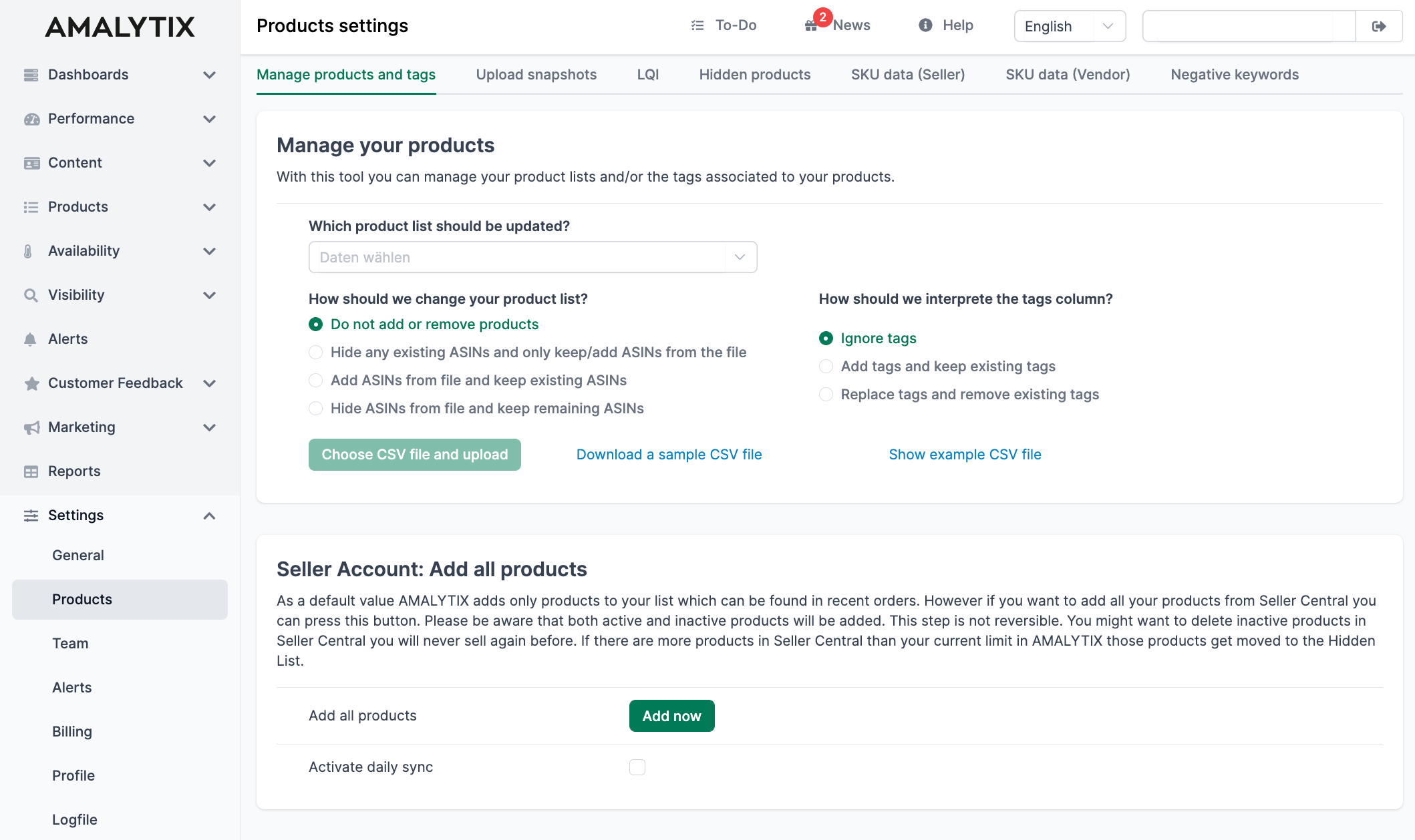
Manage Product Lists
Here you can control product lists and product tags. This function is particularly useful when you want to add, remove, or tag many products at once.
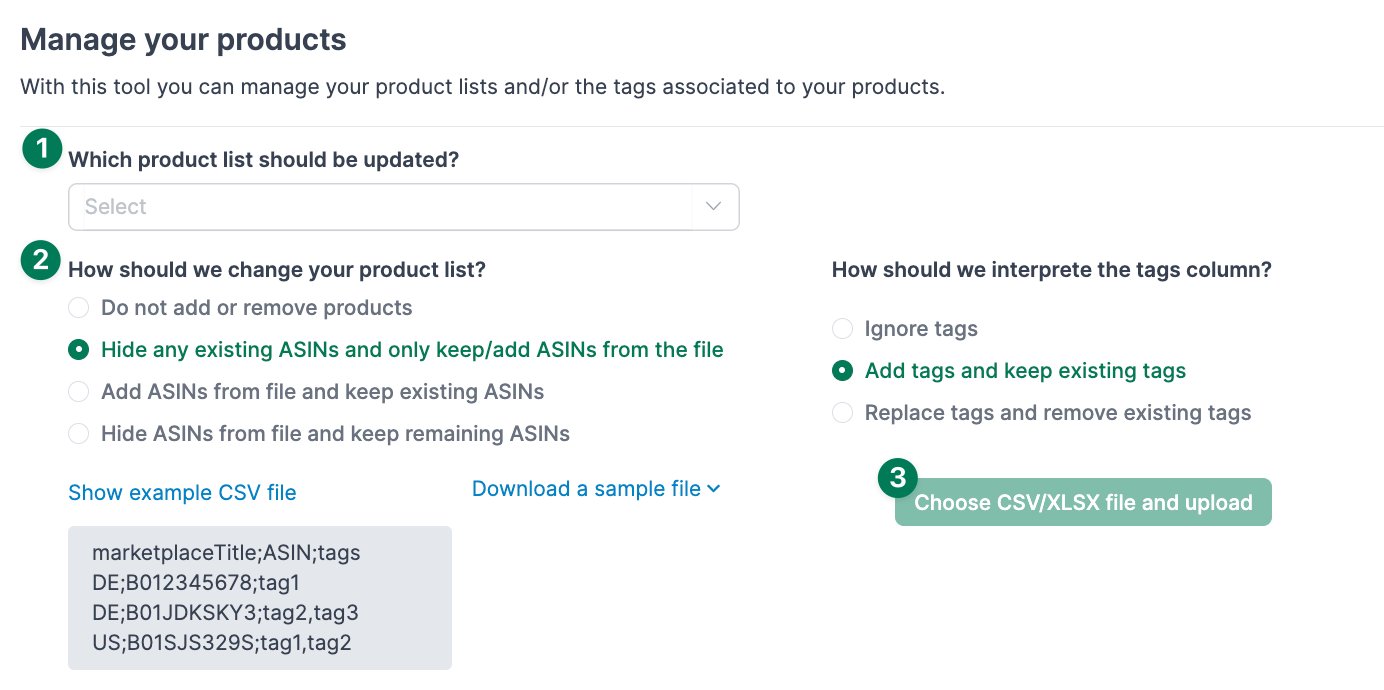
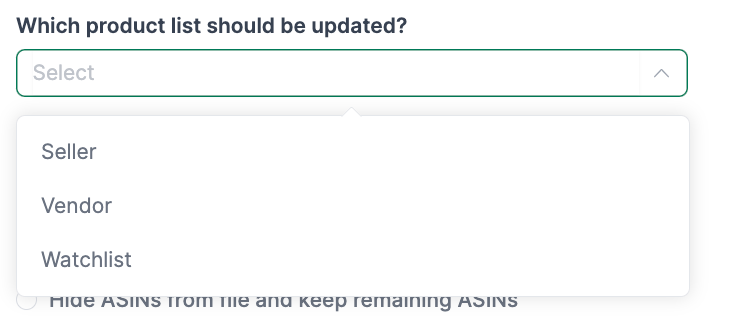
Step 1: Select Product List
Select which product list you want to update:
| List | Description |
|---|---|
| Seller Products | Products from your Seller Central account |
| Vendor Products | Products from your Vendor Central account |
| Watchlist | Products you want to monitor (e.g., competitor products) |
Step 2: Define Changes
Determine the desired changes to the product list:
Options for ASINs:
- Make no changes
- Delete all current ASINs and add the newly uploaded ones
- Keep all existing ASINs and add new ASINs to the product list
- Remove the uploaded ASINs from the product list
Options for Tags (if the uploaded table contains tags):
- Ignore the tag column
- Add new tags to existing ones
- Delete existing tags and add new ones
Step 3: Upload File
Upload a new product list as a CSV or Excel file. The file should contain the following columns:
| Column | Example | Required |
|---|---|---|
| Marketplace | DE, IT, FR | Yes |
| ASIN | B0123456789 | Yes |
| Tags | focus-products, summer | No |
Add All Products (Seller)
By default, AMALYTIX only adds products that appear in your orders. With this function, you can import all products from Seller Central - including inactive ones.
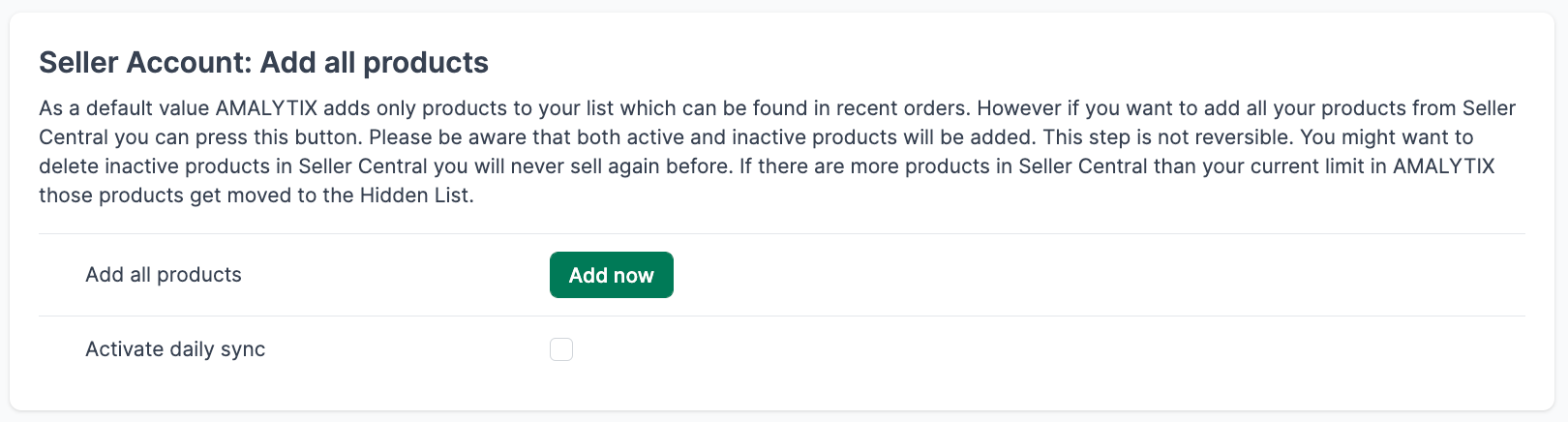
- All products will be imported, including inactive ones
- Delete products in Seller Central beforehand that you will never sell again
- This step cannot be undone
- If the number exceeds your plan limit, excess products will be shown under Hidden Products
Upload Listing Snapshots as CSV
With snapshots, you define the target state of your listings. AMALYTIX then compares the actual state with your target state and informs you of deviations.
To create multiple snapshots at once, upload a CSV file with the desired state of your products:

The following fields can be stored as snapshots:
- Product title
- Bullet points
- Keywords
- Product images
Tips for Uploading Product Images
When product images are uploaded via CSV file upload, you must provide links to the respective images in the CSV file. These links must:
- Be publicly accessible
- Lead directly to the image (no login, no embedded pages)
AMALYTIX accepts the following link formats:
1. Direct Links to Image Files
Links must point directly to image files with one of these extensions: jpg, png, gif, jpeg
Example: https://example.com/path/to/image.jpg
2. Google Drive Links
Images stored on Google Drive must be provided as direct download links:
Example: https://drive.google.com/uc?export=download&id=File-ID
3. Dropbox Links
For Dropbox links, the link must end with the parameter dl=1:
Example: https://www.dropbox.com/s/uniqueFileIdentifier/imageName.png?dl=1
LQI Settings
The Listing Quality Index (LQI) evaluates the quality of your listings based on your individual specifications. On this page, you define which criteria should apply to your listings:

You can specify, among other things:
| Criterion | Example |
|---|---|
| Title length | At least 80 characters, maximum 200 characters |
| Number of images | At least 5 images |
| Bullet points | At least 5 bullet points |
| Description | At least 500 characters |
These specifications are used for:
- Calculating the LQI score (0-100) for each listing
- Color visualization in the Content view for Seller Products or Vendor Products
Hidden Products
Here you find products that are currently not being actively monitored. Click the arrow on the right to make a product visible again.

When is a Product Hidden?
A product is automatically hidden when the number of added products exceeds the monitoring limit included in the selected plan.
Example: You are a Seller on the “Medium” plan with 500 products. If you have 800 products in total, 300 products will be placed on the “Hidden Products” list.
AMALYTIX automatically detects new products from your orders or catalog. If the product limit is already reached, the new product ends up directly in the “Hidden Products” list.
How Do I Choose Which Products Are Monitored?
You have several options:
-
Restore individually: Click the arrow to the right of the product in the list (only possible if your limit is not exhausted)
-
Restore multiple: Select multiple products and click Restore selected products
-
Via CSV upload: Upload a CSV file under Settings / Products / Manage product lists to adjust the selection - ideal for larger changes
I Cannot Find a Product
If a product appears neither in your product list nor under “Hidden Products”:
-
As a Seller: Click “Add now” under Settings / Products / Add all products
-
Check logfile: Look under Settings / Logfile to see if the ASIN currently cannot be added (e.g., due to a 404 error or unavailable variant)
Seller SKU Data
For each SKU, you can store additional data that will then be considered in analyses such as the dashboard.

Edit Data
Click “Edit” in the “Options” column to adjust individual SKUs:

Upload Data via CSV
Download the CSV file and fill in the corresponding columns:
| Column | Meaning | Format |
|---|---|---|
| Unit Cost | Net purchase price in Euro | Number (comma or period) |
| Shipping Cost | Shipping costs for self-fulfillment | Number |
| Min Inventory Level | Minimum stock level (FBA) | Integer |
| Inventory Lead Time | Minimum lead time in days (FBA) | Integer |
Please leave the first columns (SKU, ASIN, Product Title, MFN/AFN) unchanged.
If you have upload problems, check the file with a text editor. Some spreadsheet programs enclose each row in quotation marks - this is not correct.
Vendor SKU Data
As a Vendor, you can store the following data for each SKU:
| Column | Meaning |
|---|---|
| MSRP (gross) | Manufacturer’s suggested retail price |
| Amazon PP | Amazon’s purchase price |
| Manufacturing costs | Your production costs |
Download the CSV file and fill in the corresponding columns.
Please leave the first columns (SKU, ASIN, Product Title, MFN/AFN) unchanged.
If you have upload problems, check the file with a text editor. Some spreadsheet programs enclose each row in quotation marks - this is not correct.
Negative Keywords
With negative keywords, you get notified when certain terms appear in your listings. This is particularly useful for detecting legally problematic terms like “guarantee” or “cure.”

Choose Check Mode
Under Point 1, you specify how AMALYTIX should check the negative keywords:
| Option | Description | Recommended for |
|---|---|---|
| Option A | Check only when listing changes (default) | Most use cases |
| Option B | Daily check of the current version | Strict monitoring, may lead to more alerts |
With Option A, no alert is triggered when:
- The listing already contains the negative keyword (e.g., "guarantee" on day 1)
- You attach yourself as a seller to the listing later (day 3)
Since the listing has not changed, no alert is generated. Therefore, check listings beforehand with the "Product list long" report.
Additional Settings
Under Point 2, you can specify that you only want to be notified if you also had an active offer within the last 24 hours.
Use Whitelist
You can whitelist keywords to avoid false alarms.
Example: You want to be notified for “guarantee” but not for “guaranteed.” Put “guaranteed” on the whitelist.

Related Topics
- Manage Seller Products - Overview and content view for Sellers
- Manage Vendor Products - Overview and content view for Vendors
- Configure Alerts - Set up notifications for product changes
- Logfile - Check errors and warnings for product imports