Monitor and Create Amazon A+ Content
The following video provides a good overview of how you can monitor your A+ Content on Amazon with AMALYTIX:
Overview
The A+ Content page in AMALYTIX gives you a complete overview of all your A+ documents on Amazon. At a glance, you can see:
- Which A+ documents you have (Standard, Premium, or Brand Story)
- The approval status of each document
- Which products the documents are assigned to
- Whether the documents are actually published on Amazon
This helps you track the consistency and effectiveness of your A+ Content and identify optimization opportunities.
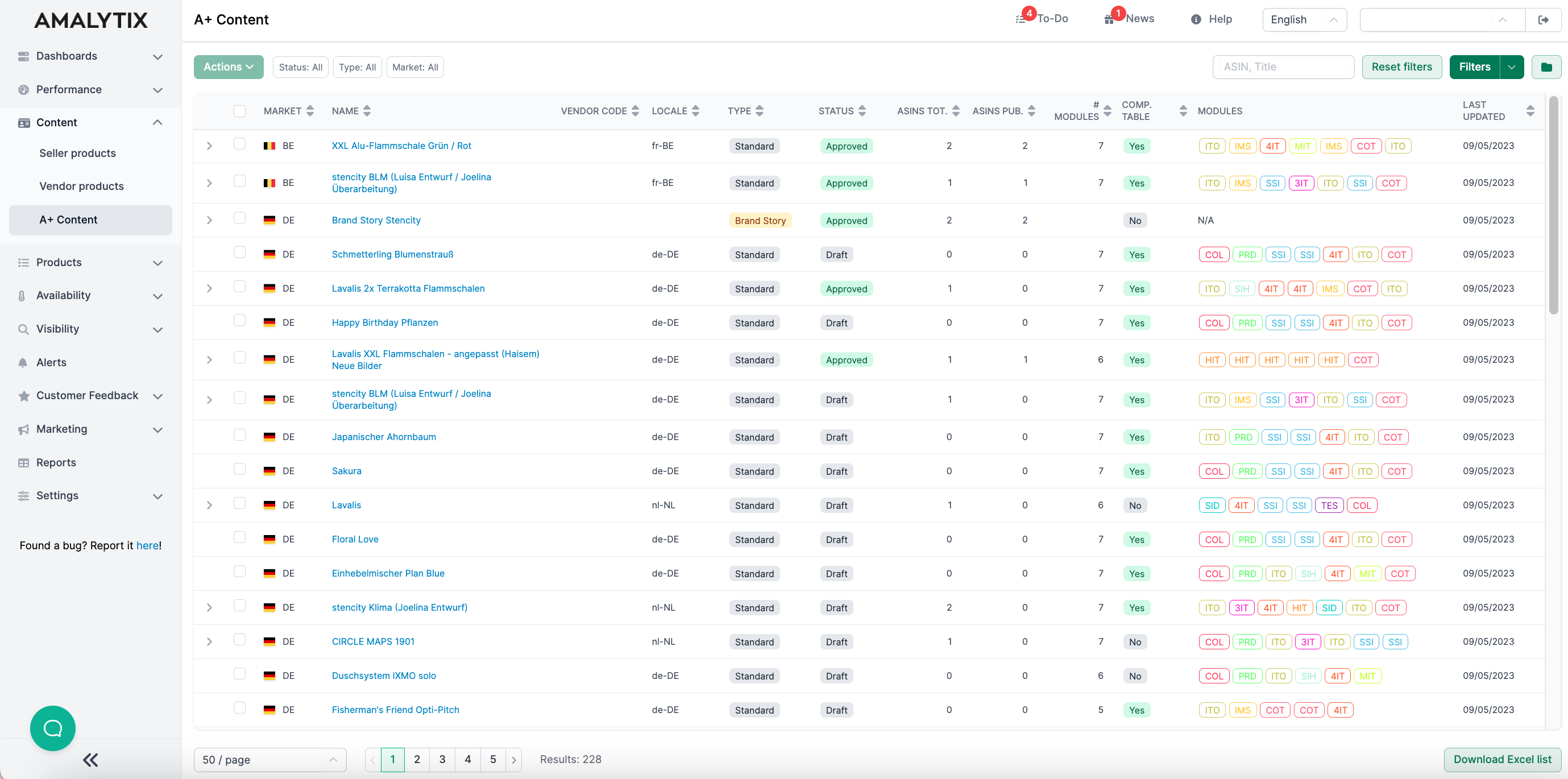
Structure of the A+ Content Page
The A+ Content page is divided into three sections:
Existing
Here you’ll find all your existing A+ documents from Amazon. The table shows all relevant information such as status, type, assigned ASINs, and modules used.
Drafts
The Drafts tab shows all documents that have not yet been published on Amazon. This includes:
- AI-generated documents: A+ documents you created using AMALYTIX’s AI feature (see Create A+ Content with AI)
- Failed translations: Documents where the translation or upload to another marketplace failed
You can edit, adjust, and then publish all drafts to Amazon.
History
The History tab records all activities related to your A+ documents. Here you can see when documents were created, translated, or updated.
Available Columns
The table provides the following information for each A+ document:
- Marketplace: The Amazon marketplace (e.g., DE, UK, FR)
- Name: The name of the A+ document
- Vendor Code: The associated Vendor Code, if applicable
- Locale: The language of the document. This is displayed separately from the marketplace because A+ Content can be uploaded in different languages for the same marketplace. For example, customers who switch to English on the German marketplace will see A+ Content in English.
- Type: Distinguishes between Standard A+ Content, A+ Premium Content, and Brand Story
- Status: The Amazon status of the document:
- Approved: The document has been approved by Amazon
- Draft: The document has not yet been submitted
- Submitted: The document is awaiting review by Amazon
- Rejected: The document was rejected by Amazon
- ASINs total: Number of ASINs the document is assigned to
- ASINs published: Number of ASINs where the A+ Content is actually displayed on Amazon
- Number of Modules: The number of A+ modules in the document
- Comparison table: Indicates whether the document contains a comparison table (Yes/No)
- Modules: Shows the module types used as abbreviations (e.g., ITO = Image Text Overlay, COT = Comparison Table). This helps you quickly see how consistently your A+ documents are structured.
- Last updated: Date of the last change
Filters and Search
Use the search field to search by ASIN or title. Click “Filter” to access advanced filter options:
- Marketplace: Filter by specific Amazon marketplace
- Status: Filter by approval status (Approved, Draft, Submitted, Rejected)
- Type: Filter by A+ Content type (Standard, Premium, Brand Story)
- ASIN: Search for a specific ASIN
- Comparison table ASIN: Search for ASINs contained in comparison tables
- Vendor Code: Filter by Vendor Code
- Locale: Filter by document language
- Name: Search by document name
- Has comparison table: Show only documents with or without a comparison table
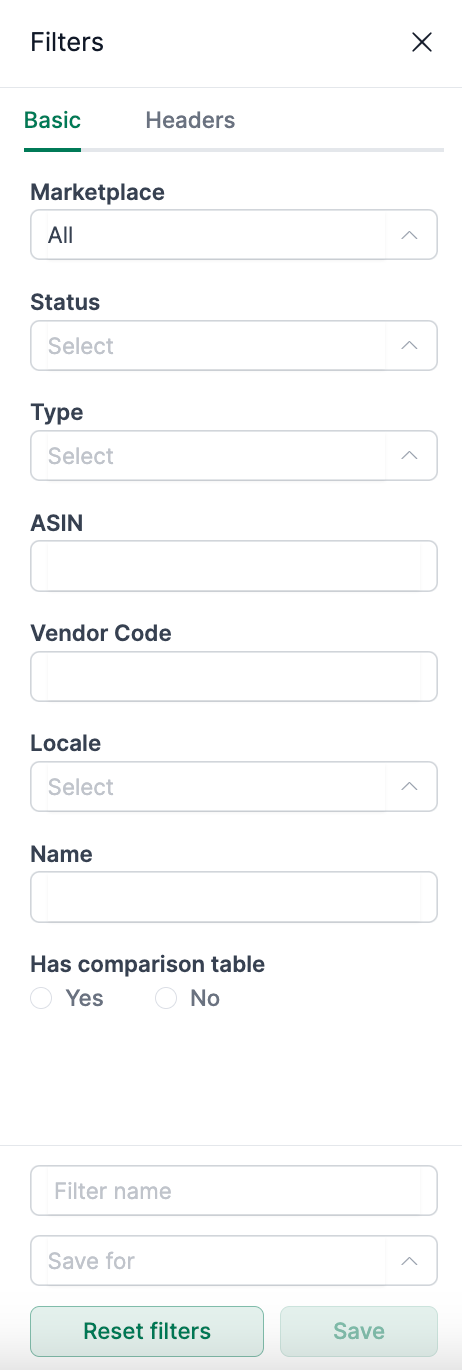
You can save your filter settings to quickly recall them later.
Translating and Duplicating A+ Content
AMALYTIX offers a convenient feature that lets you transfer A+ Content to other marketplaces with just a few clicks. The video explains the process:
How It Works
- Select one or more A+ documents in the table (Standard A+ Content only)
- Click “Actions” and then “Duplicate selected documents”
- Choose the target marketplace and desired language
- Click “Start”
AMALYTIX automatically translates the text using DeepL and attempts to upload the document to the target marketplace. The new document appears as a draft first, so you can review it before publishing.
Create A+ Content with AI
AMALYTIX lets you automatically generate new A+ Content using AI. Based on your product data, the AI creates matching text for your desired A+ modules.
How It Works
- Click Create new
- A multi-step wizard guides you through the process:
Step 1: Select a Product
Choose the product for which you want to create A+ Content. You can search by ASIN or product title.
Steps 2 and 3: Choose a Template
Decide whether the content should be created from scratch or whether an existing A+ document should serve as a template. If you choose an existing document, the same modules will be used as a template.
Step 4: Select Modules
Use drag-and-drop to select which A+ modules your document should contain (up to 7 modules). Available module types include:
- Standard Text
- Image Text Overlay
- Single Side Image
- Four Image Text
- Comparison Table
- and many more
Step 5: Configuration
Set the details:
- Document name (auto-populated with the product title)
- Language/Locale of the document
- AI Agent (optional: select a predefined agent for a specific writing style)
You can also specify whether the text from the template should be passed along, so the agent can match its tonality.
Step 6: Review & Generate
Review your selections and click Generate. The AI will now create text for all selected modules. This may take a few minutes – progress is shown in the Drafts tab.
Edit and Publish the Draft
After generation, the new document appears in the Drafts tab. AI-generated documents are marked with a corresponding icon. Open the draft to:
- Review and edit the generated text
- Add images: Click on image placeholders to select images from your media gallery. Images are automatically cropped to the required dimensions.
- Add additional modules if needed
Once you are satisfied with the result, click Publish to submit the document to Amazon.
Viewing Assigned Products
Click the arrow to the left of an A+ document to expand the list of assigned products. For each product, you’ll see:
- Product image
- ASIN
- Parent ASIN (if applicable)
- Publication status (whether the A+ Content is visible on this ASIN)
Excel Export
Click the “Download Excel List” button to export all displayed A+ documents as an Excel file. This is useful for:
- Detailed analysis
- Sharing information with colleagues
- Documenting A+ Content status